
Sooner or later, someone will ask which Windows you’re running. A guide might only apply to certain versions, or a support person needs the build number, and “Windows 11” won’t get you very far. Luckily, the answer is only a few seconds away.
The quick way: Settings
Right-click Start, select Settings, then System, then About. Or enter ms-settings:about in Run (Win + R).
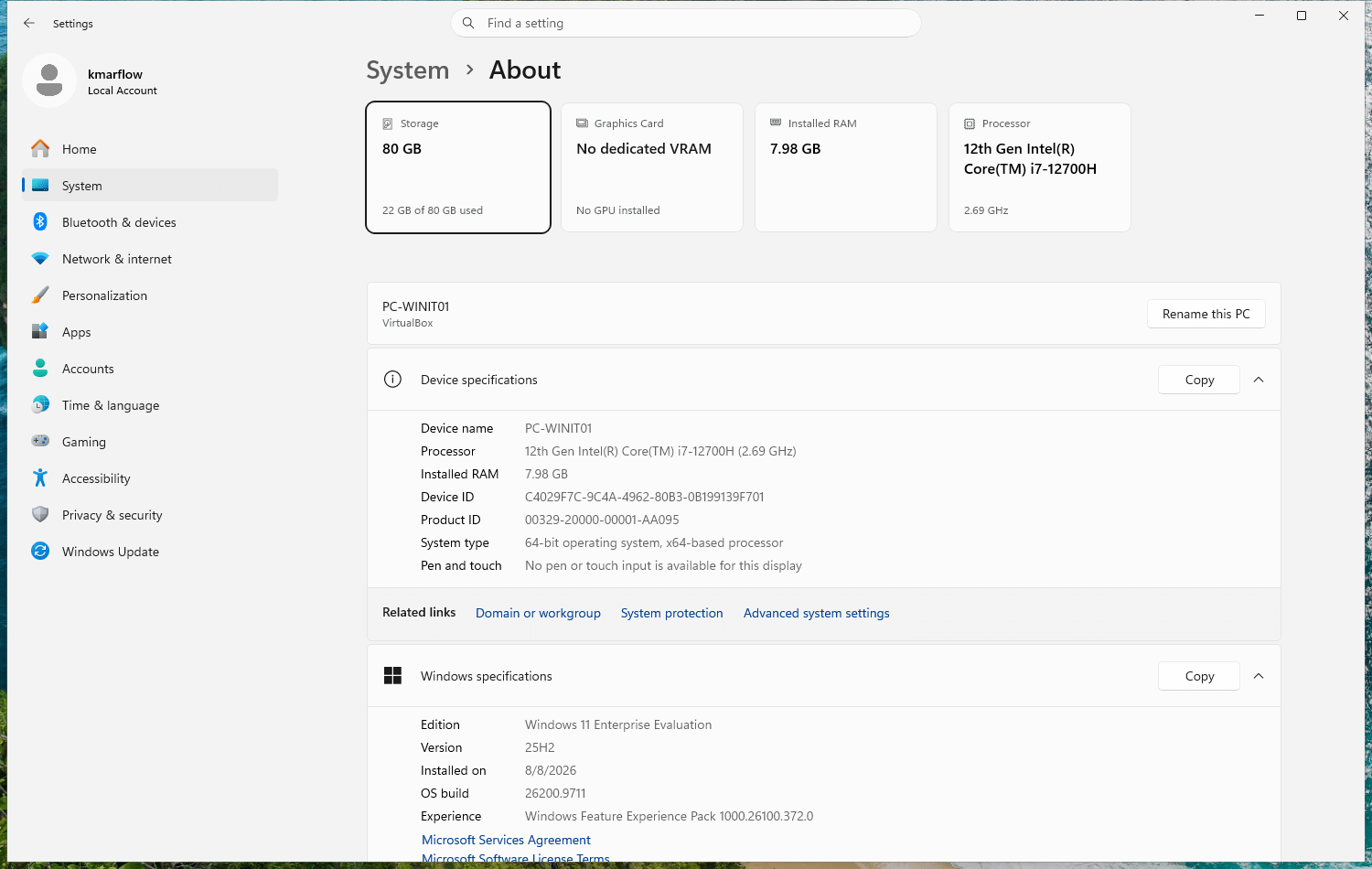
Your device name is at the top, with the model below it, and under that there are two sections:
- Device specifications has Device name, Processor, Installed RAM, Device ID, Product ID, System type and Pen and touch. System type is where you see whether it’s a 32-bit or 64-bit Windows.
- Windows specifications has Edition, Version, Installed on, OS build and Experience.
Check your Windows version even quicker: winver
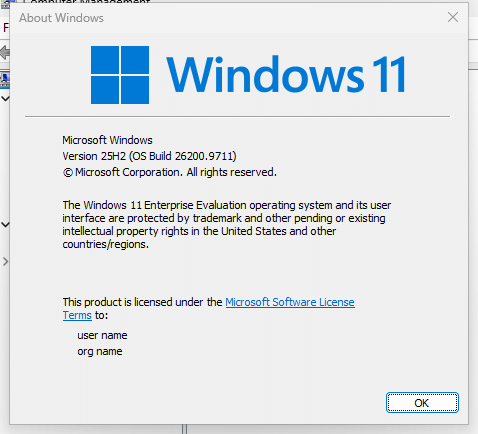
Press Win + R, type winver and press Enter. A small window tells you your version and build. It looks the same on every PC, so it’s the one to remember when you’re on the phone with someone.
What do these numbers even mean?
| Term | What it is | Example |
|---|---|---|
| Edition | Which type of Windows you have | Home, Pro, Enterprise |
| Version | Which release you’re on | 25H2 |
| Build | The exact state of the software, which changes with updates | 26200.9711 |
The build has two parts. The first number goes with the version: 26200 means 25H2. The number after the dot goes up as you install updates: my test machine went from 26200.6584 to 26200.9711 just by updating, still on 25H2 the whole time.
On Microsoft’s release page dated 2026-10-28, the latest build of 25H2 is 26200.9818. So if yours starts with 26200 but ends in a lower number, you’re on 25H2 with a few updates still to come.
The current versions of Windows 11
As of that same page:
| Version | Build | Available since | Updates end (Home, Pro) | Updates end (Enterprise, Education) |
|---|---|---|---|---|
| 25H2 | 26200 | 2025-09-30 | 2027-10-12 | 2028-10-10 |
| 26H2 | 26300 | 2026-09-29 | 2028-10-10 | 2029-10-09 |
| 26H1 | 28000 | 2026-02-10 | 2028-03-14 | 2029-03-13 |
The date to keep an eye on is the end of updates, because after that, your version stops getting them, security fixes included. Check the release page for the current dates.
26H1 is an odd one. Microsoft states it’s for new devices that came to market in early 2026, and that existing PCs on 24H2 or 25H2 aren’t offered it as an update. So if you don’t have it, nothing’s wrong with your PC.
Why the versions are so close together
Going from 24H2 to 25H2 isn’t a big upgrade. Microsoft states the two share a common core with an identical set of system files. The new features arrived in monthly updates, switched off, and a small package called an enablement package flips them on, with one restart. Microsoft calls it a “master switch”. It describes 26H2 as sharing a servicing branch with both and arriving the same way, in most cases with a single restart.
How all of that works is a topic for the Windows Update course.
When you need more detail
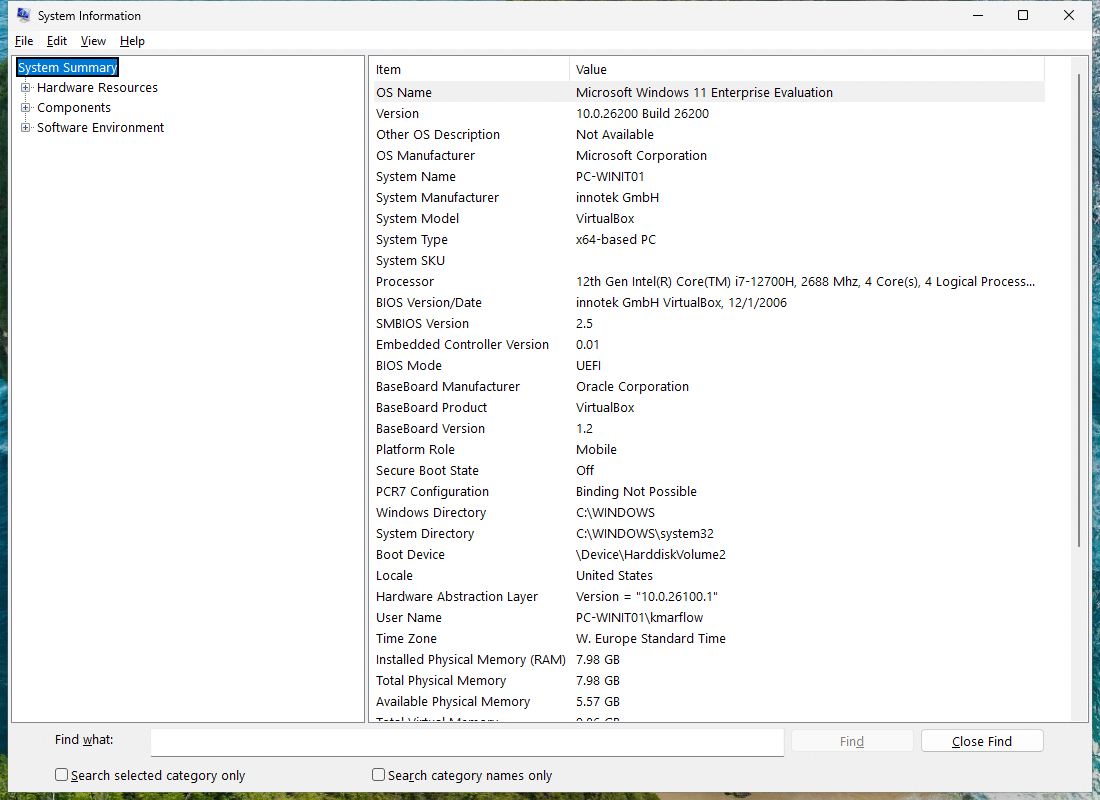
System Information gives you the full view of your hardware, components and software. Press Win + R, type msinfo32 and press Enter. Microsoft suggests running it as administrator so that it reports drivers and services accurately. The System Summary page already answers many questions, with things like BIOS Mode, Secure Boot State and Installed Physical Memory (RAM). What BIOS mode and Secure Boot actually do is part of the boot sequence in How Windows Works.
The command line gives you the same thing as text you can copy, for instance into a support request. Open Terminal and run:
systeminfoHost Name: PC-WINIT01
OS Name: Microsoft Windows 11 Enterprise Evaluation
OS Version: 10.0.26200 N/A Build 26200That’s only the start of it, it goes on for a while. For just the version information:
Get-ComputerInfo -Property 'OsName', 'OsVersion', 'OsBuildNumber', 'OSDisplayVersion'OsName : Microsoft Windows 11 Enterprise Evaluation
OsVersion : 10.0.26200
OsBuildNumber : 26200
OSDisplayVersion : 25H2Yes, version 10.0 on Windows 11. That’s not a mistake on your PC. I ran this in Windows PowerShell, which is what Windows 11 comes with.
One warning: some guides read the Windows version from the Registry, from a value called ProductName. Don’t rely on that one. On my Windows 11 test machine, it still says “Windows 10 Enterprise Evaluation”. The two commands above get it right.
And to see what’s filling up your drive, go to Settings > System > Storage.
So much for what you can see. Next up is who’s actually using this PC: User accounts and profiles.
References
Tested on Windows 11 25H2, build 26200.9711, in a virtual machine: the About page, winver, System Information, and both commands.
- Find information about your Windows device, Microsoft Support, no date shown.
- What version of Windows am I running?, Microsoft Learn, last updated 2026-08-24.
- Windows 11 release information, Microsoft Learn, last updated 2026-10-28.
- KB5054156: Feature update to Windows 11, version 25H2 by using an enablement package, Microsoft Support, no date shown.
- What’s new in Windows 11, version 26H2 for IT pros, Microsoft Learn, last updated 2026-09-29.
- System configuration tools in Windows, Microsoft Support, no date shown.
- systeminfo, Microsoft Learn, last updated 2023-02-03.
- Get-ComputerInfo, Microsoft Learn, no date shown.
Leave a Reply