
Now that you know your way around File Explorer, let’s bend it to your will a little. We’ll start with what you can reach in one or two clicks, and then open the dialog with all the File Explorer options.
How your files are shown
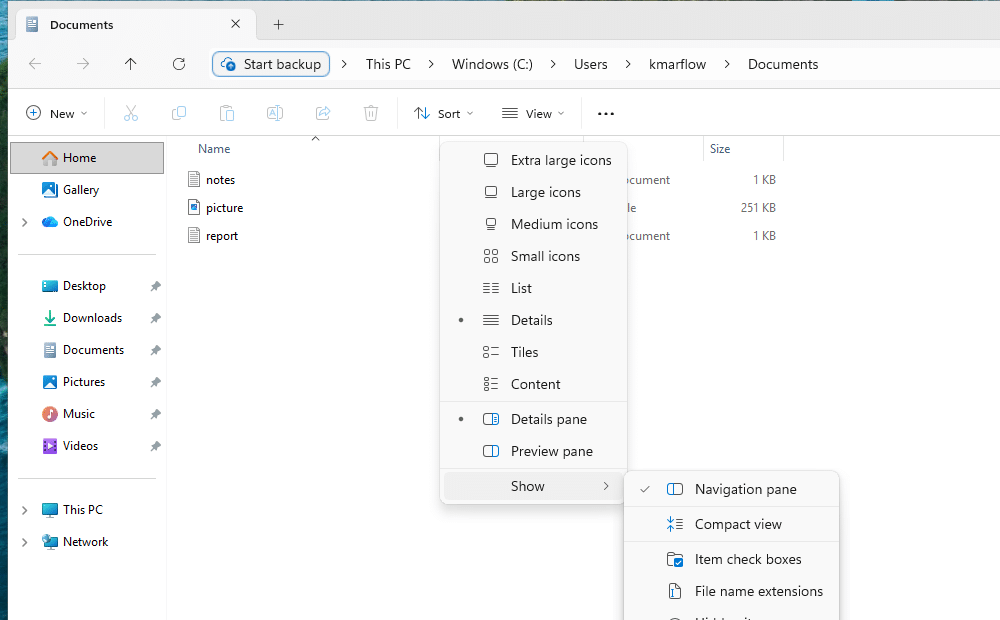
Select View to switch between Extra large, Large, Medium and Small icons, List, Details, Tiles and Content. If you’ve never tried Details, do: it shows columns like the date a file was changed, and you can sort by them. If things feel too spread out, View > Show > Compact view reduces the space between files.
You don’t even need the menu. Hold Ctrl and scroll the mouse wheel to change the icon size, or press Ctrl + Shift and a number to pick a view. Ctrl + Shift + 2 is Large icons and Ctrl + Shift + 6 is Details.
Sorting, grouping and more columns
Sort puts things in order by name, date modified, type and more, ascending or descending, and its Group by entry clumps similar files together.
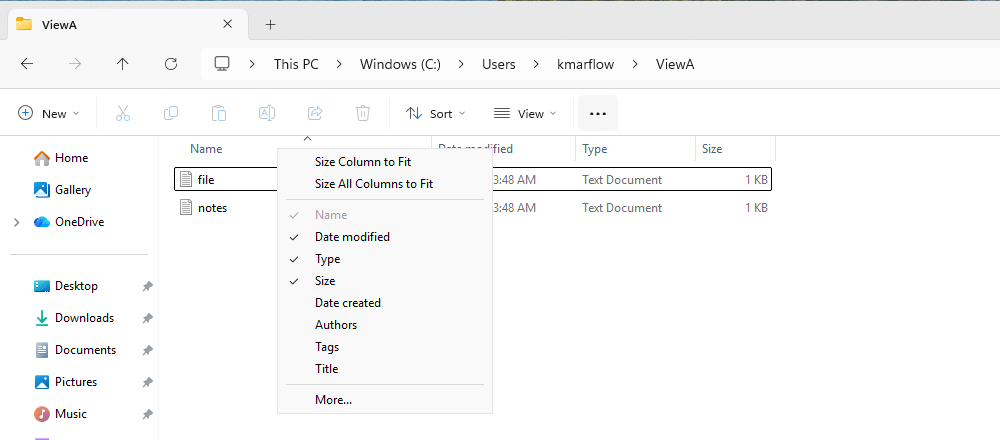
In Details view, right-click a column heading to add columns such as Date created, Authors or Tags, with More… for the full list. Size All Columns to Fit is the one for when your file names are cut off.
The preview and details panes
Alt + P shows a preview of the selected file on the right, without opening it. Alt + Shift + P shows its details instead, such as size and date. A text file shows its contents in the preview, while a zip file on my test machine only got “No preview available”.
Every folder remembers its view
File Explorer doesn’t use one view for everything. On my test machine Documents opens in Details and Pictures in large icons. When I switched one plain folder to Large icons, the other folders stayed as they were, and that folder was still on Large icons when I came back to it. I found no official page on this, so that’s my test talking.
Want all folders of a type to look the same? Set up one the way you like it, open Folder Options from that window, and on the View tab select Apply to Folders. Reset Folders takes it back. I didn’t run those two through, but open the dialog from a folder window for this: through control folders, Apply to Folders is grayed out.
Three settings most people want
All three are under View > Show:
| Setting | What it does |
|---|---|
| File name extensions | Shows the end of the file name, like .txt in notes.txt, which tells you the type of file |
| Hidden items | Shows files and folders that are normally hidden |
| Item check boxes | Adds a check box next to each item, so you can select several without holding a key |
Extensions and hidden items are both off on a clean Windows 11, so notes.txt just shows up as notes. Extensions are also what Windows goes by when it decides which app opens a file.
One setting most people don’t know, but want
The fourth one is buried deeper, and it’s the one I’d switch on first: Launch folder windows in a separate process.
Normally, your folder windows, your desktop and your taskbar all live in the same program. So when something goes wrong in there, like a crashing add-on, everything goes down together. With this setting on, your folder windows run in processes of their own, and when one crashes or gets stuck, your desktop and taskbar carry on working.
It’s in Folder Options, so we’ll turn it on further down.
The right-click menu
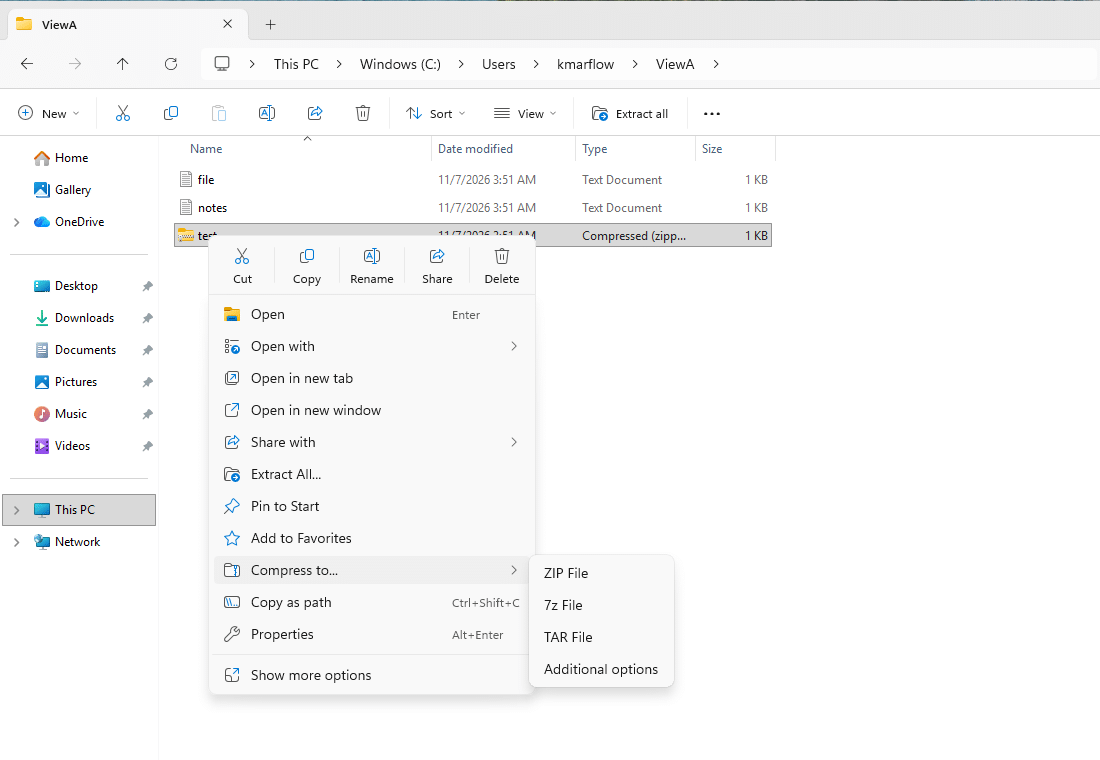
Right-click a file and you get a short menu, with Cut, Copy, Rename, Share and Delete as icons at the top. Hover over an icon if you can’t tell which is which, you’re not the only one.
Missing something you remember being there? Select Show more options for the longer menu, or hold Shift while you right-click to go straight to it. Send to, for example, is only in the long one, and some apps’ entries only appear there too, since not every app has been updated for the new menu.
A few entries are especially handy:
- Copy as path (
Ctrl + Shift + C) copies the file’s full path, which saves a lot of typing when a guide or a support person asks for it. - Compress to… packs up what you selected as a ZIP File, 7z File or TAR File.
- Extract All… does the reverse on a zip file, and it also shows up as Extract all on the command bar.
- Properties (
Alt + Enter) shows the type, location, size and dates of a file, and on an NTFS drive it has a Security tab too. That one gets its own article.
Pin the folders you use
Right-click any folder and select Pin to Quick access, and it shows up on Home and in the navigation pane. To remove it again, right-click it and select Unpin from Quick access.
Unpinned one of the default folders and want it back? Select Home, select the Up arrow next to the address bar, right-click the folder and select Pin to Quick access.
File Explorer options: all the settings in one place
Everything so far was the shortcut version. The full list lives in a dialog called Folder Options. To open it, select the three dots on the command bar, then Options. You can also enter control folders in Run (Win + R), which opens the same dialog under its other name, File Explorer Options. Yes, Windows calls it both.
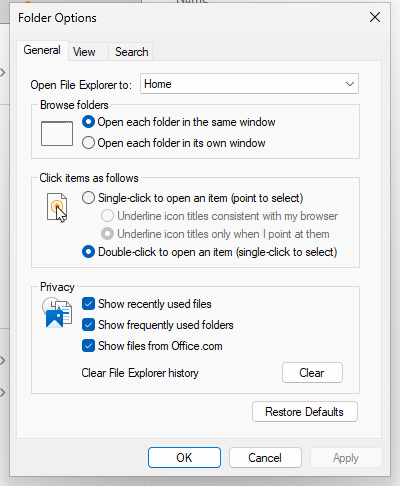
It has three tabs. This article covers General and View, while Search belongs to Search and indexing.
Choose where File Explorer starts
File Explorer opens on Home by default. If you’d rather land on your drives, go to the General tab, set Open File Explorer to to This PC and select Apply.
Microsoft recommends staying on Home, because it finds your files faster and shows recent cloud files. I see that differently. Home is known to cause issues: it can slow down File Explorer, or even all of Windows, and sometimes it crashes Explorer the moment it starts. So if File Explorer feels sluggish or dies as soon as you open it, this setting is one of the first things I’d change. Microsoft knows about this, too: a 2025 update fixed File Explorer becoming unresponsive when opening Home, and “launches faster and is more responsive” is on its list of what’s new in 26H2.
This only changes the starting point, and you can still reach both from the navigation pane.
History and privacy
Home lists the files and folders you’ve used lately, which is handy until you’re sharing your screen in a meeting. The Privacy section of the General tab controls that, with three checkboxes that are all on by default:
- Show recently used files
- Show frequently used folders
- Show files from Office.com
To stop the lists from being filled, clear the checkboxes. To remove what’s already there, select Clear next to Clear File Explorer history.
I found no Microsoft page on what Clear actually covers, so here’s what it did on my test machine: the recent files on Home were gone, and so were the paths I’d typed into the address bar. My pinned folders stayed, and the cleared entries hadn’t come back after a few restarts.
Open folder windows in a separate process
This is the one from earlier. It sits on the View tab, under Advanced settings: Launch folder windows in a separate process. It’s off by default. Tick it, select OK, and new folder windows use it right away, no restart needed.
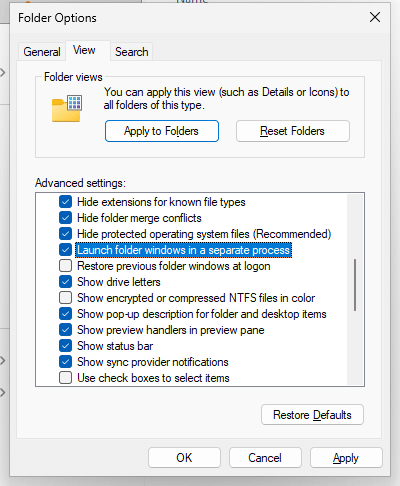
Remember from the previous article that add-ons run inside Explorer? Microsoft warns that if one of them crashes or hangs, Explorer does too. Without this setting, that’s the same Explorer running your desktop and taskbar, so one badly written add-on can freeze or restart the lot.
This setting puts up a wall between them. I found no Microsoft page that really explains it, so I tested it on my test machine, ending and freezing the process by hand to stand in for a crash and a hang:
| What happens | Setting off (default) | Setting on |
|---|---|---|
explorer.exe processes with folder windows open | 1, for everything | At least 2: one for the desktop and taskbar, and the rest for folder windows |
| A folder window’s process hangs | Folder windows, desktop and taskbar all stop responding | The windows in that process stop responding, desktop and taskbar keep working |
| A folder window’s process crashes | Everything disappears, and on my test machine Explorer restarted by itself within a second or so. Your open folder windows are gone | The windows in that process are gone. Desktop and taskbar don’t even blink |
It helps between the folder windows themselves as well. Microsoft’s PowerToys documentation words it as each folder window running in its own process, and I have this setting on myself: when one window crashes, the others stay open. On a freshly signed-in test machine, it depended on how I opened them:
| How the window was opened | Which process it runs in |
|---|---|
Win + E, Ctrl + N, a path in Run, Shift + click on the taskbar icon, a desktop icon | One process, shared by all of these |
explorer C:\Users in Run, or a program starting explorer.exe | Its own process, one for each window |
| A new tab | The same process as its window |
I ended those processes one at a time. Each time, only the windows inside that process disappeared, while the other folder windows, the desktop and the taskbar carried on. So if you want a folder window completely on its own, open it with explorer and a path.
The price is a bit of extra memory for each extra process, around 170 MB in my test with an empty folder window. I’d pay that any day.
The Start menu isn’t part of this, by the way. On Windows 11 it has its own process, StartMenuExperienceHost. With the setting on, it wasn’t touched at all. With it off, it restarted along with Explorer.
Other settings on the View tab
The list is long, and most of it can stay as it is. These are the ones worth knowing:
| Setting | What it’s for | Default |
|---|---|---|
| Always show icons, never thumbnails | Plain icons instead of little previews of your pictures | Off |
| Display the full path in the title bar | The whole path instead of only the folder’s name | Off |
| Hide protected operating system files (Recommended) | Keeps the really sensitive files out of sight | On |
| Restore previous folder windows at logon | Reopens your folder windows when you sign in | Off |
| Show preview handlers in preview pane | What makes the preview pane work | On |
| Use check boxes to select items | The same as Item check boxes from earlier | Off |
| Show libraries | Adds libraries to the navigation pane | Off |
| Expand to open folder | Makes the navigation pane follow you to the folder you’re in | Off |
| Show all folders | Adds more of the tree to the navigation pane | Off |
The General tab has two more that change how it feels. Browse folders decides whether each folder opens in the same window or in its own, and Click items as follows switches between double-click and single-click.
Protected operating system files stay hidden for a reason
Untick that setting and Windows warns you first: these files are needed to start and run Windows, and deleting or editing them can leave your PC unusable. So only do this when a guide you trust needs you to, and tick it again afterward.
If you’ve gone a bit too far with all of this, Restore Defaults undoes it. Each tab has its own. I switched on file name extensions, selected Restore Defaults on the View tab, then OK, and they were hidden again.
When icons and thumbnails look wrong
File Explorer doesn’t read every picture and icon again each time you open a folder, that would take forever. It keeps caches, in %LOCALAPPDATA%\Microsoft\Windows\Explorer: iconcache_*.db for icons, and thumbcache_*.db for thumbnails. If an icon is wrong or a thumbnail shows an old version of a picture, the cache is the usual suspect, and Windows simply rebuilds it when it’s gone. Those paths are what I found on my test machine, not something from Microsoft’s pages.
For thumbnails, go to Settings > System > Storage > Temporary files, tick Thumbnails and select Remove files. Windows itself says they’re recreated as needed.
For icons, there’s no such entry. Explorer needs to be gone first, so your taskbar disappears for a moment. Run this in Terminal, as one line, so the files are gone before Explorer returns:
Stop-Process -Name explorer -Force; Remove-Item "$env:LOCALAPPDATA\Microsoft\Windows\Explorer\iconcache_*.db" -ForceExplorer normally comes back by itself within seconds. On my test machine it did so every time and rebuilt all 15 files, and my own PC logged it as “The shell stopped unexpectedly”. Don’t count on it though: on my own PC it used to stay gone, and I couldn’t work out what changed. So if your taskbar hasn’t returned after a few seconds, start Explorer yourself:
Start-Process explorerWhat’s different in 26H2
This course is based on 25H2. Microsoft’s list of what’s new in 26H2 says File Explorer’s View and Sort preferences are now preserved, and adds quick actions on hover and more archive formats. My test machine runs 25H2, so these are Microsoft’s statements, not tested here.
References
Tested on Windows 11 25H2, build 26200.9711, in a virtual machine: the menus, Folder Options labels and defaults, what clearing the history removes, how the separate process option behaves, and the cache files.
- File Explorer in Windows, Microsoft Support, no date shown.
- Keyboard shortcuts in Windows, Microsoft Support, no date shown.
- Releasing Windows 11 Builds 26100.7015 and 26200.7015 to the Release Preview Channel, Windows Insider Blog, Microsoft, 2025-10-21.
- PowerToys Run Quick Launcher for Windows, Microsoft Learn, last updated 2026-09-14. Names the separate process setting and where it is.
- Working with Shell Extensions, Microsoft Learn, last updated 2026-07-17. Add-ons load into the Explorer process, and a crash or hang there affects Explorer.
- Windows Libraries, Microsoft Learn, last updated 2025-08-18.
- What’s new in Windows 11, version 26H2 for IT pros, Microsoft Learn, last updated 2026-09-29.
Leave a Reply