
You want to change something in Windows. You open Settings, click through three pages, and suddenly land in a window that looks twenty years older. You didn’t do anything wrong, Windows really is like that.
It’s a house move that has been going on for years. Most of the furniture is in the new place, some boxes are still in the old one, and a few specialist tools are in the garage. Let’s go through them, starting with the place you’ll use most.
Settings: the new house
Settings is the main app for customizing and managing Windows, and Microsoft encourages using it whenever possible. So start here. Press Win + I, or right-click Start and select Settings.
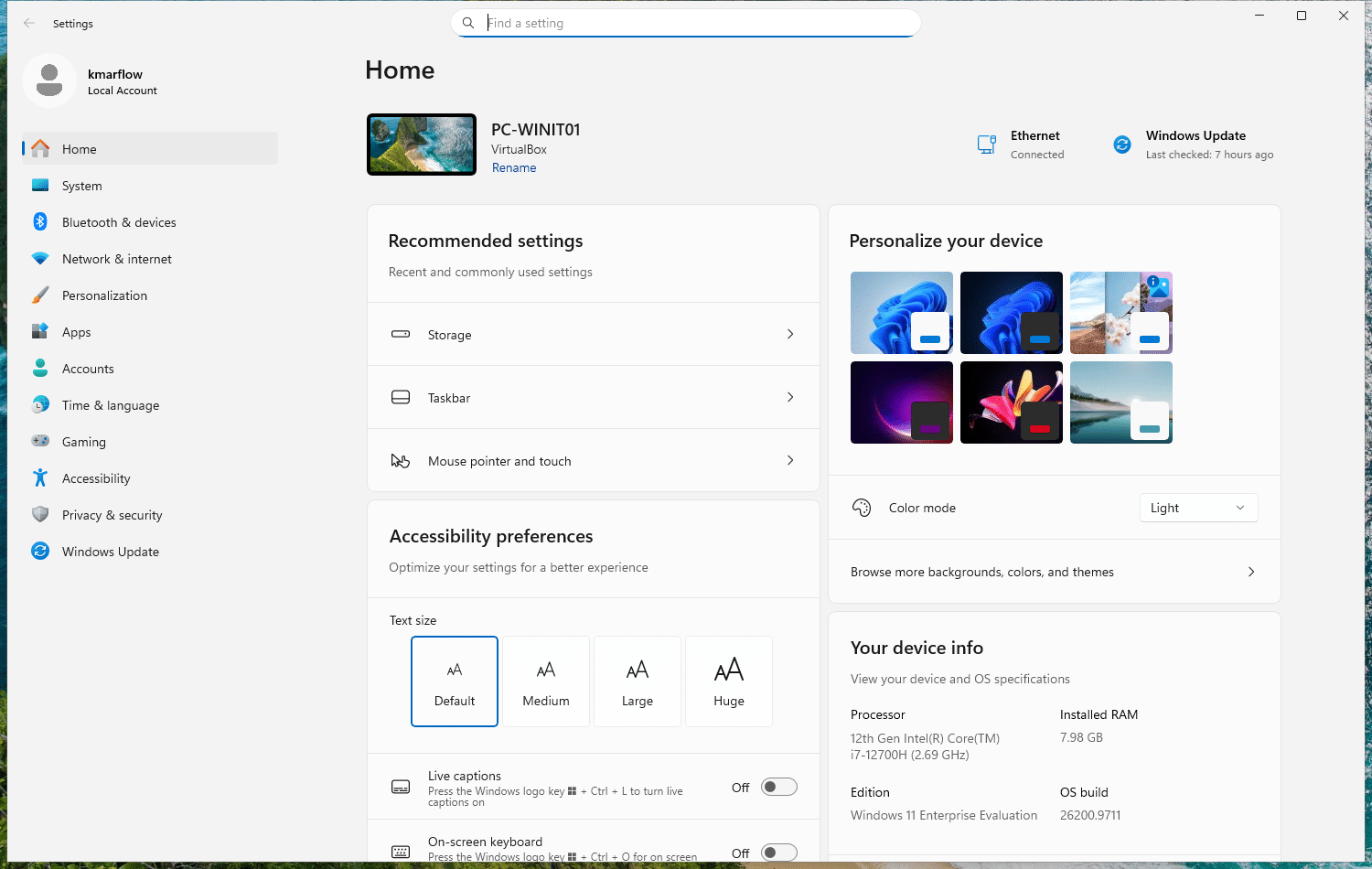
The left column has Home, System, Bluetooth & devices, Network & internet, Personalization, Apps, Accounts, Time & language, Gaming, Accessibility, Privacy & security and Windows Update.
But do use the Find a setting box at the top. Type what you’re after instead of guessing which category it’s hiding in.
Control Panel: the old house
Control Panel has been part of Windows for a long, long time. Microsoft is moving its settings over to the Settings app, and it’s still around for compatibility, and for whatever hasn’t made it across yet.
Windows doesn’t exactly point you to it anymore, but it’s still there. Press Win + R, type control and press Enter, or search for it from Start.
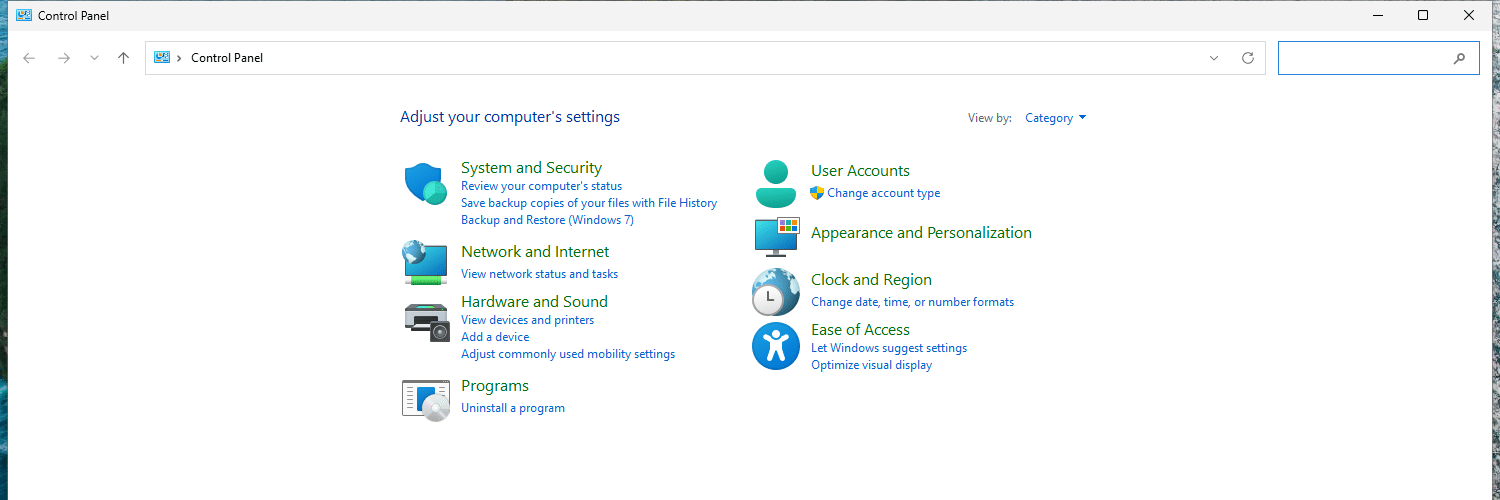
It opens in Category view. Change View by at the top right to see all items at once, which on my test machine lists things like Credential Manager, Indexing Options, Fonts, Programs and Features and Windows Tools.
Windows Tools: the garage
Windows Tools is a folder inside Control Panel, with tools for administrators and advanced users. What’s in there can vary by edition of Windows. If you’re coming from Windows 10, it’s what used to be called Administrative Tools.
To open it, press Win + R, type control admintools and press Enter. In Control Panel, it’s under System and Security.
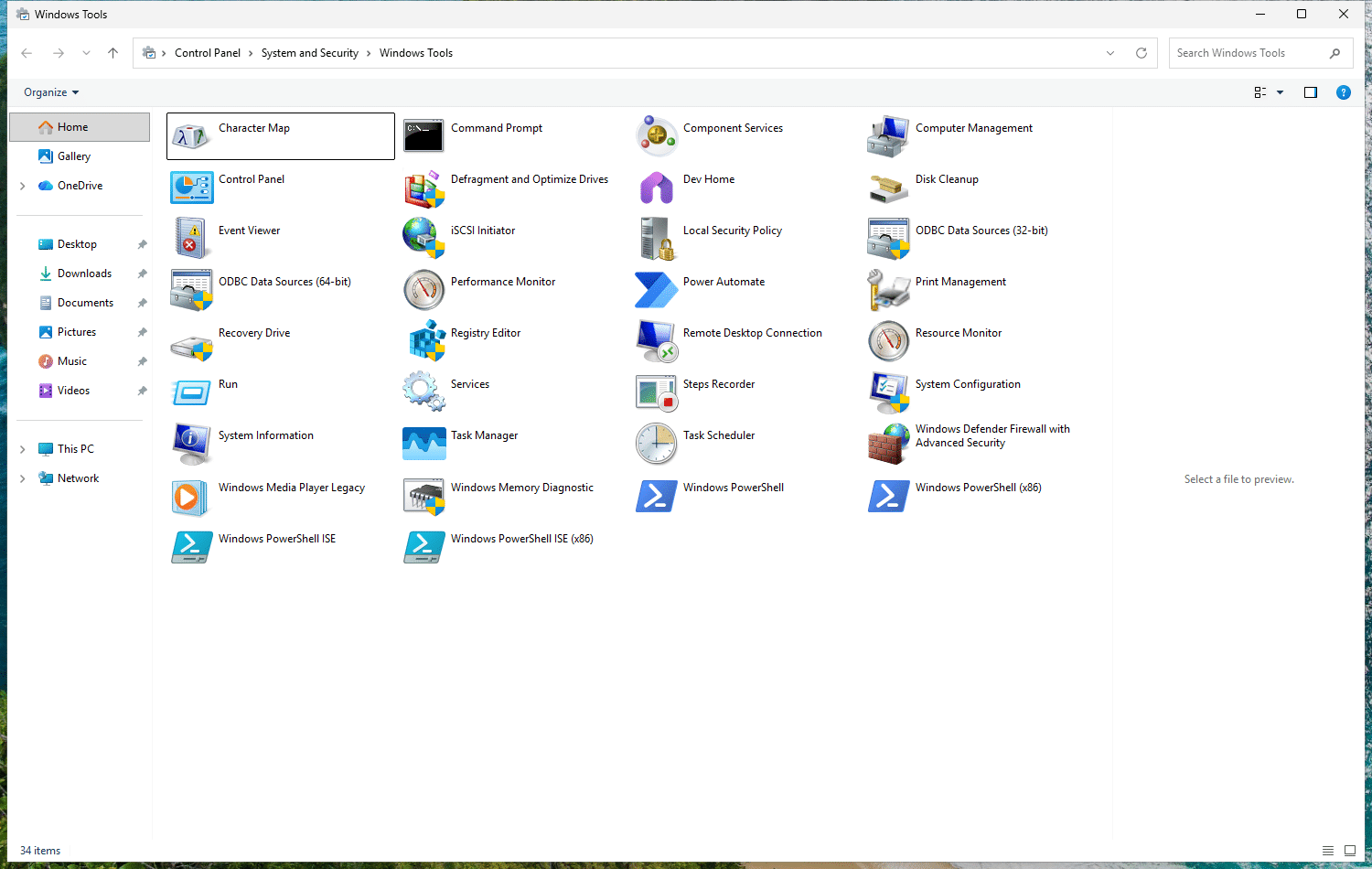
I count 34 items in there, from Event Viewer, Services and Registry Editor to Disk Cleanup and Windows Memory Diagnostic.
The tools you’ll meet most often
You don’t need all of these today. This is more of a map, so you recognize the name when a guide mentions one. I work in 1st-level IT, and this list is roughly sorted by how often I actually reach for them: Device Manager almost daily, Computer Management maybe once a month. Press Win + R and type the command to open any of them.
| Tool | What it’s for | Command |
|---|---|---|
| Device Manager | See your hardware and its drivers, and spot what isn’t working | devmgmt.msc |
| Task Manager | See what’s running and how busy your PC is | taskmgr |
| Services | Start, stop and configure Windows services | services.msc |
| Programs and Features | Uninstall or repair classic programs | appwiz.cpl |
| Network Connections | Your network adapters and their settings | ncpa.cpl |
| Disk Management | Your drives and partitions | diskmgmt.msc |
| Event Viewer | Read the logs Windows keeps | eventvwr.msc |
| System Information | A full view of hardware, components and software | msinfo32 |
| Computer Management | One window for managing system components and services | compmgmt.msc |
| System Configuration | Troubleshoot Windows startup | msconfig |
| Advanced System Settings | System properties, environment variables, performance and user profiles | SystemPropertiesAdvanced |
| Registry Editor | View and change the Registry | regedit |
| Local Group Policy Editor | Manage local policies, not available on Windows Home | gpedit.msc |
That’s only the shortlist. My full list of tools and their commands is on my CMDLet’s page, under Windows Tools.
Many of these ask for administrator approval when they start. Advanced System Settings doesn’t, it opens right away and tells you that you need to be an administrator for most of the changes in there.
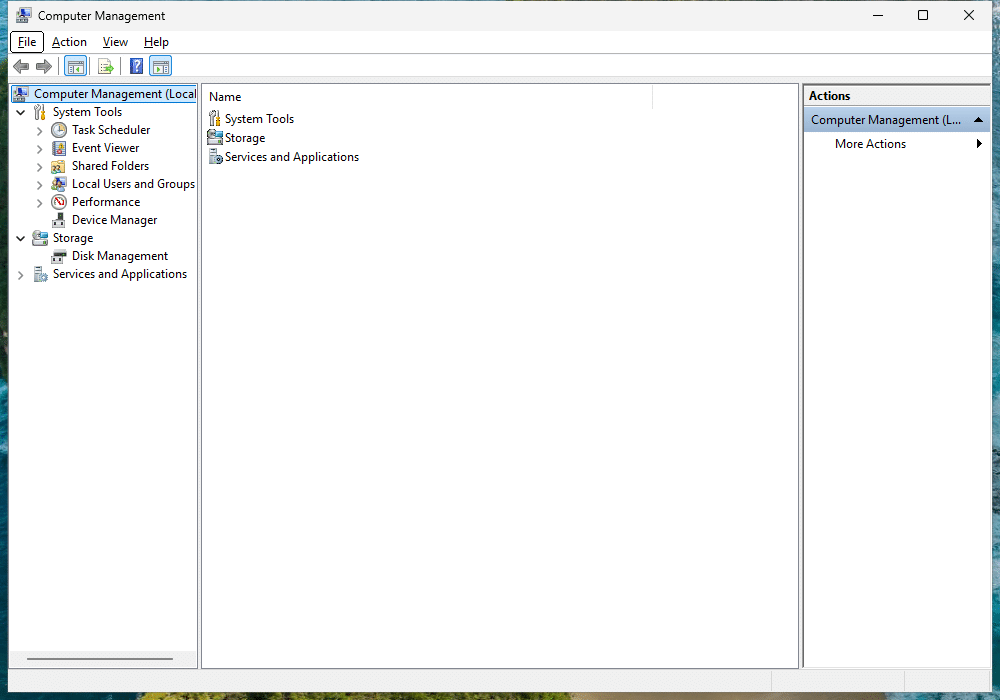
Computer Management is the bundle: Task Scheduler, Event Viewer, Shared Folders, Local Users and Groups, Performance, Device Manager, Disk Management and Services are all inside that one window.
Some of these can do real damage
Microsoft warns that wrong changes in Registry Editor, System Configuration, Advanced System Settings or the Local Group Policy Editor can affect how stable your PC is. Looking around is fine. Before you change anything in there, know what the change does, and back up first. The Windows Registry course shows you how.
Getting there fast
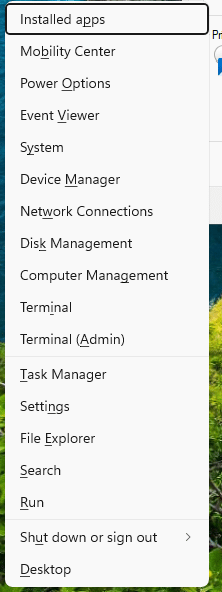
The Start right-click menu. Right-click Start, or press Win + X, and you get a menu with many of these tools in one place. I’d remember this one, if nothing else.
Jump straight to a Settings page. Every page in Settings has its own address starting with ms-settings:. Enter one in Run (Win + R) and you’re there:
| Enter this | To open |
|---|---|
ms-settings:about | About this PC |
ms-settings:windowsupdate | Windows Update |
ms-settings:taskbar | Taskbar |
ms-settings:startupapps | Startup apps |
ms-settings:defaultapps | Default apps |
ms-settings:optionalfeatures | Optional features |
All six opened the right page on my test machine, but Microsoft notes that some pages vary by Windows version and edition.
Pro Tip: those addresses are also handy in scripts and support instructions, because nobody has to click their way through anything.
So which one do I use?
Try Settings first, and use its search box. Not there? Try Control Panel. And if you’re following a guide, it will tell you which tool it means, and now you’ll know what it’s talking about.
Next, let’s find out which Windows you’re actually running: Your Windows version and system information.
References
Tested on Windows 11 25H2, build 26200.9711, in a virtual machine: every command and Settings address in this article, and the contents of Settings, Control Panel and Windows Tools.
- System configuration tools in Windows, Microsoft Support, no date shown.
- Windows Tools, Microsoft Learn, last updated 2026-09-06.
- CMDLet’s: Windows Tools, kMarflow, my own list of tools and commands.
- Using Device Manager, Microsoft Learn, last updated 2025-04-23.
- Update drivers through Device Manager in Windows, Microsoft Support, no date shown.
- Overview of Disk Management, Microsoft Learn, last updated 2025-06-26.
- Launch Windows Settings, Microsoft Learn, last updated 2026-11-02.
- Canonical Names of Control Panel Items, Microsoft Learn, last updated 2022-04-29. Lists support only up to Windows 8.1, so the command was checked on the test machine.
Leave a Reply