
Open C:\ in File Explorer. Apart from your own folder under Users, you’ll find several you never made. These are the Windows system folders, and each has its own job. Knowing those jobs makes guides easier to read, helps when your drive fills up, and tells you which folders to keep your hands off.
The Windows system folders on your C drive
| Folder | What it’s for |
|---|---|
| Program Files | Installed programs |
| Program Files (x86) | Installed 32-bit programs |
| Users | Everyone’s profile folders |
| Windows | Windows itself |
| ProgramData | App data shared between all users, hidden by default |
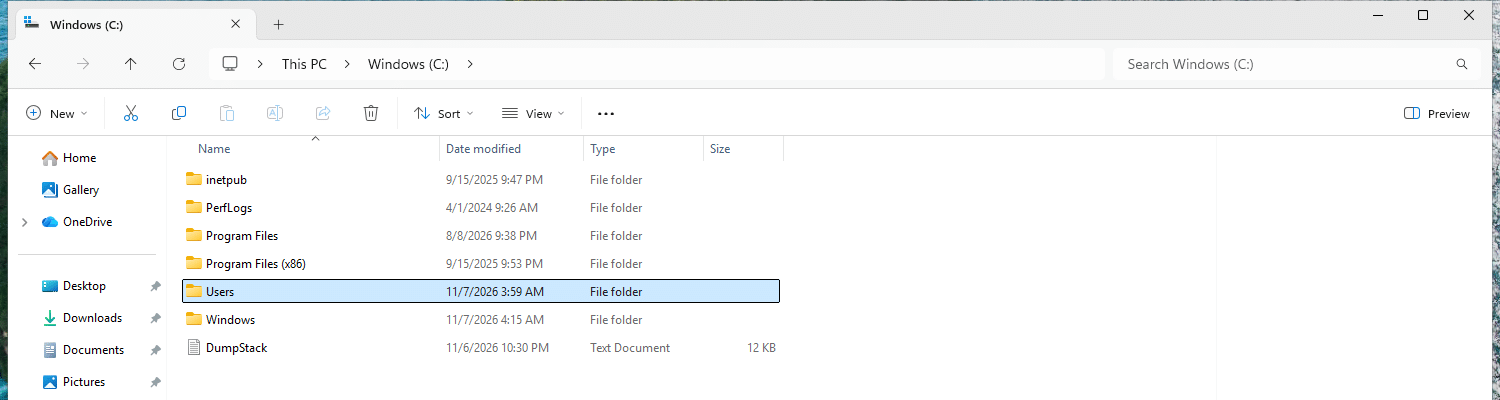
You may also see PerfLogs and inetpub. They were both on my test machine as well, and I didn’t make them either.
Why are there two Program Files folders?
This is where programs normally get installed, so why two? Because there are two kinds of programs. 64-bit Windows runs 64-bit programs, and also older 32-bit ones, using a part called WOW64 that lets them run without changes. WOW64 installs those in Program Files (x86). So 64-bit programs go in Program Files, and 32-bit programs in Program Files (x86).
You don’t have to do anything about it, since the installer picks the folder. It mostly matters when you’re hunting for where a program went. And you can’t drop files in either one without administrator rights: my test user got “Access to the path is denied” on both.
ProgramData: AppData for everyone
Your profile has AppData for your own app data. ProgramData, at C:\ProgramData, is the same idea for all users: application data everyone on the PC shares. Microsoft says it doesn’t roam, and that it’s available to anyone using the computer.
It’s hidden by default, and just like AppData, it’s not the place to go looking for free space. Unlike Program Files, it let my test user write to it without any prompt, which is what makes it useful for apps.
The Windows folder
C:\Windows holds Windows itself, and it’s what %windir% and %SystemRoot% point to. Leave what’s in here alone, unless you’re following a guide you trust and you know what the step does.
A few subfolders you’ll keep hearing about:
| Folder | What it’s for |
|---|---|
| System32 | Windows’ core 64-bit system files |
| SysWOW64 | The 32-bit versions of those files |
| WinSxS | The Windows Component Store, more on that in a moment |
System32 and SysWOW64: yes, the names are backwards
System32 holds the 64-bit files, and SysWOW64 holds the 32-bit ones. No, that’s not a typo.
The reason is all the programs and scripts out there with C:\Windows\System32 written right into them. Raymond Chen explains in his Windows Confidential column) that a script calling a tool in System32 should get the native one, which on 64-bit Windows is the 64-bit version. So the 64-bit files stayed where everyone already looks. In his words: “The 32 is just part of the name and doesn’t mean anything.”
SysWOW64 makes more sense once you know that Microsoft spells out WOW64 as Windows on Windows 64. So it’s the system folder for the 32-bit programs that WOW64 runs. Microsoft never spells out SysWOW64 itself, so that part is my reading of the name.
To make it all work, Windows plays a little trick. When a 32-bit program asks for C:\Windows\System32, Windows quietly sends it to C:\Windows\SysWOW64 instead, and the program never notices. That’s called the file system redirector, and it means the same path can show two programs two different things. I counted the files in C:\Windows\System32 on my test machine with both versions of PowerShell: the 64-bit one found 4,485, and the 32-bit one found 2,678, which is exactly what’s in SysWOW64.
The Registry gets the same treatment. Microsoft documents that a 32-bit program asking for HKEY_LOCAL_MACHINE\Software gets sent to HKEY_LOCAL_MACHINE\Software\Wow6432Node instead. What the 6432 stands for, Microsoft doesn’t say. I remember reading somewhere that it’s the WOW64 node for 32-bit programs, and that fits how it behaves, but I couldn’t find it written down anywhere. So take it as a reading that would explain the name, not an official one. The Registry itself gets its own course.
WinSxS: why it looks so huge
Have a look at C:\Windows\WinSxS and you’ll likely get a scary number. This is the Windows Component Store, used when installing updates, turning features on or off, repairing the system and uninstalling updates.
It’s not as bad as it looks, though. Many files in there also appear elsewhere in Windows through hard linking, where one file shows up in two places while taking up the space only once. File Explorer doesn’t take that into account and counts them anyway, so it’s a bit like counting one person twice because they have two addresses.
Never delete files from WinSxS by hand
Microsoft warns that deleting files from this folder, or the whole folder, might severely damage your system.
To see the real size, run this in Terminal as administrator:
Dism.exe /Online /Cleanup-Image /AnalyzeComponentStoreWindows Explorer Reported Size of Component Store : 6.87 GB
Actual Size of Component Store : 6.81 GB
Shared with Windows : 4.33 GB
Backups and Disabled Features : 2.47 GB
Cache and Temporary Data : 0 bytesThe line to look at is Shared with Windows. Those 4.33 GB are the hard links, files Windows needs anyway, so they aren’t taking up extra space. What the store really costs you is the last two lines.
Actually cleaning up this store belongs in the Windows Repair course.
The ones you only see with everything unhidden
With hidden and protected files showing, a few more turn up on C:\:
| Item | What it is |
|---|---|
$Recycle.Bin | The storage behind the Recycle Bin on this drive |
pagefile.sys | The page file, a hidden system file that works as an extension of your RAM |
hiberfil.sys | The hibernation file, which holds the contents of memory for hibernate and fast startup. Not on every PC: my test machine doesn’t have it |
swapfile.sys | The page file’s little sibling, for Store apps. When memory gets tight, Windows can write a suspended app’s memory in here and read it back when you return to the app. 256 MB on my test machine |
Don’t delete these by hand. The page file and the hibernation file each get an article of their own in How Windows Works, and swapfile.sys is covered in the page file one. Its explanation comes from a 2012 Microsoft blog post about Windows 8, the only one I found, and Microsoft doesn’t say whether it still works exactly like that on Windows 11.
On my test machine, System Volume Information and Recovery showed up here as well. I found no Microsoft page that properly explains those two, so I’ll leave it at: not yours, leave them be.
Windows.old appears after you upgrade Windows, and holds what you’d need to go back to your previous version. Microsoft says it’s deleted automatically ten days after the upgrade. To get rid of it sooner, go to Settings > System > Storage > Temporary files, tick Previous version of Windows and select Remove files. That can’t be undone, so once it’s gone, so is your way back.
How to free up space the right way
You’ve now seen plenty of what you shouldn’t delete. So what do you do when your drive is full?
Go to Settings > System > Storage > Cleanup recommendations. Windows suggests items in four groups, and you pick what goes:
- Temporary files
- Large or unused files
- Files synced to the cloud
- Unused apps
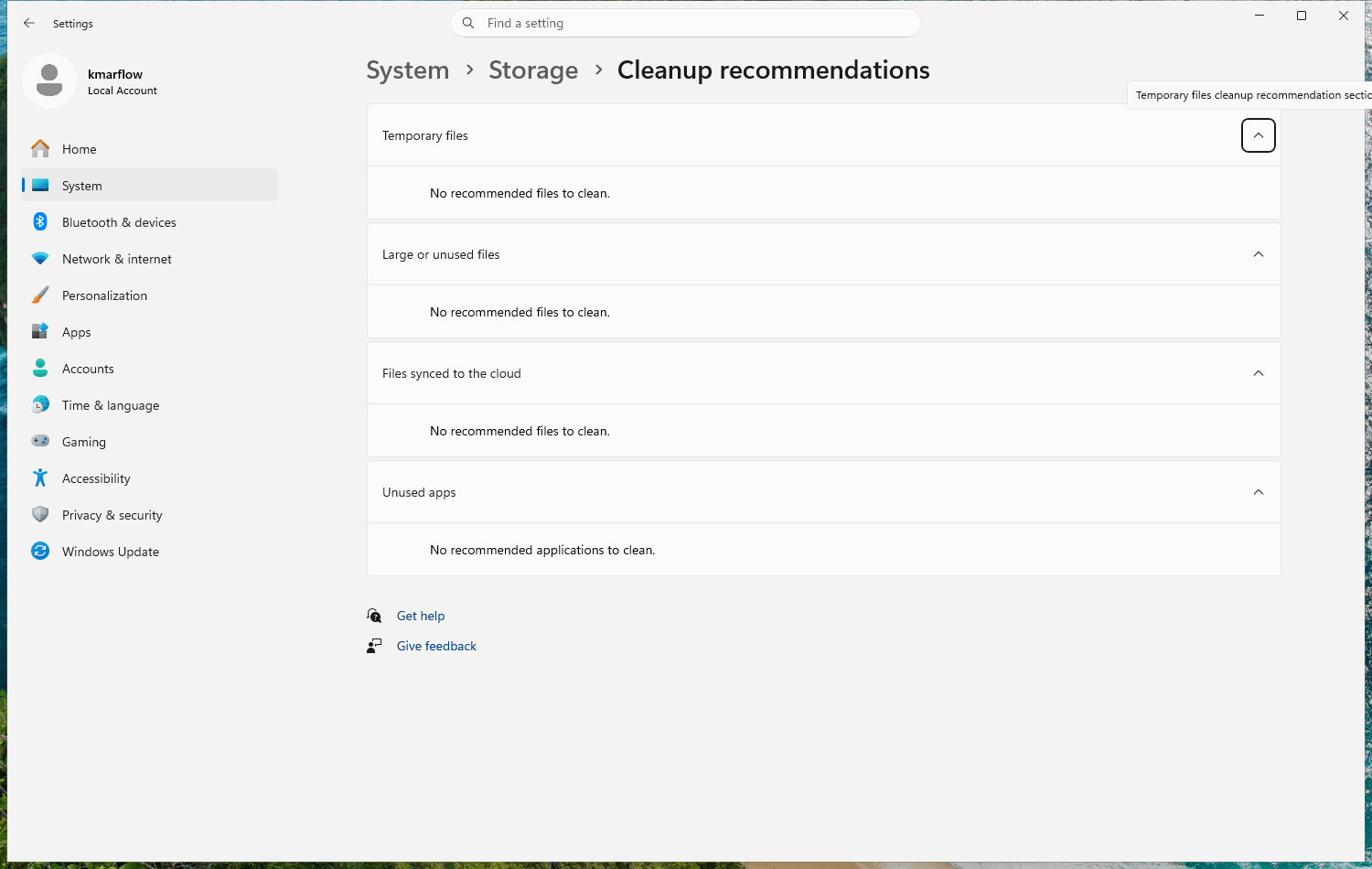
Have a look through your Downloads folder by hand as well, since that’s usually where the largest files are hiding. And empty the Recycle Bin afterward, otherwise everything you deleted still takes up space.
Storage Sense can do this for you. It removes things like temporary files and old items in the Recycle Bin. It leaves Downloads and OneDrive files alone unless you tell it otherwise, and it only looks after your system drive. Microsoft says it’s off by default, but that Windows may turn it on when disk space runs low. My test machine’s page says “Storage Sense runs when disk space is low”, so have a look at Settings > System > Storage > Storage Sense to see what yours does.
You now know where everything’s stored. The next question is who’s allowed to open it: Files, folders and NTFS permissions.
References
Tested on Windows 11 25H2, build 26200.9711, in a virtual machine: the folder layout, hidden states, the file system redirector and the component store analysis.
- KNOWNFOLDERID, Microsoft Learn, last updated 2022-04-07.
- CSIDL, Microsoft Learn, last updated 2021-03-22. Used for its definitions only.
- Overview of the compatibility considerations for 32-bit programs on 64-bit versions of Windows, Microsoft Learn, last updated 2026-02-12. Filed under Windows Server.
- File System Redirector, Microsoft Learn, last updated 2023-02-02.
- Windows Confidential: History, the Long Way Through), Raymond Chen, TechNet Magazine on Microsoft Learn, last updated 2016-08-31. Why System32 kept its name.
- Registry Keys Affected by WOW64, Microsoft Learn, last updated 2022-03-25. Spells out WOW64 as Windows on Windows 64.
- Registry Redirector, Microsoft Learn, last updated 2019-08-23. The redirect to
Wow6432Node, not tested on my machine. - Manage the Component Store, Microsoft Learn, last updated 2022-06-24.
- Determine the actual size of the WinSxS folder, Microsoft Learn, last updated 2022-06-24.
- Clean up the WinSxS folder, Microsoft Learn, last updated 2025-03-10.
- Introduction to the page file, Microsoft Learn, last updated 2026-02-12. Tagged Windows 10.
- Windows 8 / Windows Server 2012: The New Swap File, Ask the Performance Team blog, first published 2012-10-28. About Windows 8.
- System power states, Microsoft Learn, last updated 2025-07-14.
- Delete your previous version of Windows, Microsoft Support, no date shown.
- Free up drive space in Windows, Microsoft Support, no date shown.
- Manage drive space with Storage Sense, Microsoft Support, no date shown.
Leave a Reply