
You’ve been using these for a while now. %APPDATA% from the user folders article is an environment variable: a labeled box with a value in it, in this case a path.
Windows uses them so that programs and people don’t need to know exactly where things are. And you’ll definitely run into them the day a command fails with “is not recognized”, which is the second half of this article.
Using them in File Explorer and Run
Type a name between percent signs into File Explorer’s address bar, or into Run (Win + R):
%USERPROFILE%And you’re in your profile folder, wherever that is and whoever you are. That’s what makes them so useful: a guide can say %TEMP% and it’s right for every reader, whatever their user name.
The environment variables you’ll meet most
These are the values for the example user of this course:
| Variable | Typical value | What it is |
|---|---|---|
%USERPROFILE% | C:\Users\kmarflow | Your profile folder |
%APPDATA% | C:\Users\kmarflow\AppData\Roaming | App data, Roaming |
%LOCALAPPDATA% | C:\Users\kmarflow\AppData\Local | App data, Local |
%TEMP% | C:\Users\kmarflow\AppData\Local\Temp | Temporary files |
%SystemDrive% | C: | The drive with Windows on it |
%SystemRoot% or %windir% | C:\Windows | The Windows folder |
%ProgramFiles% | C:\Program Files | Installed programs |
%ProgramFiles(x86)% | C:\Program Files (x86) | Installed 32-bit programs |
%ProgramData% | C:\ProgramData | App data shared between users |
%COMPUTERNAME% | PC-WINIT01 | Your computer’s name |
%USERNAME% | kmarflow | Your user name |
Those last two are just values, not folders, so %COMPUTERNAME% in Run only gets you an error saying Windows can’t find PC-WINIT01.
Seeing them in a terminal
The syntax depends on your shell. In PowerShell:
$Env:APPDATAIn Command Prompt:
echo %APPDATA%Both give you C:\Users\kmarflow\AppData\Roaming here. To list all of them, use Get-ChildItem Env: in PowerShell, or set in Command Prompt.
PATH: how Windows finds a program
The most important one of all is PATH. It’s a list of folders, separated by semicolons, and it’s where Windows goes looking for programs when you type a name. So you can type notepad in a terminal without saying where it is, because Windows checks each of those folders until it finds a match.
To see yours:
$Env:PATH -split ';'C:\WINDOWS\system32
C:\WINDOWS
C:\WINDOWS\System32\Wbem
C:\WINDOWS\System32\WindowsPowerShell\v1.0\
C:\WINDOWS\System32\OpenSSH\
C:\Users\kmarflow\AppData\Local\Microsoft\WindowsAppsTo find out where a command actually comes from, use where.exe:
where.exe notepadC:\Windows\System32\notepad.exe
C:\Windows\notepad.exe
C:\Users\kmarflow\AppData\Local\Microsoft\WindowsApps\notepad.exeNotepad is in three of those folders, so it’s listed three times, and the first one wins. And yes, it has to be where.exe: in PowerShell, plain where is an alias for Where-Object, which does something else entirely.
“is not recognized”: don’t panic
PowerShell says:
The term 'nosuchcmd' is not recognized as the name of a cmdlet, function, script file, or operable program.And Command Prompt says:
'nosuchcmd' is not recognized as an internal or external command,
operable program or batch file.
Either way, Windows has looked through every folder in PATH and found nothing. There are three usual suspects:
- It’s misspelled. Happens to the best of us.
- It isn’t installed.
- It’s installed, but its folder isn’t in
PATH. The program is fine, Windows just doesn’t know to look there.
And the fourth one, which gets everybody at least once: you installed it after opening this terminal. A running program keeps the variables it started with, so close the terminal and open a new one.
Which comes first
Windows goes through the list in order, and the first match wins. Microsoft’s pages I read don’t actually say so, so I tried it: two folders, each with a file of the same name. Whichever folder came first in PATH is the one that ran, and where.exe listed them in that same order. On my test machine, the system folders come first and your user folders after them, as you can see in the list above.
User variables and system variables
There are two levels:
- User variables apply to you alone.
- System variables apply to everyone on this PC, and changing them takes administrator rights.
Your PATH is a combination of both. And a program inherits its variables from whatever started it, which is why a new value doesn’t reach programs that are already running.
Changing them
With the window
This is the one I’d recommend, because it’s the hardest to get wrong.
- Press
Win + R, typeSystemPropertiesAdvancedand press Enter. You’ll also find it as Advanced system settings in Settings > System > About. - Select Environment Variables.
- The top list is for your user, and the bottom one is for the system.
- To add a folder to
PATH, select Path, then Edit, then New, and enter the folder. - Select OK on each window, then open a new terminal.
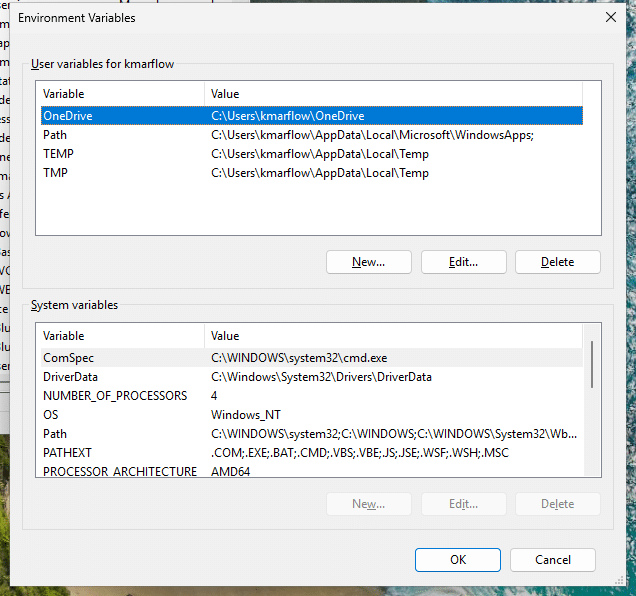
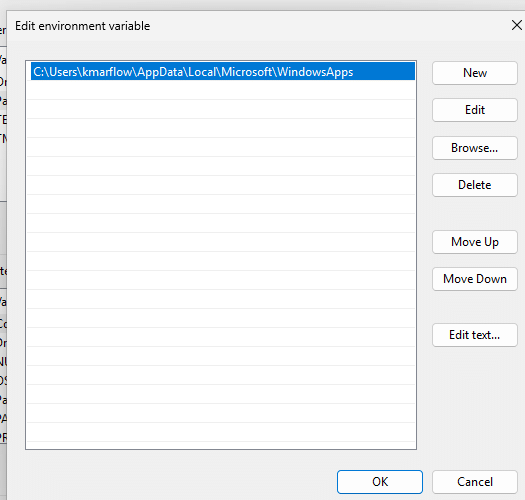
A shortcut for your own variables: rundll32 sysdm.cpl,EditEnvironmentVariables in Run opens this window directly, without any prompt. The system section’s buttons are grayed out that way, so it’s only good for the top half.
For this terminal only
In PowerShell, this only affects the current window, and it’s gone when you close it. So it’s safe to play around with:
$Env:PATH += ';C:\Tools'Permanently, with a command
[Environment]::SetEnvironmentVariable('MY_SETTING', 'hello', 'User')The terminal you ran that in doesn’t see the new value, by the way, as it still has the old copy. Something freshly started from Run did see it on my test machine, so just open a new one.
Use 'Machine' instead of 'User' for a system variable, in a terminal running as administrator. Without administrator rights you get “Requested registry access is not allowed”. To delete a variable, set it to an empty string. Windows stores these, so they survive a restart.
Don’t use setx to add to PATH
Plenty of guides on the web suggest setx PATH "%PATH%;C:\Tools". Please don’t. Microsoft documents that setx crops anything over 1024 characters, and a long PATH gets cut off with only a one-line warning: “The data being saved is truncated to 1024 characters”. And even when it fits, %PATH% is your user and system path combined. On my test machine, one run turned my user path from a single entry into a copy of every system folder as well, and it said “SUCCESS”.
That’s a wrap
And that’s Windows Fundamentals. You now know your way around Windows, from the desktop down to what’s running behind it. Time for another coffee. Where you go next depends on what you’re after:
- How Windows Works explains what happens underneath: startup, memory, power and storage.
- Windows Registry covers where all those settings actually live.
- Windows Repair tells you what to try, and in which order, when Windows stops behaving.
Did something in this course trip you up, or are you missing something? Drop a comment, I’d like to know.
References
Tested on Windows 11 25H2, build 26200.9711, in a virtual machine: all variable values, all commands, how PATH is searched, and what setx does to a long PATH.
- Environment Variables, Microsoft Learn, last updated 2025-07-14.
- about_Environment_Variables, Microsoft Learn, last updated 2025-10-01.
- Recognized environment variables, Microsoft Learn, last updated 2025-01-29.
- KNOWNFOLDERID, Microsoft Learn, last updated 2022-04-07.
- setx, Microsoft Learn, last updated 2023-02-03.
- set, Microsoft Learn, last updated 2023-09-06.
- where, Microsoft Learn, last updated 2023-02-03.
- System configuration tools in Windows, Microsoft Support, no date shown.
Leave a Reply