
In Task Manager, you saw plenty running that you never started, much of it without a window, because nobody’s meant to look at it. Two parts of Windows are behind most of that: Windows services, which run in the background, and Task Scheduler, which starts things at set moments.
Windows services: the staff behind the scenes
A service is a program that runs in the background. It has no user interface, it can start automatically when the PC boots, and it can run even when nobody is signed in. Like the staff in a hotel: you rarely see them, but you’d notice quickly if they stopped showing up. Printing, networking and updates all need to work whether you’ve signed in or not, and each has services behind it, such as Print Spooler, Network Store Interface Service and Windows Update.
Seeing your services
Press Win + R, type services.msc and press Enter. You’ll also find them on the Services page of Task Manager, with a link to open the full window from there.
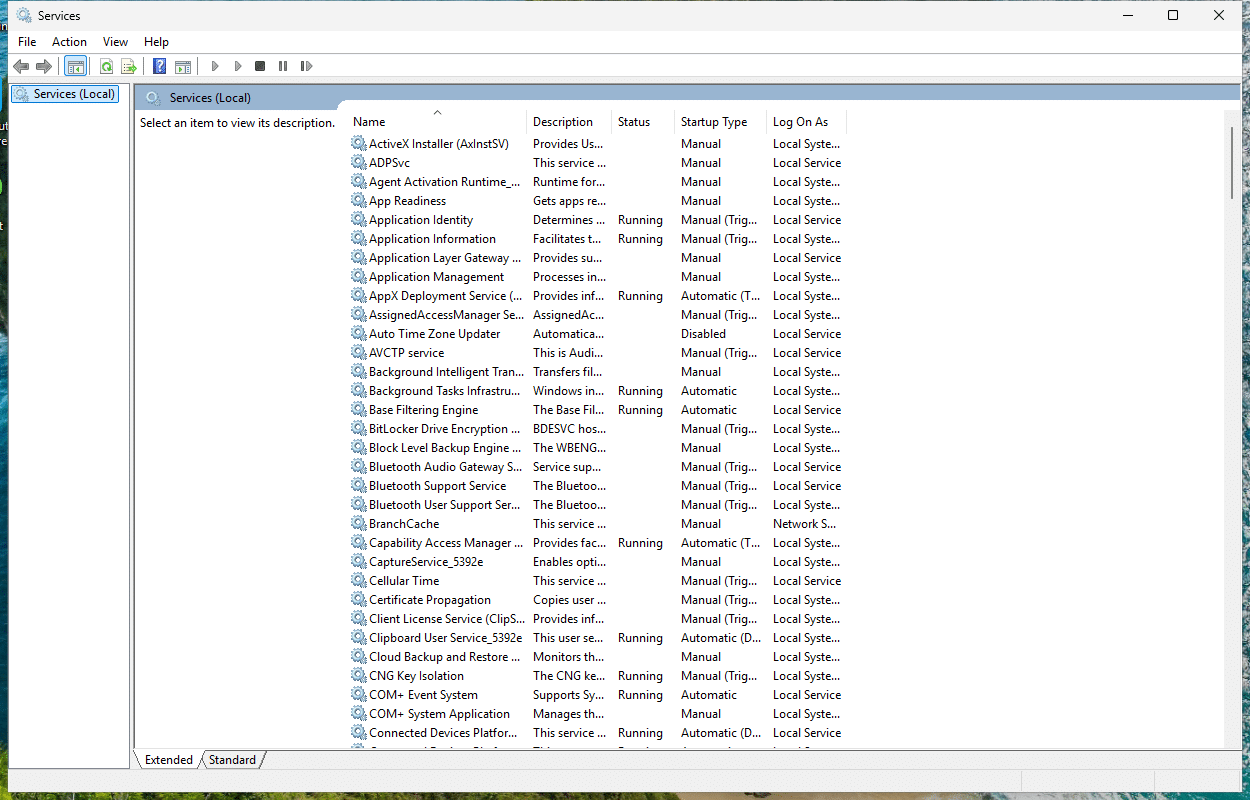
| Column | What it tells you |
|---|---|
| Name | The service’s friendly name |
| Description | What it does, often worth reading |
| Status | Whether it’s running |
| Startup Type | When it starts |
| Log On As | Which account it runs under |
Double-click a service to open its properties, where you can start or stop it, and change its startup type. It has four tabs: General, Log On, Recovery and Dependencies.
Startup types
| Startup type | What it means |
|---|---|
| Automatic | Starts each time the computer starts, and runs even if no one signs in |
| Automatic (Delayed Start) | Starts a short time after the other automatic services |
| Manual | Started only when needed, by a user or an application |
| Disabled | Can’t be started by a user or an application |
Don’t let Manual fool you, it doesn’t mean the service stays off. A program can start it the moment it’s needed. Some can also start through a trigger and run only when that fires, instead of from boot to shutdown. You’ll see those as Manual (Trigger Start) or Automatic (Trigger Start) in the list.
Which account a service runs as
Each service runs in the security context of an account: a regular user account, or one of the three special ones, LocalSystem, LocalService and NetworkService.
On my freshly installed test machine, that’s 269 services, 154 of them running as LocalSystem, 66 as LocalService and 22 as NetworkService. Of those 269, 91 were running at the time, 66 were set to automatic (20 of them delayed), 190 to manual and 10 to disabled.
Dependencies
Some services need others in order to run. At boot, Windows starts all the automatic services along with the ones they depend on. The Dependencies tab in the properties shows you which, or you can ask from a terminal:
Get-Service 'WinRM' -RequiredServices Status Name DisplayName
------ ---- -----------
Running NSI Network Store Interface Service
Running HTTP HTTP Service
Running RPCSS Remote Procedure Call (RPC)Why are there so many svchost.exe?
On Task Manager’s Details page you’ll see a long list of svchost.exe, and you may wonder if something’s wrong, or if your PC has caught something. Nothing’s wrong. Many services aren’t programs of their own but DLL files, and Service Host (svchost.exe) is the shell that loads them.
On PCs with more than 3.5 GB of RAM, Windows splits most of them up into their own Service Host process, so that a failure in one doesn’t take others with it. That costs a bit more memory, but it’s on purpose. Microsoft’s page is written for Windows 10, but on my 25H2 test machine with 8 GB of RAM, it holds up: 73 svchost.exe processes, 69 of them hosting exactly one service. The few that share are the ones Microsoft says stay together, such as BFE with mpssvc, and RpcEptMapper with RpcSs.
Changing services: careful now
You’ll find lists on the web of “services to turn off to speed up your PC”. I’d stay away from those. Windows and your programs depend on these services, and the effect isn’t always obvious. It might only show up weeks later, when something seemingly unrelated fails.
If you do have a good reason, such as a guide for a specific problem: note the startup type first, change one thing at a time, and test.
To read a service’s state from a terminal:
Get-Service -Name 'Spooler' | Select-Object Name, Status, StartTypeName Status StartType
---- ------ ---------
Spooler Running AutomaticRestarting one needs a terminal running as administrator. Without it, you get “Cannot open Spooler service on computer ‘.’”:
Restart-Service -Name 'Spooler'To change the startup type, there’s Set-Service, which Microsoft says requires elevated permissions:
Set-Service -Name 'Spooler' -StartupType ManualAnd if other services depend on the one you’re stopping, Stop-Service needs -Force. That stops those as well, so check what they are first.
Task Scheduler: Windows’ alarm clock
Task Scheduler runs tasks automatically when a time or event you chose comes around. It starts with Windows every time, and Windows itself uses it heavily for its own maintenance jobs.
Press Win + R, type taskschd.msc and press Enter. Windows’ own tasks are on the left, under Task Scheduler Library > Microsoft > Windows.
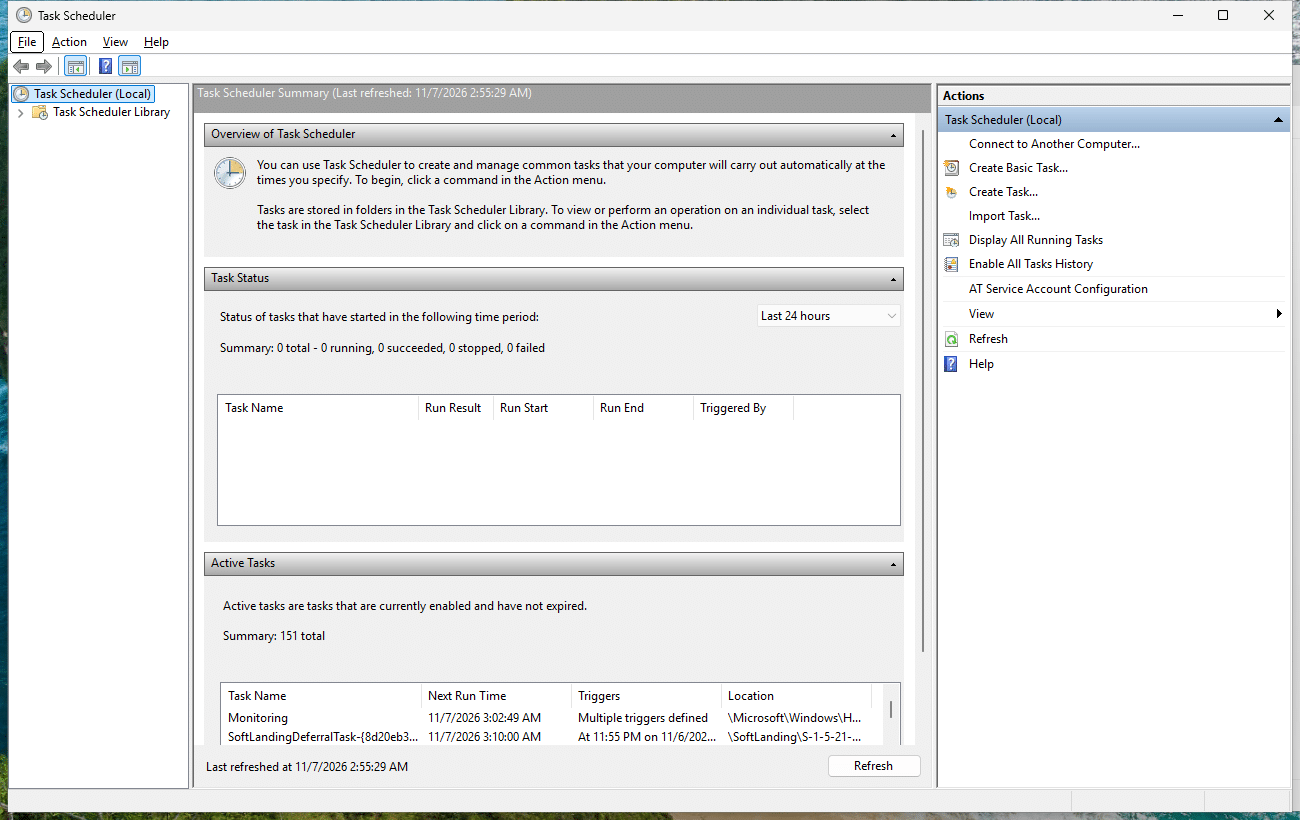
Each task comes down to two things:
- A trigger: the conditions for starting the task.
- An action: what it does, most often starting a program. A task can have several, which run one after the other.
There are plenty of triggers to choose from: a time (once, daily, weekly or monthly), when the PC goes idle, at system boot, when a user signs in, or on a specific system event.
Each task also runs as a particular account. With UAC on, a task runs with low-level privileges by default, unless it’s set to run with the highest privileges. You can manage your own tasks, while administrators can manage any.
Creating a simple task
Let’s open Notepad whenever you sign in, as a harmless test.
- In the right-hand column, select Create Basic Task.
- Give it a name, and select Next.
- Select When I log on, and select Next.
- Select Start a program, and select Next.
- Enter
notepad.exe, select Next, then Finish.
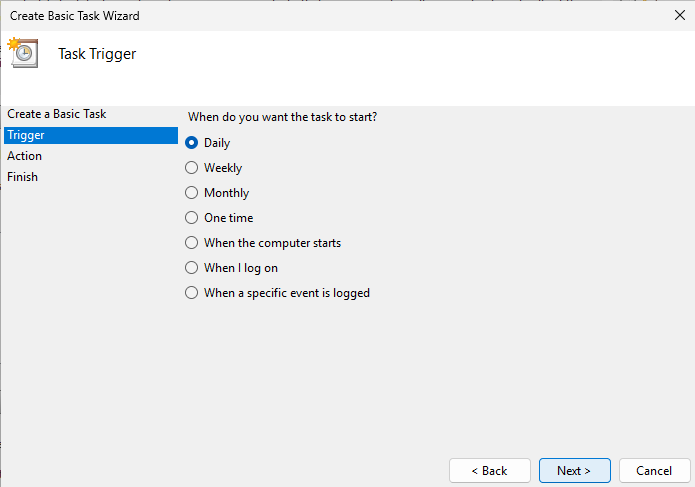
Sign out and back in, and there’s Notepad. Boom, your first scheduled task. On my test machine, I went through the wizard’s pages but created the same task from PowerShell, and it opened Notepad at the next sign-in as promised. To get rid of it again, select the task under Task Scheduler Library and select Delete.
Select any task and its General tab shows the options that matter most: Run only when user is logged on or Run whether user is logged on or not, and Run with highest privileges. And if you go looking in the History tab, it says History (disabled) by default. Enable All Tasks History in the right-hand column changes that.
Listing tasks from a terminal
Get-ScheduledTask -TaskPath '\'TaskPath TaskName State
-------- -------- -----
\ OneDrive Reporting Task-S-1-5-21-3294108931-... Ready
\ OneDrive Standalone Update Task-S-1-5-21-3294108931-... Ready
\ OneDrive Startup Task-S-1-5-21-3294108931-... ReadyThe root folder, \, holds tasks that aren’t filed in a subfolder, like OneDrive’s on a clean Windows and your own tasks too, so it’s a good place to look when something keeps starting and you don’t know why. Windows’ own, 179 of them on my test machine, are tucked away under \Microsoft\Windows\. You don’t need administrator rights to list them.
Who keeps starting that thing?
Now you have the full picture. If something keeps starting and you can’t work out why, check these in order:
- Startup apps in Task Manager.
- Your startup folder,
shell:startup. - Task Scheduler.
- Services.
One article to go: Environment variables and system paths.
References
Tested on Windows 11 25H2, build 26200.9711, in a virtual machine: services.msc, the startup types, Service Host behavior, the Task Scheduler wizard pages, a task running at sign-in and all commands.
- Services, Microsoft Learn, last updated 2021-01-07.
- Introduction to Windows Service Applications, Microsoft Learn, last updated 2021-09-15.
- About Services, Microsoft Learn, last updated 2026-07-17.
- sc.exe config, Microsoft Learn, last updated 2023-02-03.
- Set-Service, Microsoft Learn, no date shown.
- Automatically Starting Services, Microsoft Learn, last updated 2024-04-10.
- Service User Accounts, Microsoft Learn, last updated 2021-01-07.
- Service host grouping in Windows 10, Microsoft Learn, last updated 2023-02-24. Written for Windows 10, so its behavior was checked on the test machine.
- Get-Service, Microsoft Learn, no date shown.
- Restart-Service, Microsoft Learn, no date shown.
- Stop-Service, Microsoft Learn, no date shown.
- About the Task Scheduler, Microsoft Learn, last updated 2026-07-17.
- Task Scheduler for developers, Microsoft Learn, last updated 2024-07-15.
- Task Triggers, Microsoft Learn, last updated 2019-08-23.
- Task Actions, Microsoft Learn, last updated 2021-08-19.
- Security Contexts for Tasks, Microsoft Learn, last updated 2020-02-20.
- Get-ScheduledTask, Microsoft Learn, no date shown.
Leave a Reply