
Your PC has slowed to a crawl, or a program has stopped responding and just sits there looking at you. Before you restart anything, there’s one window that can tell you what’s going on: Task Manager.
Opening Task Manager
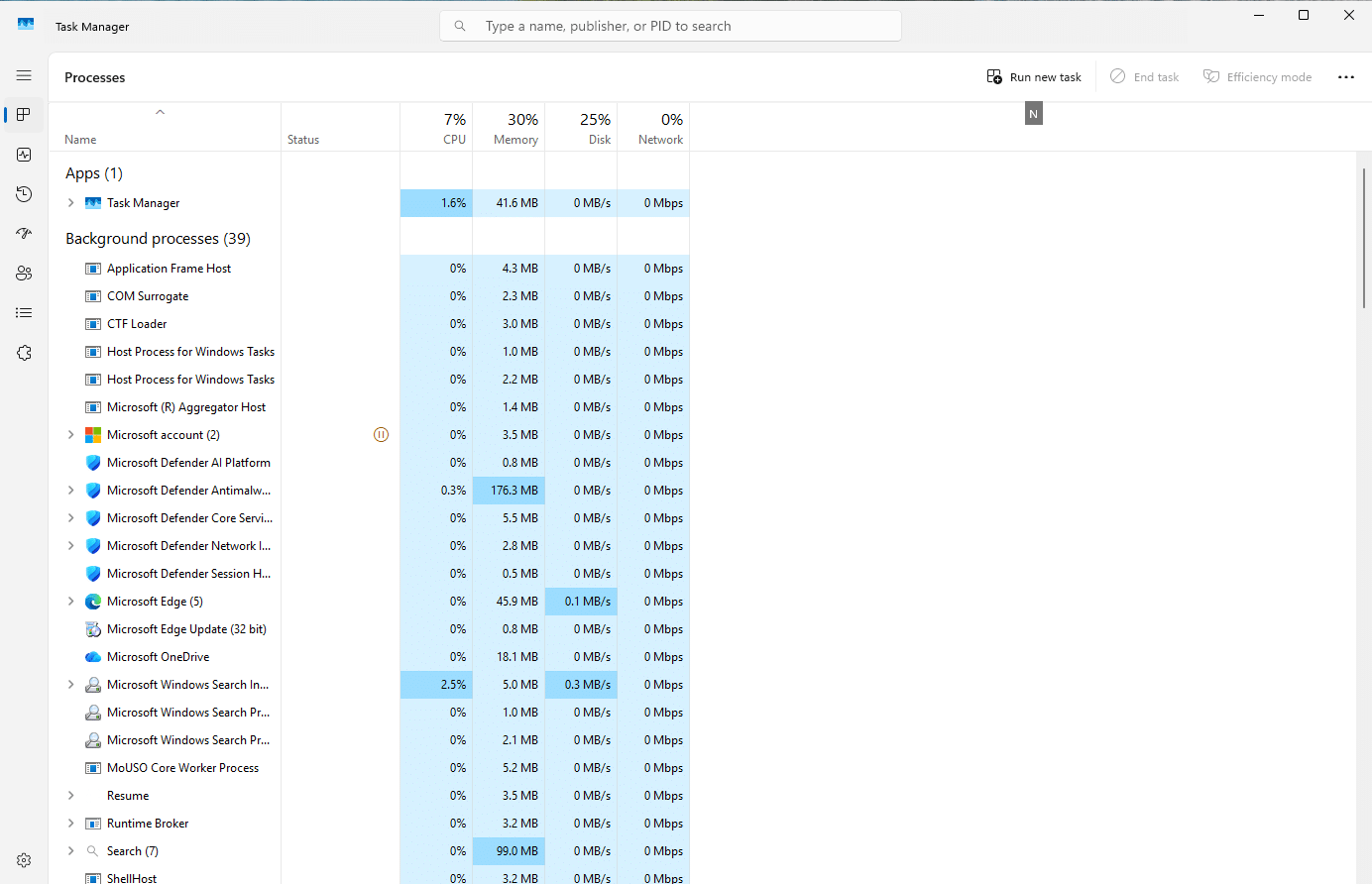
Press Ctrl + Shift + Esc, or right-click Start and select Task Manager. The menu on the left has its pages: Processes, Performance, App history, Startup apps, Users, Details and Services, with Settings at the bottom. There’s also a search box at the top, which takes a name, publisher or process ID.
Closing something that’s stuck
The reason most people open it in the first place:
- Find the program on the Processes page.
- Select it.
- Select End task, at the top of the window.
Assume that anything you hadn’t saved in that program is gone. Some apps save you anyway: I ended Notepad with unsaved text in it, and when I opened it again, the text was still there. But that’s Notepad being nice, so don’t count on it.
Want this even closer at hand? Settings > System > For developers has an End task switch, described as “Enable end task in taskbar by right click”.
Reading the Processes page
Each row is something running, and the columns show how much of your PC it’s using:
| Column | What it shows |
|---|---|
| CPU | How much of the processor it’s using |
| Memory | How much RAM it’s holding |
| Disk | How much it’s reading from and writing to your drives |
| Network | How much of your network it’s using |
Select a column heading to sort by it, and you can see right away who’s working the hardest.
The list is split into three groups: Apps for what you’ve opened, Background processes, and Windows processes. Don’t be alarmed by how long that list is, even on an idle PC. My test machine counted 32 background processes and 140 processes in total, with me doing nothing.
Don’t end what you don’t recognize
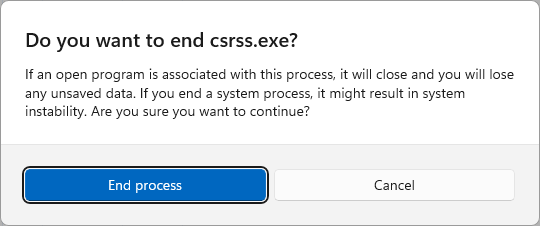
Many of these are parts of Windows. Select one on the Details page and try to end it, and Windows warns you that ending a system process might result in system instability. But look closely at that dialog: End process is the button that’s already selected, so a quick press of Enter does it. If you don’t know what something is, select Cancel and look it up first.
What even is a process?
When you start a program, Windows creates a process for it. Microsoft’s definition: a process provides the resources needed to execute a program. That includes its own private memory, so one program can’t simply mess with another’s data.
Think of a process as a workshop with its own tools and workbench. The actual work gets done by threads, the workers inside it, which Windows schedules to run. All the threads of a process share that workshop.
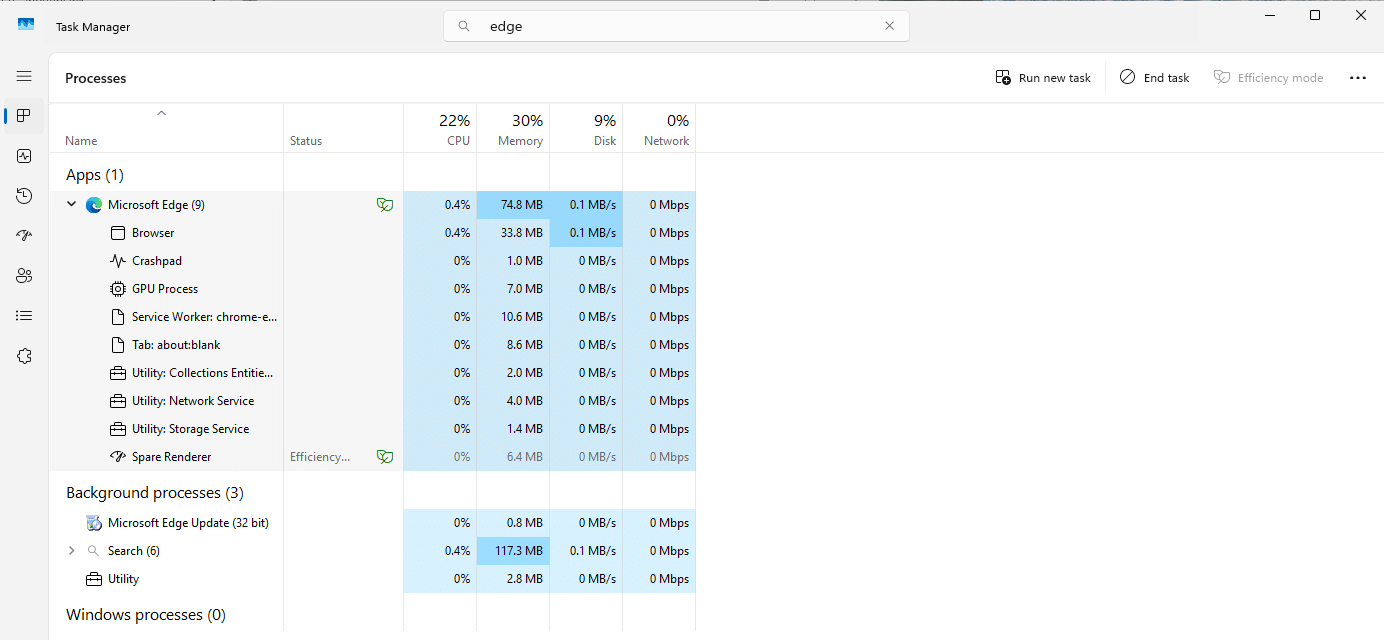
One program can have many processes, which is why the Processes page lets you expand a row. Microsoft Edge with one empty tab came to nine on my test machine, and its busiest process had 68 threads:
The How Windows Works course goes much deeper into processes and threads and memory.
The other pages
Performance shows graphs of your CPU, memory, drives and network. It’s where to look when the question is “is my PC struggling?” rather than “which program is doing it?”
App history adds up the CPU time and network use of your apps over the past weeks, with a Delete usage history link at the top. Handy when you wonder what has been eating your data.
Users shows who’s signed in, and which processes run under each of them.
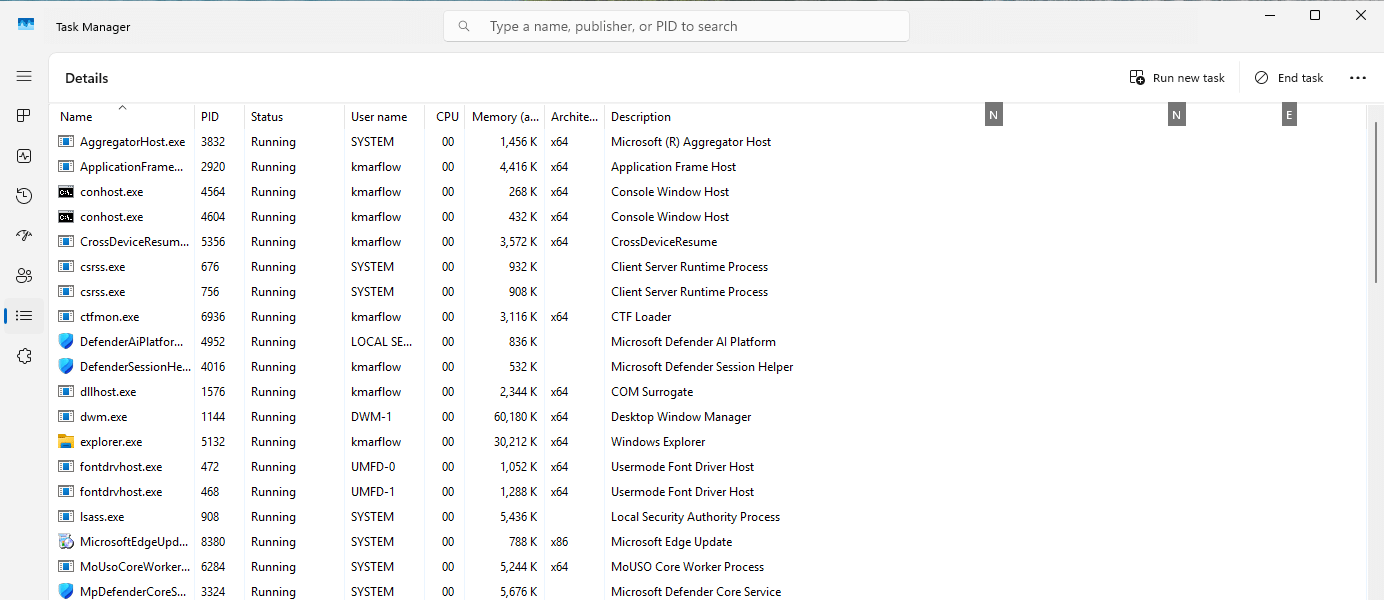
Details lists every process individually, with extras like the user it runs as and a description. It’s where you go when a guide mentions a file name such as explorer.exe. Right-click a column heading and choose Select columns to add more.
Services lists Windows services, and lets you stop and start them. More on those in Services and Task Scheduler.
That little green leaf
See a green double-leaf icon in the Status column? That’s efficiency mode, a Windows 11 feature that limits the resources a process or group of processes uses. It lowers the priority of background processes, which keeps your active apps responsive, extends battery life and reduces heat and fan noise.
To turn it off for a process, expand its group if needed, right-click the process and select Efficiency mode. Microsoft notes it can’t be changed for most process groups, and that it may cause instability for certain processes. It’s also separate from the energy saver in Microsoft Edge, which, to keep things simple, used to be called efficiency mode too. You can see that leaf on Edge’s Spare Renderer in the picture above. I only looked at it, and didn’t switch it off anywhere.
Running something new
Select Run new task, type a program name, and tick Create this task with administrative privileges if it should run with those rights. This comes in really handy when your taskbar has died and you need to get Explorer going again.
I tried just that, which took a little effort, because Explorer normally comes back by itself. Windows restarts it when it stops unexpectedly, unless a setting called AutoRestartShell is turned off. In my tests the exit code decided it: Stop-Process ends Explorer with exit code -1, and it was back within seconds, while taskkill /f /im explorer.exe ends it with exit code 1, and it stayed gone. That’s measured on my test machine, not something I found documented. So after taskkill, this is all that was left:
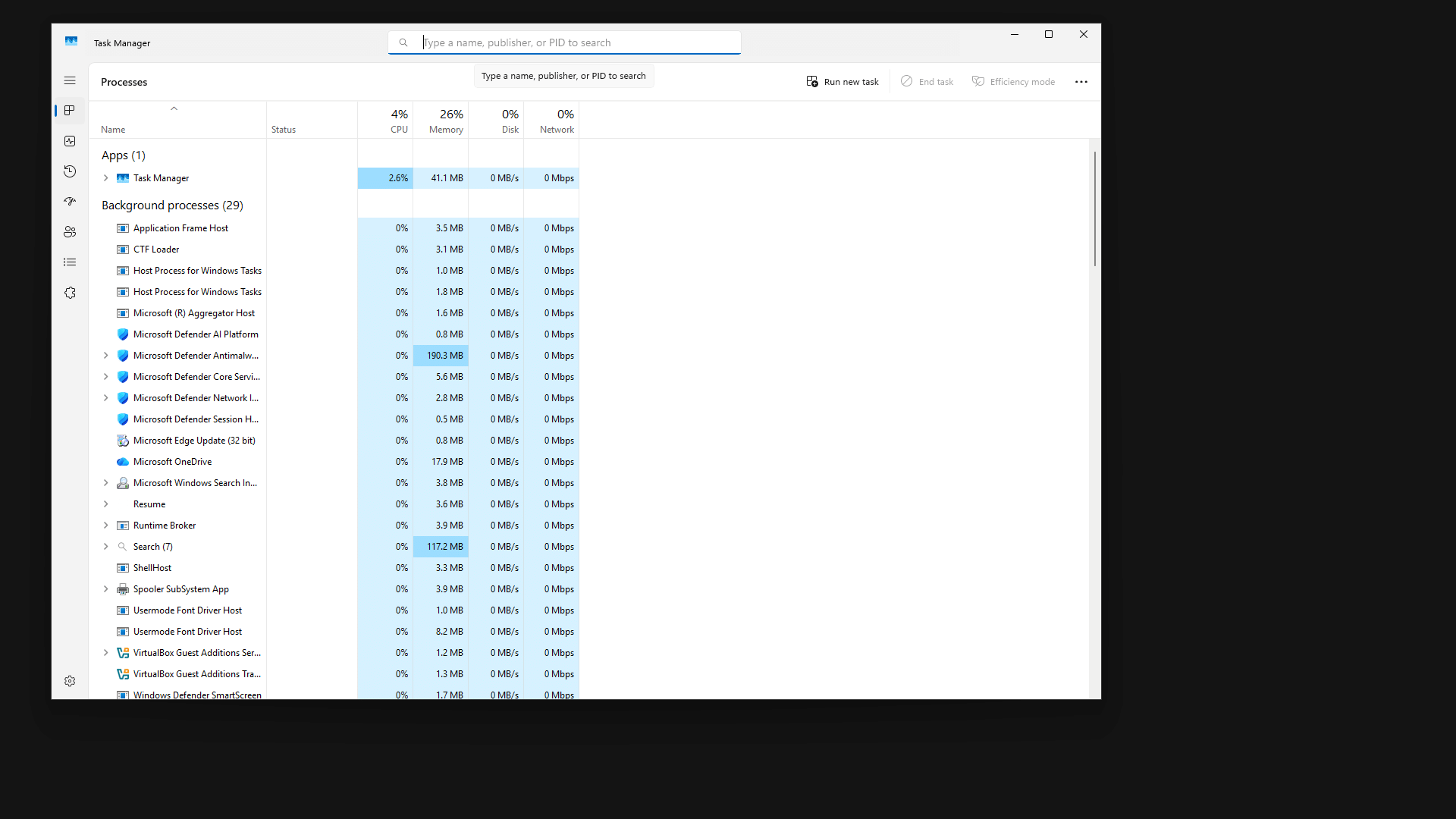
Run new task, explorer.exe, Enter, and a few seconds later everything was back.
Startup apps
Some apps start all by themselves when you sign in. The more of them you have, the longer signing in can take, and they can keep running in the background afterward. Luckily, you can tell them not to.
In Settings: select Start, then Settings, Apps, Startup. Each app has a switch.
In Task Manager: open the Startup apps page, select an app and select Disable. This one also shows how much each app slows down your startup:
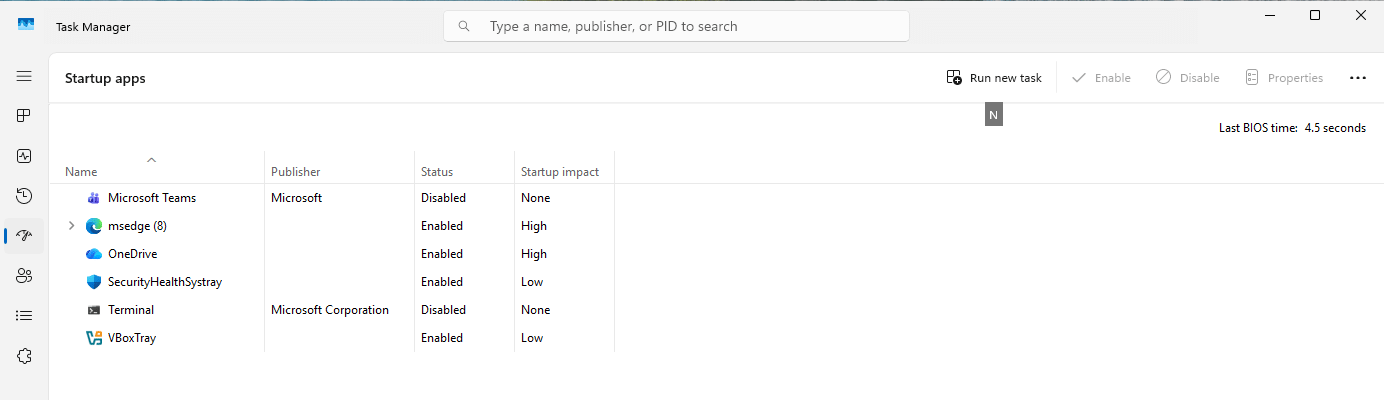
| Startup impact | What it means |
|---|---|
| None | The app is disabled |
| Not measured | The app is enabled, but there’s no data yet |
| Low | Under 300 ms of CPU and under 292 KB of disk |
| Medium | Under 1 second of CPU or under 3 MB of disk |
| High | Over 1 second of CPU or over 3 MB of disk |
Disabling an entry doesn’t uninstall anything. The app just waits until you start it yourself. I tried it with Calculator: disabled, it stayed off at the next sign-in, and it still opened fine by hand.
Adding your own
To have a program of your own start at sign-in, put a shortcut into your startup folder. Press Win + R, type shell:startup and press Enter. The folder for all users is shell:common startup. I put a shortcut in each, and both programs started at the next sign-in and appeared on the Startup apps page. They show up there under the program’s name, not under the name you gave the shortcut, so my “Test Calculator” was listed as calc.
Microsoft also lists the Registry locations where startup entries are kept, under Run keys in HKEY_CURRENT_USER and HKEY_LOCAL_MACHINE. There’s no need to edit those here, but they’re good to know about when you’re wondering where an entry came from.
My PC is slow: where to look
- Open the Processes page, and sort by CPU, then Memory, then Disk. Is one thing hogging everything?
- If it’s a program you know and don’t need right now, close it normally, and only use End task if it’s stuck.
- If it’s a Windows process, give it a while, as it may be working through updates or indexing. On my test machine
TiWorkerkept itself busy while a cumulative update finished installing, and that’s perfectly normal. - Check the Startup apps page for what you don’t need at sign-in.
Next, a look at what Windows can add on request: Optional features, capabilities and languages.
References
Tested on Windows 11 25H2, build 26200.9711, in a virtual machine: every page and button mentioned, ending tasks, restarting Explorer, disabling startup apps and both startup folders. The efficiency mode leaf was seen, not switched off.
- System configuration tools in Windows, Microsoft Support, no date shown.
- Troubleshoot processes by using Task Manager, Microsoft Learn, last updated 2026-02-12.
- About Processes and Threads, Microsoft Learn, last updated 2025-07-14.
- User Mode and Kernel Mode, Microsoft Learn, last updated 2025-10-29.
- Configure Startup applications in Windows, Microsoft Support, no date shown.
- Tips to improve PC performance in Windows, Microsoft Support, no date shown.
- AutoRestartShell, Microsoft Learn, last updated 2010-03-04. An old page, and the only Microsoft description of this setting I found.
- Learn about performance features in Microsoft Edge, Microsoft Support, no date shown. Explains Windows efficiency mode.
Leave a Reply