
You can use Windows for years without knowing how it’s put together. Then one day a guide tells you to “restart a service” or “check the Registry”, as if everyone knows what that means. That’s what Windows fundamentals are for: knowing what all those parts are, and how they relate to each other.
The nice part is that you already know more than you think, because we start with what’s on your screen and only then go deeper. So grab a coffee, and let’s take a walk through your PC. Don’t worry about the details yet, every stop gets its own article later.
Which Windows this course covers
Everything here is based on Windows 11, version 25H2. To check yours, open Settings, then System, then About, and look under Windows specifications.
What you see: the desktop and taskbar
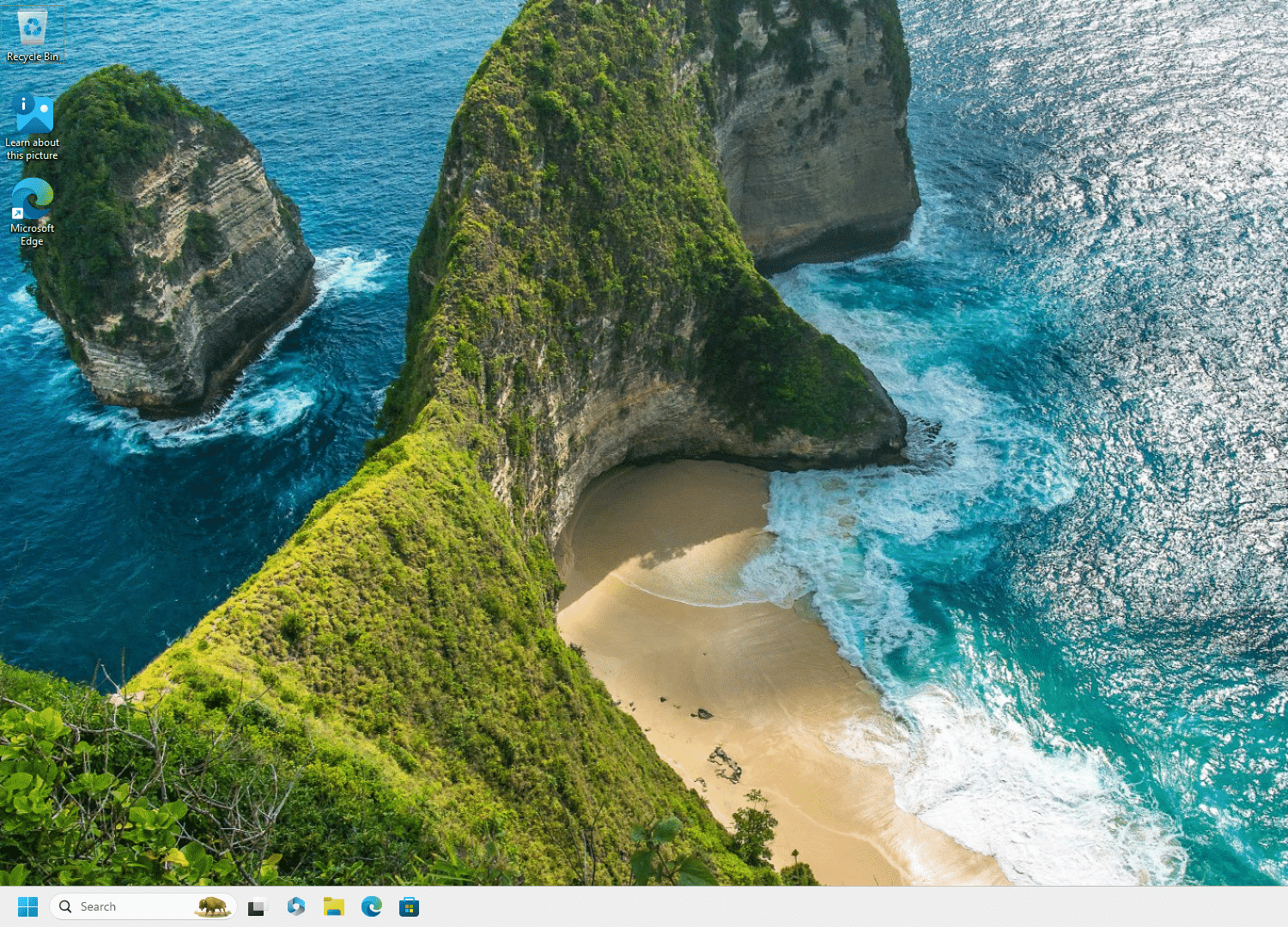
The bar along the edge of your screen is the taskbar. It’s where you launch apps, switch between open windows and reach system features. On Windows 11 it holds Widgets, Start, Search, Task view, your apps and the system tray.
Start is the hub for your apps, settings and files. It’s also where you go to sign out, lock the PC or switch to another user.
Why my taskbar is on the left
Windows 11 centers the taskbar icons by default, so yours may look different from my screenshots. I started with Windows 95, and for me only left feels right. If you’d like to try it, right-click the taskbar, select Taskbar settings, expand Taskbar behaviors and change the Taskbar icon alignment.
All of this together is called the Windows shell: the part of Windows you see and click on. You’ll meet that word again in the next article.
Your files: File Explorer
File Explorer is how you find, open and organize your files and folders. Press Win + E and there it is.
Files live in folders, and those folders have a set place. Your own ones, like Documents and Pictures, sit inside your personal folder. The example user in this course is called kmarflow, so that folder is C:\Users\kmarflow. On your PC it has your name on it.
You: user accounts
That personal folder exists because you signed in with a user account. Accounts let several people share one PC, each with their own settings, documents and apps.
They also decide what you’re allowed to do. An administrator can change settings, install software and access all files. Microsoft recommends a standard account for day-to-day work, because it’s safer.
Changing things: Settings and friends
Windows has more than one place to change settings, and no, you’re not imagining it. Windows has been moving house for years now, and not all the boxes have made it across.
- Settings is the main app, and the one to try first.
Win + Iopens it. - Control Panel is the old house. It’s still there for compatibility, and for whatever hasn’t moved yet.
- Windows Tools is a folder in Control Panel, with the tools for administrators and advanced users.
What’s running: Task Manager
Everything you have open is running on your PC, along with plenty you never opened yourself. Task Manager shows you all of it, and how hard your PC is working. It’s also where you close a program that has stopped responding, and decide which apps start along with Windows. Ctrl + Shift + Esc brings it up.
What runs without a window: services
Some programs never show a window at all. Services run in the background, and they can start as soon as the PC boots, before anyone has even signed in.
And below that?
Further down are the parts you rarely get to see: the folders Windows keeps for itself, the permissions on your files, and the Registry, a database where Windows and your apps store their settings. This course gets to the folders and permissions once you’ve seen everything above them. The Registry has its own course, and so does what happens underneath it all: How Windows Works.
How it all fits together
As different as these parts are, most of them keep their settings in the same place:
| Part | What it is | Where its settings end up |
|---|---|---|
| Desktop and taskbar | What you see and click | Your part of the Registry |
| Settings and Control Panel | Where you change things | The Registry |
| Your account | Who you are on this PC | Your profile folder, which also holds your part of the Registry |
| Environment variables | Shortcuts to folders and values | The Registry |
| Services | Programs without a window | The Registry |
| Group Policy | Rules an administrator sets | The Registry, too |
Group Policy is the one new name in that list. It’s rules set by an administrator, through the company network at work, or with the Local Group Policy Editor on your own PC. A policy beats what you pick in Settings, and that’s when Settings greys something out and says it’s managed by your organization. On my test machine, one policy set in the editor was enough for that message, and it showed up in the Registry as a value of its own.
Windows fundamentals: the route through this course
The articles take the same path as this overview, from what you already use to what’s behind it.
What you use every day
- File Explorer and the Windows shell
- Getting more out of File Explorer
- Search and indexing
- Settings, Control Panel and the Windows Tools
- Your Windows version and system information
You, your files and who can open them
What’s running, and how Windows is set up
- Task Manager, processes and startup apps
- Optional features, capabilities and languages
- Services and Task Scheduler
- Environment variables and system paths
They’re written to be read in order, but if you came here for one specific thing, go right ahead. Otherwise, the next stop is File Explorer and the Windows shell, since you’re probably using it every day anyway.
References
Tested on Windows 11 25H2, build 26200.9711, in a virtual machine: the Settings path, the keyboard shortcuts, the profile folder, where each part in the table keeps its settings, and one Group Policy setting with the message in Settings.
- Customize the Taskbar in Windows, Microsoft Support, no date shown.
- Windows Shell, Microsoft Learn, last updated 2021-01-07.
- File Explorer in Windows, Microsoft Support, no date shown.
- KNOWNFOLDERID, Microsoft Learn, last updated 2022-04-07.
- Manage User Accounts in Windows, Microsoft Support, no date shown.
- System configuration tools in Windows, Microsoft Support, no date shown.
- Windows Tools, Microsoft Learn, last updated 2026-09-06.
- Introduction to Windows Service Applications, Microsoft Learn, last updated 2021-09-15.
- Registry, Microsoft Learn, last updated 2021-01-07.
- Registry Hives, Microsoft Learn, last updated 2021-01-07.
Ntuser.datas the file behind your part of the Registry. - Environment Variables, Microsoft Learn, last updated 2025-07-14.
- HKLM\SYSTEM\CurrentControlSet\Services Registry Tree, Microsoft Learn, last updated 2024-10-09.
- Group Policy overview for Windows Server, Microsoft Learn, last updated 2026-04-16. Covers Windows clients as well.
- Understanding ADMX policies, Microsoft Learn, last updated 2025-08-04. Each setting corresponds to a registry value.
- Find information about your Windows device, Microsoft Support, no date shown.
- Windows 11 release information, Microsoft Learn, last updated 2026-10-28.
Leave a Reply