
Windows search can find a file before you’ve finished typing. Except when it can’t, and a file you know for a fact exists just doesn’t show up. Both have the same explanation, and we’ll get to it. First, the searching itself.
Two places to use Windows search
From the taskbar or Start. Select Search on the taskbar or open Start, and just begin typing. This looks through apps, settings and files, with filters across the top: All, Apps, Documents, Web, Settings, Folders and Photos. Expect some web suggestions in there too.
From File Explorer. Press Ctrl + E or Ctrl + F to jump to the search box in the top right. This searches the folder you’re in, along with its subfolders.
So if you’re after an app or a setting, or you have no idea where a file ended up, use Start. If you roughly know where it is, use File Explorer.
Finding what you meant
Typing a word finds it in file names, and in the contents of many text-based files. You can get more specific right in the search box:
| Type this | To find |
|---|---|
invoice 2026 | Items containing both words |
"tax return" | That exact phrase |
invoice OR receipt | Either word |
invoice NOT draft | The first word, but not the second |
kind:pics | Pictures |
kind:docs | Documents |
ext:.txt | Files with that extension |
date:today | Files from today |
date:yesterday | Files from yesterday |
size:>500 | Files larger than 500 bytes |
name:receipt | Files with that word in the name only |
OR and NOT need to be in capitals. Windows is picky about that: a lowercase or found nothing at all on my test machine.
Microsoft’s page on this syntax covers a long-obsolete version of Windows Search, so I ran every row above in File Explorer on 25H2, and they all work.
How it can be so fast: the index
Windows doesn’t read your whole drive every time you search. It looks through your files ahead of time and builds a catalog, the search index. When you search, it only has to check the catalog, like using the index at the back of a book instead of reading every page.
According to Microsoft, the index holds the properties of your files, including their names and full paths, and for files with text in them, their contents too.
It keeps itself up to date. The first run can take up to a couple of hours, and after that it works in the background and only handles what has changed. It takes up some space as well, usually less than 10 percent of the size of the files it covers, or more if you have lots of very small files.
File Explorer, Microsoft Edge and Outlook all use it. That includes your email: with classic Outlook, Microsoft’s troubleshooting steps for Outlook search have you check that Microsoft Outlook is listed under Included Locations in Indexing Options. Classic Outlook keeps your mail in .pst and .ost data files on your PC, and Windows Search indexes everything in them, though according to Microsoft only while Outlook is running. So when classic Outlook can’t find an email you know is there, the index is a suspect too, and Outlook itself shows how far it got under Search Tools > Indexing Status. Microsoft notes the steps can differ in the new Outlook for Windows, and my test machine has no Outlook at all, so this part comes from Microsoft rather than from my testing.
Microsoft’s pages I read don’t say where it lives, so this is what I found on my test machine: the index is under C:\ProgramData\Microsoft\Search\Data, you get access denied in there without administrator rights, and the process doing the work is SearchIndexer.
Which folders are covered: Classic and Enhanced
And there’s the catch: the index doesn’t cover your whole PC by default.
To see what it covers, open Settings, select Privacy & security, then Search. You can also enter ms-settings:search in Run (Win + R). At the top it shows how many items are indexed, and how many are still waiting.
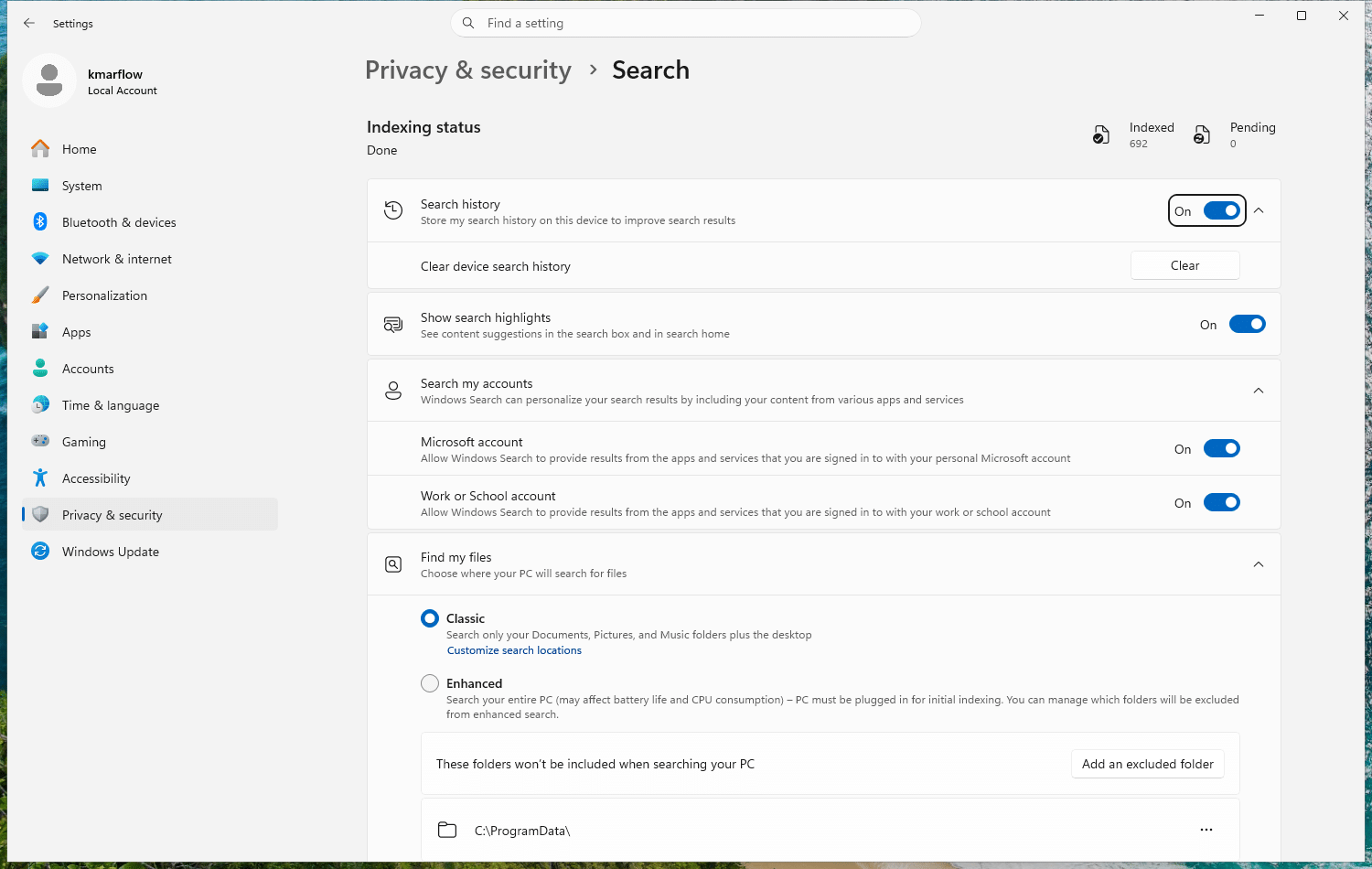
Under Find my files, you choose between two modes:
| Mode | What it indexes | The catch |
|---|---|---|
| Classic (the default) | Documents, Pictures, Music and the desktop | Files elsewhere aren’t in the index |
| Enhanced | Your entire PC, including all user folders and files | Windows warns it may affect battery life and CPU use |
So that’s the explanation I promised. I put a test file in C:\Projects with Classic selected, and searched for it:
| Searching from | For its name | For a word inside it |
|---|---|---|
| Start | “No results found” | “No results found” |
| File Explorer, in that folder | Found | Not found |
The file is fine, Windows just never looked there. File Explorer can still walk through the folder and compare names, but the contents are only searchable once they’re in the index.
When a file won’t show up
Work through these in order:
- Search from the right place. Open the folder you think it’s in with File Explorer, and search there.
- Check that the location is indexed. With Classic selected, select Customize search locations, then Modify, and add the folder.
- Check the file type. In the same dialog, select Advanced and then the File Types tab. Each type can be indexed by properties only, or by properties and content.
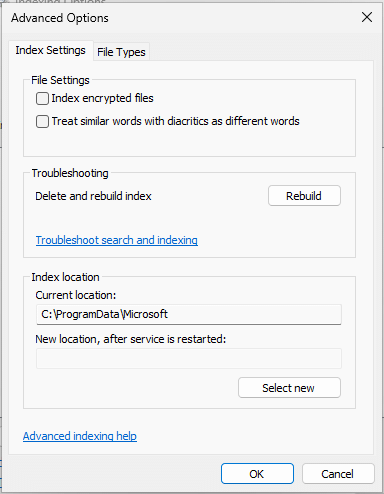
- Rebuild the index. Under Advanced, on the Index Settings tab, select Rebuild next to Delete and rebuild index. Windows warns that it can take a long time, and that results might be incomplete until it’s done. This one is a last resort. I looked at the buttons and stopped at the warning, so I can’t tell you how long it takes on a real PC.
If search itself seems broken
The index is maintained by the Windows Search service, or WSearch for short. It’s set to start automatically and it should be running. What a service is, and how to check on one, comes later in Services and Task Scheduler.
A note on Copilot+ PCs
Copilot+ PCs add another type of indexing on top, called semantic indexing, which is on by default there. Microsoft says its data is stored locally on your PC. My test machine isn’t one of these, so I’m only passing on what Microsoft states.
References
Tested on Windows 11 25H2, build 26200.9711, in a virtual machine: both search locations, the search filters, what Classic mode finds and the index location. For the rebuild I went as far as the warning, and stopped there.
- Search indexing in Windows, Microsoft Support, no date shown.
- Troubleshooting Outlook search issues, Microsoft Support, no date shown. Covers classic Outlook.
- How to troubleshoot performance issues in Outlook, Microsoft Support, no date shown. Source for the
.pst/.ostindexing; it covers classic Outlook 2010 to 2019 and Microsoft 365 and names Windows 10 and 8, not Windows 11. - Keyboard shortcuts in Windows, Microsoft Support, no date shown.
- Advanced Query Syntax, Microsoft Learn, last updated 2023-03-09. Covers the obsolete Windows Desktop Search 2.x, so its examples were checked on the test machine.
- Indexing process in Windows Search, Microsoft Learn, last updated 2021-06-30.
Leave a Reply