
In the previous article you met your profile. Now let’s open the folder that goes with it. We’ll start with what you already know, and end up in the AppData folder, the one guides keep sending you to without ever saying what it is.
Your profile folder
Everyone gets one, at C:\Users\<your name>. For the example user in this course, that’s C:\Users\kmarflow. To open yours, press Win + R, type a single dot and press Enter, or type %USERPROFILE% into File Explorer’s address bar. Besides the usual suspects below, you’ll find a few you may never have opened, like Contacts, Favorites, Links, Saved Games and Searches.
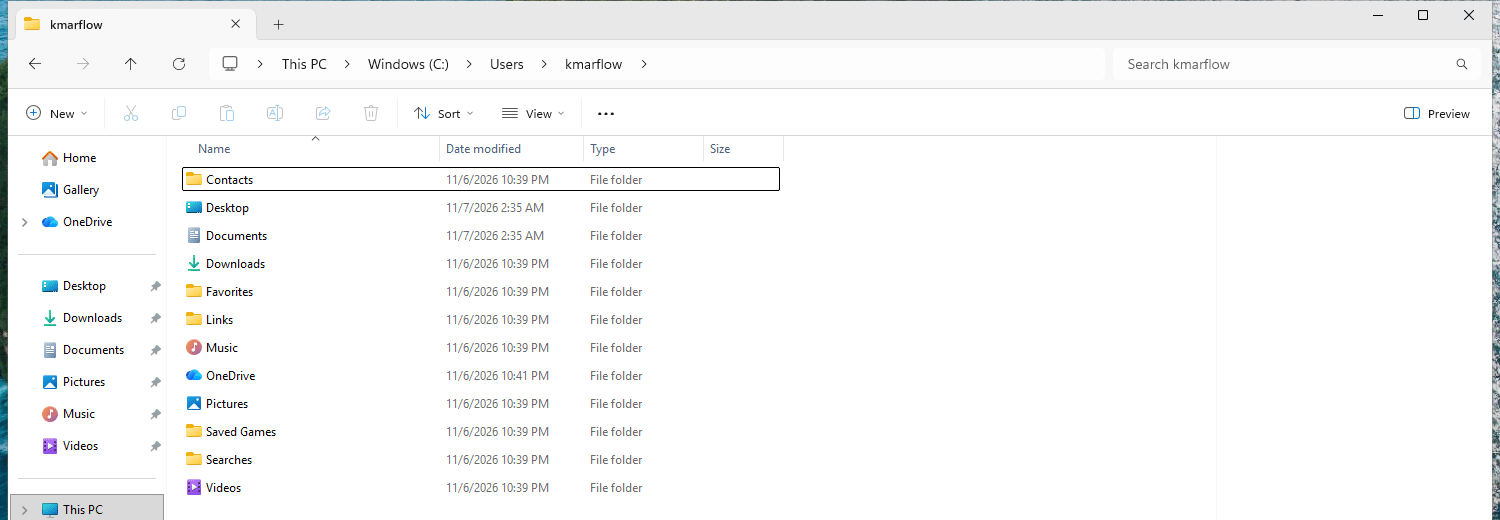
The folders you already use
| Folder | Default location | What it’s for |
|---|---|---|
| Desktop | C:\Users\kmarflow\Desktop | What’s on your desktop |
| Documents | C:\Users\kmarflow\Documents | Your documents |
| Downloads | C:\Users\kmarflow\Downloads | What you’ve downloaded, and forgotten about |
| Pictures, Music, Videos | C:\Users\kmarflow\Pictures and so on | Your media |
Those are the defaults. If you back up these folders with OneDrive, your files sync to OneDrive and you still reach them through Documents or Desktop as usual, though the folders may then be somewhere else on disk. To see where one really is, right-click it, select Properties and open the Location tab. That’s also where Move… is, for putting a folder on another drive. I looked but didn’t move mine.
The AppData folder: the one you can’t see
AppData is where your apps keep their data and settings. It’s hidden by default, so you won’t find it unless you turn on hidden items, or go there directly by typing this into the address bar:
%APPDATA%That takes you to C:\Users\kmarflow\AppData\Roaming. Those percent signs make it an environment variable, a named shortcut to a path, which gets its own article.
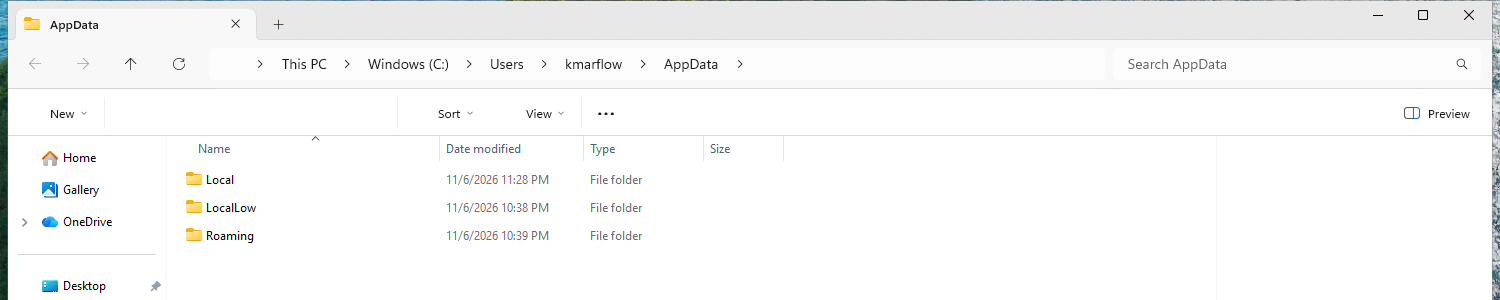
Inside are three folders:
| Folder | Path | Variable | What it’s for |
|---|---|---|---|
| Roaming | AppData\Roaming | %APPDATA% | Your app data, which can follow you to another PC on a network set up for it |
| Local | AppData\Local | %LOCALAPPDATA% | App data that stays on this PC |
| LocalLow | AppData\LocalLow | None | Data for apps running with low rights |
Roaming and Local
The difference comes from the office world. A company can set up roaming profiles, where a copy of your profile is stored on a server, so your settings are waiting for you on whichever PC you sign in to. Apps therefore put what should follow you into Roaming, and what belongs to this particular PC into Local.
Without such a setup, there’s no server share for Roaming to go to, so on a home PC it’s just a folder with big dreams.
LocalLow
LocalLow is the odd one out, and I couldn’t find a plain statement from Microsoft about what it’s for. They do list it as a known folder, so I had to work the rest out myself.
Windows has integrity levels, a rank for how much a program is trusted. Microsoft documents that a low-integrity process can’t write to something at medium integrity, which is the default for your files. So a program that runs at low integrity on purpose needs somewhere it’s allowed to write. LocalLow fits the bill: on my test PC, it’s the only one of the three marked as low integrity. This line from icacls only shows up for LocalLow:
Mandatory Label\Low Mandatory Level:(OI)(CI)(NW)So what it’s for is my conclusion from these facts, not a statement from Microsoft.
Temp
One more to know is AppData\Local\Temp, which you can open by typing %TEMP%. It’s for temporary files.
To clear it, you don’t need to go in there yourself. Use Settings > System > Storage > Cleanup recommendations, where Windows suggests what it can remove, temporary files included.
Programs installed just for you
Not every program lands in Program Files. Some installers offer to install for you only, and then their files go into your profile instead, at %LocalAppData%\Programs. Microsoft describes this for Windows Installer packages, and notes that such a per-user install doesn’t need to show a UAC prompt. That’s handy when you have no administrator rights, and it explains why a program can be on your PC without showing up in Program Files. It’s also only installed for you, so another user on the same PC doesn’t get it.
Apps from the Microsoft Store and other MSIX packages are a case of their own. Microsoft says they’re installed per user as well, while the files themselves are kept in one shared place, C:\Program Files\WindowsApps.
How to find, manage and clean up all of these is a topic for the Apps & Software Management course.
Can I delete things in AppData?
Carefully. This is where apps keep their settings, and sometimes their working data. Deleting a program’s folder in here can reset it or lose data, so don’t clear out AppData wholesale to win back some space.
For cleaning up, use Settings > System > Storage, more on that in System folders. Leftover folders from uninstalled apps are a topic for the Apps & Software Management course.
A few more you may run into
Public, at C:\Users\Public, is for files you want everyone on the PC to have. You met one of its folders already, as half of your desktop.
Your Start menu entries come from %APPDATA%\Microsoft\Windows\Start Menu\Programs, and they’re ordinary shortcuts.
Your startup folder runs whatever’s in it when you sign in. Press Win + R and type shell:startup.
The Default profile is at C:\Users\Default, and it’s hidden. Microsoft describes it as the template Windows uses to set up each new user’s profile. I tried it: a file I put on its desktop turned up on the desktop of a brand new user.
Those are your folders. On to the ones Windows keeps for itself: System folders.
References
Tested on Windows 11 25H2, build 26200.9711, in a virtual machine: every path and shortcut, the integrity labels on AppData’s three folders, and the Default profile.
- KNOWNFOLDERID, Microsoft Learn, last updated 2022-04-07.
- CSIDL, Microsoft Learn, last updated 2021-03-22. Used for its definitions only, because its example paths predate Windows Vista.
- About User Profiles, Microsoft Learn, last updated 2021-08-25.
- Mandatory Integrity Control, Microsoft Learn, last updated 2025-07-08.
- Free up drive space in Windows, Microsoft Support, no date shown.
- Configure Startup applications in Windows, Microsoft Support, no date shown.
- Customize the default user profile by using CopyProfile, Microsoft Learn, last updated 2022-05-16.
- Single Package Authoring, Microsoft Learn, last updated 2021-01-07. Per-user installs to
%LocalAppData%\Programs, without a UAC prompt. - Understanding how packaged desktop apps run on Windows, Microsoft Learn, last updated 2026-09-30. MSIX packages, installed per user under
C:\Program Files\WindowsApps. - Back up your folders with OneDrive, Microsoft Support, no date shown.
- Recognized environment variables, Microsoft Learn, last updated 2025-01-29.
Leave a Reply