
File Explorer is probably the Windows tool you use most, and it’s been around in some form since Windows 95. So you already know it. But there’s more going on in there than a window full of folders, and some of what you see isn’t quite what it looks like.
To open it, select it on the taskbar or in Start, or press Win + E.
Easter egg: Explorer used to be called Cabinet
While Windows 95 was being developed under the codename Chicago, Explorer went by a different name: Cabinet. Raymond Chen of Microsoft confirms it: “Explorer originally was named Cabinet”, and he adds that it has nothing to do with the .cab file format. According to BetaWiki, it first shows up in build 58s, the earliest available preview, from August 1993, as Cabinet for the shell part and File Cabinet for the file manager part, running as CABINET.EXE. Build 180 is the first leaked build with the name EXPLORER.EXE. And the old name never quite left: under the hood, a File Explorer window is still of the class CabinetWClass (I checked on 25H2), because old programs came to rely on that name.
The parts of the window
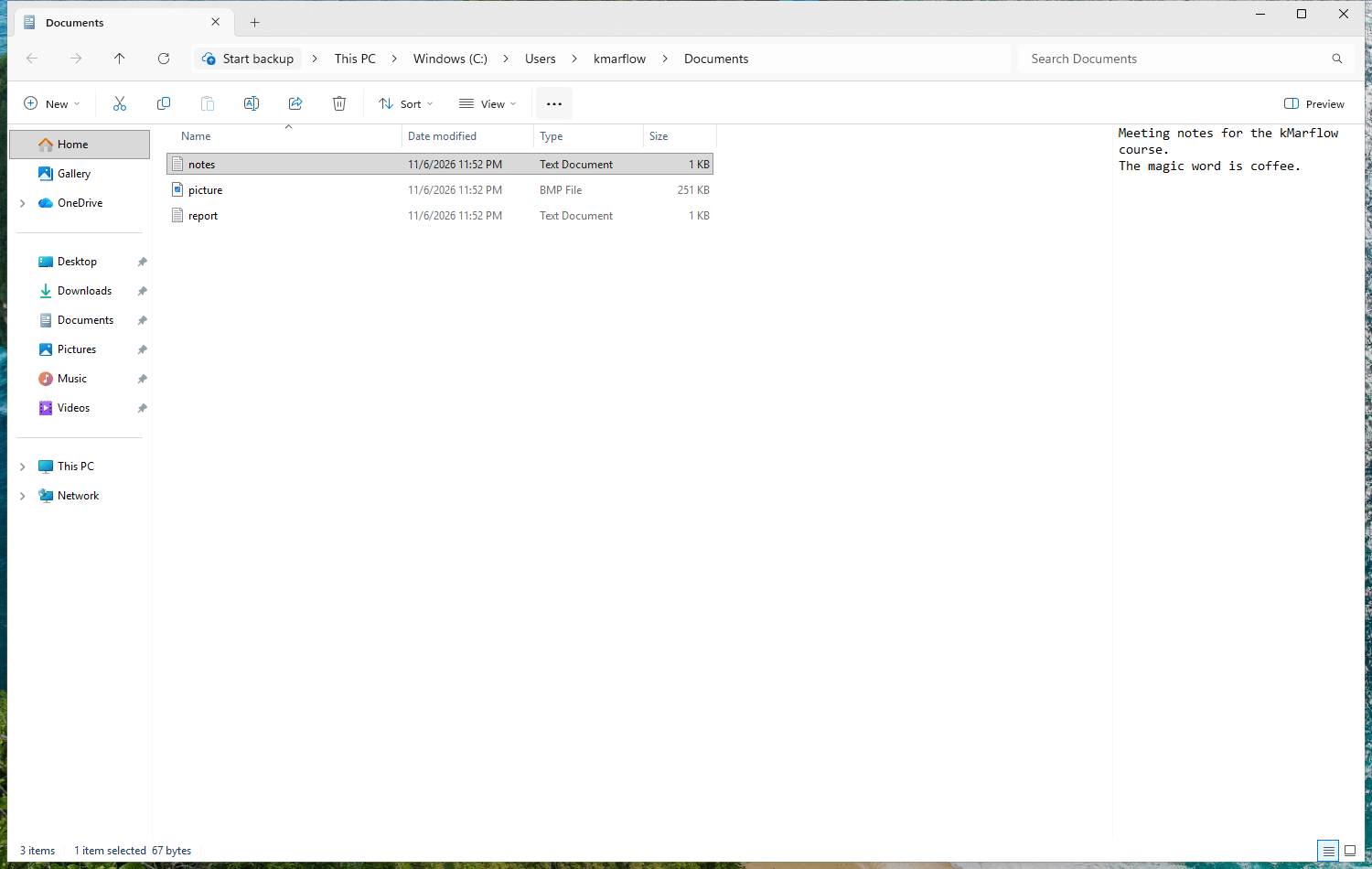
| Part | Where it is | What it does |
|---|---|---|
| Tabs | Top of the window | Your open tabs, and a button to add one |
| Toolbar | Beneath the tabs | Back, Forward, Up and Refresh, plus the address bar and search box |
| Address bar | In the toolbar | Shows where you are, and takes a path you type in |
| Search box | Right side of the toolbar | Searches the folder you’re in |
| Command bar | Below the toolbar | New, Cut, Copy, Paste, Rename, Share, Delete, Sort and View, with three dots at the end for the rest |
| Navigation pane | Left side | Your folders, drives and libraries |
| Content pane | Center | The files and folders themselves |
| Preview pane | Optional, on the right | A look at the selected file without opening it, Alt + P |
| Details pane | Optional, on the right | More about whatever you’ve selected, Alt + Shift + P |
| Status bar | Bottom | Item counts on the left, and two buttons on the right to switch between details and large icons |
The preview and details panes share the same spot, so you get one at a time.
Home, Gallery and This PC
The top of the navigation pane is how you get around, and those entries aren’t all the same kind of thing.
Home is where File Explorer opens by default. It used to be called Quick access, until Windows 11 22H2 renamed it. On my test machine it shows your pinned folders at the top and three tabs below them, Recent, Favorites and Shared, so whatever you were just working on is close by.
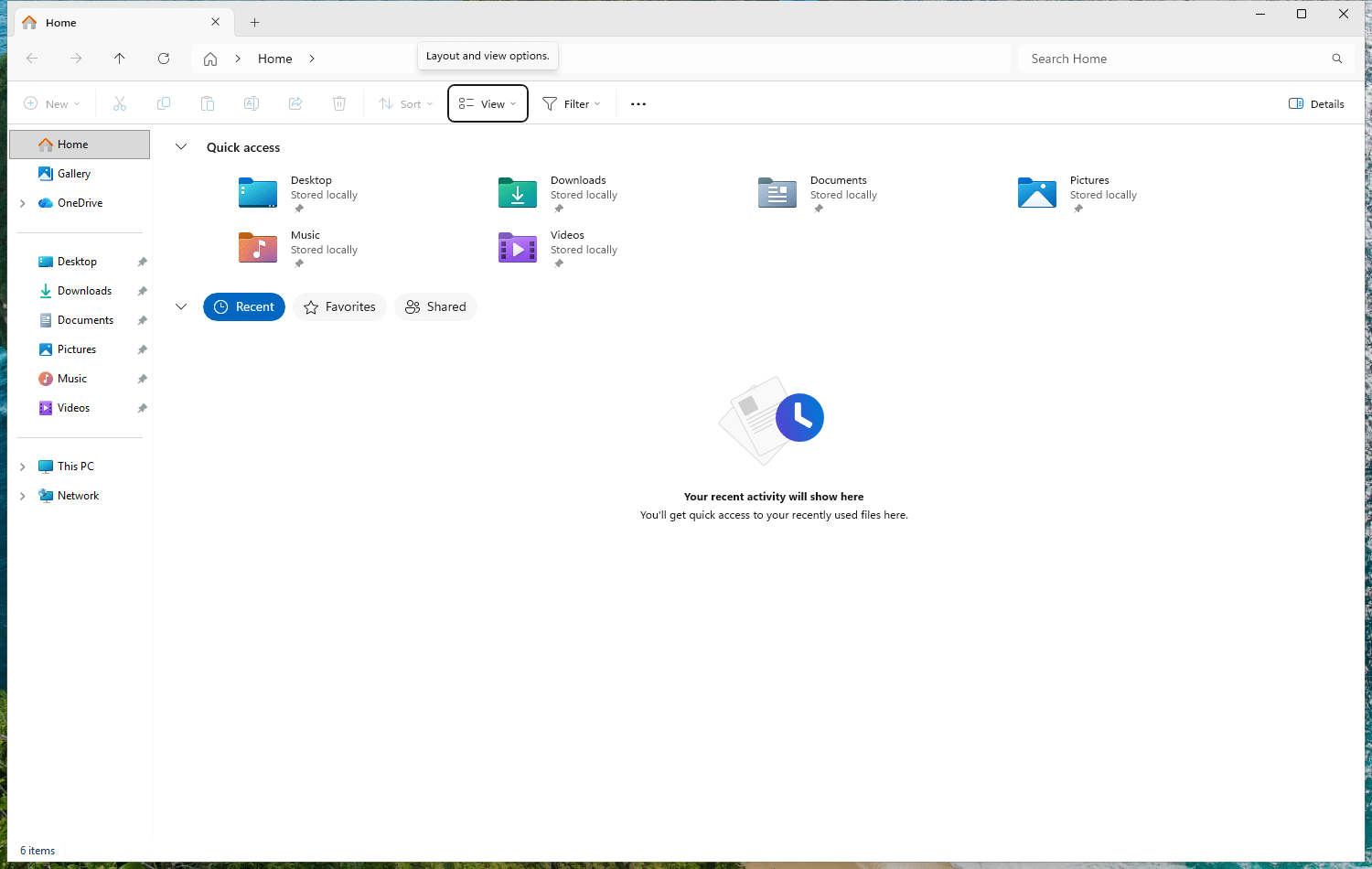
Quick access still exists, now as your list of pinned folders. Desktop, Documents, Downloads, Pictures, Music and Videos are pinned by default, and they show up on Home and in the navigation pane. To add your own, right-click a folder and select Pin to Quick access.
Gallery is your photo collection in one view, with the most recent ones at the top, no matter which folder they’re in. Microsoft added it in late 2023. It’s not a real folder, just a view of the folders you choose in its Collection dropdown, and it also shows up when a program asks you to pick a file. If you take photos on your phone and use OneDrive Camera Roll Backup, those land in there as well. Don’t confuse it with the Gallery in the Photos app, which is a different thing with the same name. Me? I always ignore it and have never used it, so much so that I actually missed it while writing this article. But if your photos are scattered all over the place, it might be for you.
This PC shows your drives under Devices and drives, and anything mapped from a network under Network locations. If you remember Documents and Pictures being listed here too: Microsoft moved them to Quick access in 22H2, to keep this view focused on drives.

Would you rather land on This PC than on Home? That’s a setting, and it’s in the next article.
Shortcuts worth learning first
| Shortcut | What it does |
|---|---|
Win + E | Open File Explorer |
Ctrl + T | Open a new tab and switch to it |
Ctrl + W | Close the active tab, or the window if it’s the only one |
Alt + Left arrow | Back to the previous folder |
Alt + Up arrow | Up one level |
Ctrl + L or Alt + D | Jump to the address bar |
Ctrl + E or Ctrl + F | Jump to the search box |
Ctrl + Shift + N | Create a new folder |
F2 | Rename the selected item |
Alt + Enter | Show properties of the selected item |
Alt + P | Show or hide the preview pane |
Alt + Shift + P | Show or hide the details pane |
Moving and copying files (Drag&Drop)
Cut, Copy and Paste work the way you’d expect, and you can drag files around with the mouse too. Hold a key while you drop, and you decide what happens:
| Hold while dropping | What happens |
|---|---|
| Nothing | Moves it on the same drive, but copies it to another drive |
Ctrl | Creates a copy |
Shift | Moves the file |
Alt | Creates a shortcut to the original |
Yes, a plain drag does two different things depending on where you drop it, so hold a key if it matters. I found no official page for any of this, so that table is what my test machine did.
A shortcut is a tiny file that only points to the original. My test file c-alt.txt came out as c-alt - Shortcut.lnk, and deleting it left the original alone.
The address bar
The bar at the top shows where you are, and you can click any part of the path to jump back there. Press Ctrl + L and it turns into plain text, so you can copy the path or type one in, like C:\Users\kmarflow\Documents.
Other things in the navigation pane
On a clean install, the rest of the pane is OneDrive right below Gallery, your pinned folders, and Network at the very bottom.
If you use OneDrive, those little status icons next to your files tell you where each file really is:
| Icon | What it means | Works offline? |
|---|---|---|
| Blue cloud | Online-only: takes up no space on your PC | No |
| Green circle filled white, with a green tick | Locally available: it downloaded when you opened it, and Free up space turns it back to online-only | Yes |
| Green circle filled green, with a white tick | Always available: you chose Always keep on this device, so it stays on your PC | Yes, always |
With Storage Sense on, Windows can also turn locally available files back to online-only after a while, so if something absolutely has to be there on the plane, make it the filled green one.
What a double-click actually does
Double-clicking a file doesn’t “run” it. Windows looks up what to do with that type of file. These file associations decide which app opens it, which icon it gets and what’s on its right-click menu. On my clean test machine, for example, a .bmp picture opens in Photos, not in Paint as you might expect. If you’d like a different app, right-click the file and select Open with.
Not everything in File Explorer is a folder
Open the Recycle Bin and it looks like any other folder. It isn’t, and it’s not the only one.
File Explorer shows you more than what’s on your disk. Windows puts your folders and drives together with other things into one big tree, which Microsoft calls the shell namespace, or in their words, a larger and more inclusive version of the file system. Anything in that tree that isn’t an ordinary folder on disk is a virtual folder. You browse it like any other folder, but you generally can’t create new ones yourself.
The word “shell” is the same one from the overview, by the way: the part of Windows you see and click on.
The Recycle Bin: one view of every drive
The Recycle Bin looks like one folder, but each drive has its own. What you see is all of them put together, which is why a file you deleted from D: shows up right next to one from C:. Microsoft’s programming documentation talks about “all Recycle Bins on all drives”, and lists the one you open as a virtual folder.
That has some practical sides:
- A deleted file doesn’t free up any space until you empty the bin. Microsoft reminds you of this too, when you’re trying to clear space.
- Windows may empty it for you. If Storage Sense is on, Microsoft says content in the bin gets deleted after some time.
- Each user gets their own view, so you won’t see what someone else on the PC has deleted.
Deletesends the selected item to the bin.Shift + Deletedeletes it permanently, with no stop along the way.
On my test machine, with a second drive and a second user, that’s exactly how it went. Files deleted from C: and T: showed up in one Recycle Bin, while each one really sat in a hidden $Recycle.Bin folder on its own drive, in a subfolder per user. A 200 MB file only freed up its space once I emptied the bin. The second user saw an empty bin and got access denied on my subfolder. Microsoft’s pages don’t describe that part, so it’s from this test.
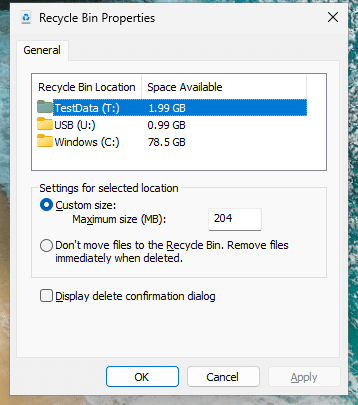
Right-click the bin and select Properties to set a maximum size for each drive, or to skip the bin on that drive altogether.
Your desktop: two folders pretending to be one
The desktop looks like a place of its own, but it’s a folder. Actually two: your own at %USERPROFILE%\Desktop, and one shared by everyone on the PC at %PUBLIC%\Desktop. Windows shows both as if they were one, which explains the classic “why can’t I delete this shortcut without an admin prompt?” It’s in the shared one. On my test machine, a file in either folder showed up on the desktop, but changing the shared folder without administrator rights was refused. It’s also a hidden folder, so you won’t spot it unless you show hidden items.
Libraries: one view of several folders
The Recycle Bin works a lot like the next one, although Windows treats them as different things.
Libraries are the exception you can make yourself. A library looks like a folder but holds nothing. It’s a view that shows the contents of several folders together, on your PC or on another storage location. A bit like a playlist: the songs aren’t in it, it only knows where they are. So if your photos are in two places, a Pictures library can show them as one.
Windows comes with four: Documents, Music, Pictures and Videos. Each includes your normal folder of the same name, and saving a file to the library puts it in that folder.
Two things to keep in mind:
- Adding a folder to a library doesn’t move or copy anything. The files stay right where they are.
- What you do in a library still happens to the real files. Delete a file there, and you’ve deleted the file itself, not a copy.
Libraries are hidden by default. To show them, open File Explorer’s options, select the View tab, then Show libraries. The next article shows you where those options are. Or just enter shell:Libraries in the address bar.
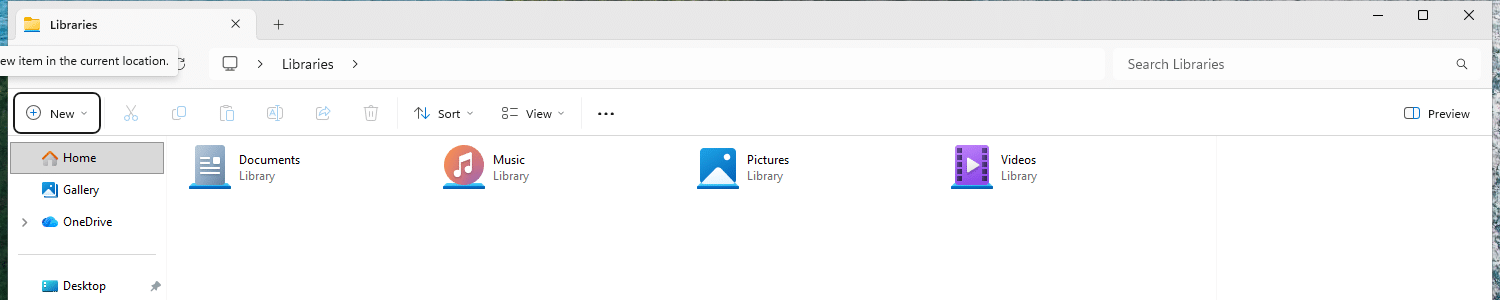
I tried both of those points on my test machine, with a test library holding folders from two drives. Both folders showed up as one, a file I copied in landed in the library’s save location, and deleting a file from the library deleted the real one, off to the Recycle Bin.
Why a stuck Explorer takes your taskbar along
The program behind File Explorer is explorer.exe, and Windows also starts that same program as your shell when you sign in. So your folder windows and your desktop and taskbar are close relatives, which is why a stuck File Explorer can feel like all of Windows has frozen, and why your taskbar sometimes just ghosts you.
Your taskbar pins and Start menu entries are also just files in folders, which fits the theme of this section:
| What | Where |
|---|---|
| Your taskbar pins | %APPDATA%\Microsoft\Internet Explorer\Quick Launch\User Pinned\TaskBar |
| Your Start menu entries | %APPDATA%\Microsoft\Windows\Start Menu\Programs |
| Start menu entries for all users | %ProgramData%\Microsoft\Windows\Start Menu\Programs |
On my test machine there was one explorer.exe running, with or without a folder window open. When I froze it, the folder windows, the desktop and the taskbar all stopped responding together. When I crashed it, all of them vanished, and Explorer came back by itself within a second or so. Don’t count on that though: on my own PC it used to stay gone, and I couldn’t work out what changed. Task Manager gets it going again.
The nice part is that you can usually fix this without restarting your PC.
When it stops responding: restart Explorer
- Press
Ctrl + Shift + Escto open Task Manager. - On the Processes page, select Windows Explorer. Typing
explorerin the search box at the top is the quickest way to find it. - Select Restart task, at the top of the window.
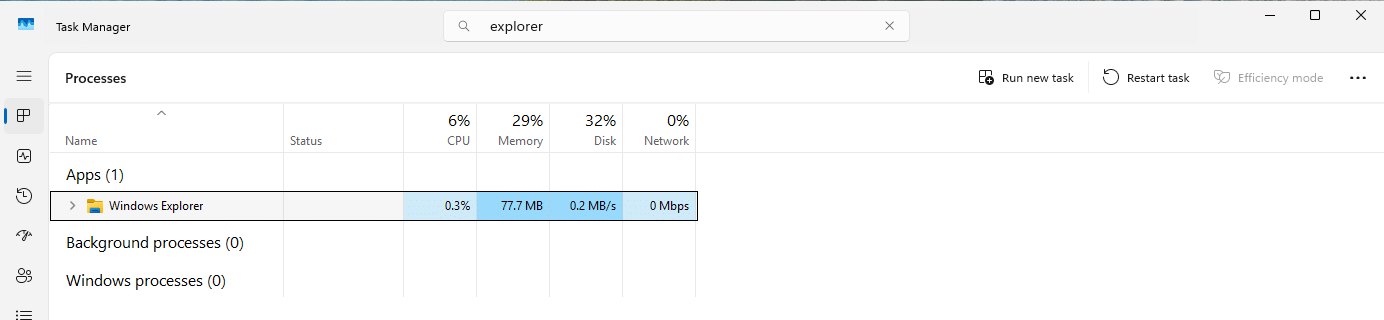
Your desktop and taskbar disappear for a moment and come back. Open folder windows don’t: I had one open before the restart, and none after, so you’ll have to find your way back there.
Task Manager gets its own article later: Task Manager, processes and startup apps.
If it keeps happening: suspect the add-ons
Programs can add things to File Explorer, such as extra entries in the right-click menu. These add-ons run inside Explorer itself, and Microsoft warns that if one of them crashes or hangs, Explorer does too.
So if File Explorer keeps freezing when you right-click a file, the culprit is quite possibly something you installed, not Windows. There’s also a setting that limits the damage, and I’d turn it on: you’ll find it in the next article.
What’s different in 26H2
This course is based on 25H2. Microsoft’s list of what’s new in 26H2 includes more archive formats and quick actions on hover in File Explorer, a faster Home page, a redesigned Start menu, and a taskbar you can move to the top, left or right. My test machine runs 25H2, so these are Microsoft’s statements, not tested here.
References
Tested on Windows 11 25H2, build 26200.9711, in a virtual machine: the window layout, shortcuts, drag behavior, address bar, file association example, Recycle Bin across drives and users, the desktop folders, libraries, Explorer process behavior and restart steps.
- File Explorer in Windows, Microsoft Support, no date shown.
- Did the Windows 95 interface have a code name?, Raymond Chen, The Old New Thing, Microsoft, 2014-07-29.
- Why does the class name for Explorer change depending on whether you open it with /e?, Raymond Chen, The Old New Thing, Microsoft, 2015-06-19.
- Development of Windows 95, Wikipedia, last edited 2026-08-21. Source of the Chicago codename and the build 58s date.
- File Explorer, BetaWiki, last edited 2026-05-10. Community archive of Windows prereleases, source of the Cabinet,
CABINET.EXEand build 180 details. - Use a screen reader to explore and navigate File Explorer in Windows, Microsoft Support, no date shown.
- Keyboard shortcuts in Windows, Microsoft Support, no date shown.
- October 31, 2023, KB5031455 (OS Builds 22621.2506 and 22631.2506) Preview, Microsoft Support, 2023-10-31. Introduces Gallery in File Explorer.
- Announcing Windows 11 Insider Preview Build 22621.2048 and 22631.2048, Windows Insider Blog, Microsoft, 2023-07-13.
- Browse and manage your photos on Windows, Microsoft Support, no date shown. Covers the Gallery in the Photos app.
- How File Associations Work, Microsoft Learn, last updated 2021-01-07.
- Introduction to the Shell Namespace, Microsoft Learn, last updated 2021-06-19.
- SHQueryRecycleBinW function, Microsoft Learn, last updated 2024-02-22. Programming reference, the source of “all Recycle Bins on all drives”.
- KNOWNFOLDERID, Microsoft Learn, last updated 2022-04-07. Lists the Recycle Bin as a virtual folder, and the default paths used here.
- Free up drive space in Windows, Microsoft Support, no date shown.
- Manage drive space with Storage Sense, Microsoft Support, no date shown.
- Windows Libraries, Microsoft Learn, last updated 2025-08-18.
- What do the OneDrive icons mean?, Microsoft Support, no date shown.
- Black screen after you sign in to the system, Microsoft Learn, last updated 2026-02-12.
- System configuration tools in Windows, Microsoft Support, no date shown.
- Working with Shell Extensions, Microsoft Learn, last updated 2026-07-17.
- What’s new in Windows 11, version 26H2 for IT pros, Microsoft Learn, last updated 2026-09-29.
Leave a Reply