
Since this blog started in January 2025, it has been a collection of single posts: the Registry here, File Explorer there, a bit of PowerShell, a repair guide. Each of them stands on its own, which is great when you need one specific thing. It’s less great when you want to understand how Windows actually fits together, because every post either explains the basics again or quietly assumes you already know them. That’s why the blog now has a new section: Windows courses.
A course is a set of articles on one topic, written to be read in order, each one building on the one before. The first one, Windows Fundamentals, is online now, and ten more are planned. So grab a coffee, and let me show you around.
How a course works
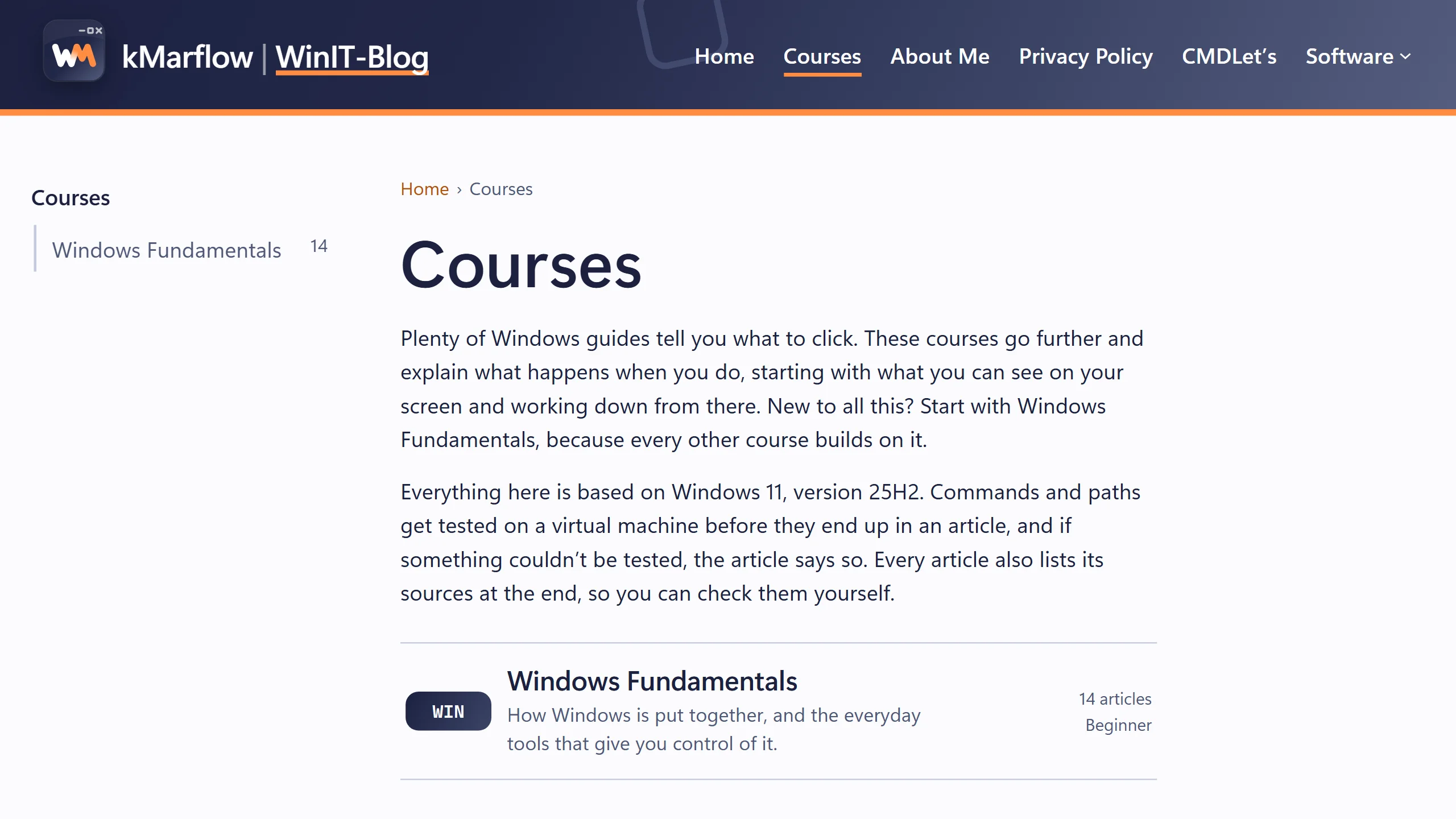
You’ll find all courses on the new Courses page, and there’s a Courses link in the menu at the top of every page.
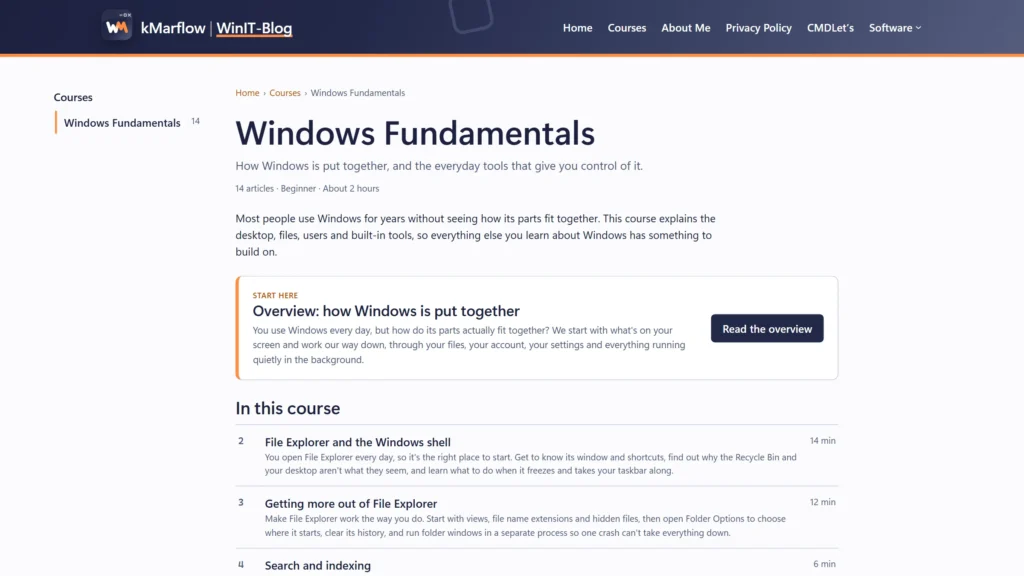
Every course has its own page with a short description, its level (beginner, intermediate or advanced), the number of articles and roughly how long they take to read, and a Start here link to the first article. Below that you get the full list of articles, in reading order.
The first article of every course is an overview. It walks through the whole topic without going deep, so you know what’s coming and how the parts relate. Every article after that takes one subtopic and goes into detail. While you read, the side navigation shows where you are in the course and what comes next.
You don’t have to read everything in order, of course. If you came for one specific thing, jump right in. But if you’ve ever read a guide that told you to “just restart the service” and wondered which service, and where, the order is there for you.
Why from the top down
Many technical explanations start either somewhere in the middle or at the bottom: here’s the kernel, here are tokens and security identifiers, and now, twenty minutes later, here’s why your file says “Access denied”. That’s a bit like explaining thermal stress in brake discs to someone who doesn’t know what a wheel is yet.
The courses go the other way. They start with what you see every day and work their way down from there. Windows Fundamentals begins at the desktop and taskbar, not in the System32 folder. Accounts come before the folders and permissions that depend on them. And the deep stuff, like what happens between pressing the power button and seeing your desktop, gets its own course once the basics are in place.
The same goes for the order of the courses themselves, and for the order inside each article. Every step should only need what you’ve already read.
No guessing: sources and a test machine
Something I take seriously with the courses: nothing in them is written from memory. Every command, path, registry key and default value is either backed by a source or tested, and usually both.
Every article ends with a References section. Each source is linked directly, with its title, the publisher and the “last updated” date it shows. Microsoft Learn and Microsoft Support come first. Where Microsoft doesn’t document something, I use other trustworthy sources, such as hardware makers’ own documentation or recognized Windows experts, and say so right where I use them. Forums and Q&A threads can point me somewhere, but they never count as a source on their own.
Everything testable is tested on a virtual machine running Windows 11, version 25H2, build 26200.9711. That matters more than you’d expect, because Microsoft’s own pages don’t always agree with each other. One page from 2021 says a 64-bit process gets 8 TB of address space, a page from 2025 says 128 TB, and a measurement on Windows 11 shows 128 TB. Another page was updated in 2026 and is still labeled “Windows 10”. So when the sources disagree, the test machine decides where it can.
When something couldn’t be tested, the article says so instead of pretending, and the References section lists what was tested and what wasn’t.
The baseline is Windows 11, version 25H2. Where the newer 26H2 behaves differently, the article mentions it. The test machine runs 25H2, so those 26H2 notes come from Microsoft’s own lists and are marked as not tested. Windows 10 only comes up when it helps to explain something that changed.
What you’ll see in the screenshots
All screenshots come from that test machine, not from my own PC. So in the examples you’ll see the user kmarflow on a computer called PC-WINIT01, and a taskbar aligned to the left. That last one is personal: I started with Windows 95, and for me only left feels right. Yours is probably centered, and that’s perfectly fine too.
Where Claude comes in
I’m doing all of this on my own, and that’s loads of work, especially since I research every topic beforehand, note everything down and run the tests. Proofreading your own text also gets you nowhere: it’s the equivalent of citing “Source: trust me, bro”. So I get help from Claude, Anthropic’s AI assistant. Claude proofreads what I claim, checks whether the references are correct and still up to date, re-formats text, finds better expressions and fixes my typos. It also writes the SEO data for my posts and articles, and runs the more complex tests and proofs on my test machine, like how a process behaves when it crashes.
The articles are written by me, and after Claude has been through them, I review them once more myself.
Course 1: Windows Fundamentals
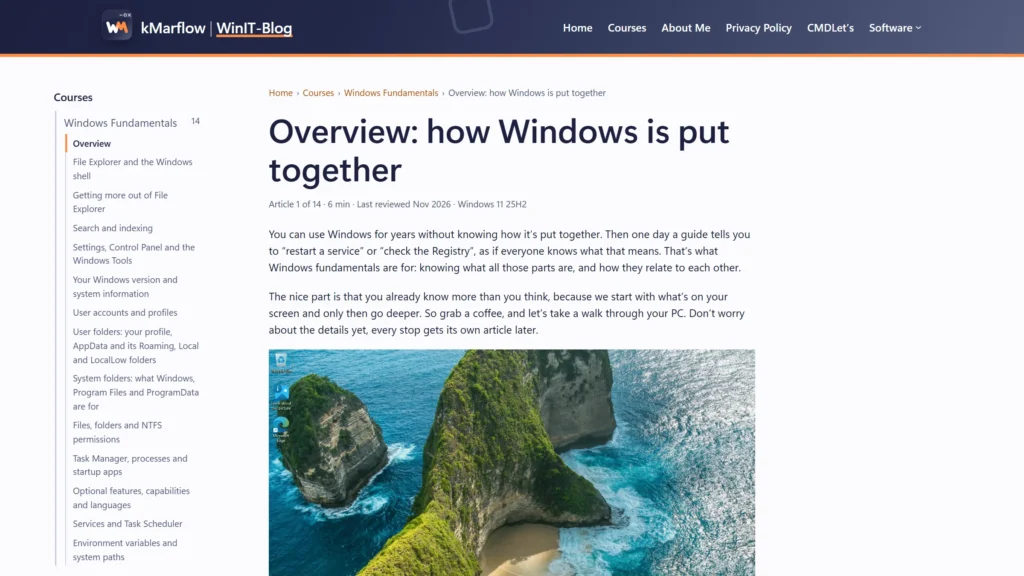
Windows Fundamentals is the course every other course builds on. It’s for beginners, but if you’ve used Windows for years, don’t skip it too quickly. Most of us know where things are, without ever having found out why they’re there.
It has 14 articles in three parts.
What you use every day. File Explorer and the Windows shell, why the Recycle Bin and your desktop aren’t quite what they seem, the Folder Options worth changing, search and the index behind it, the reason Windows has both Settings and Control Panel, and how to find your exact Windows version (edition, version and build are three different things).
You, your files and who can open them. User accounts and profiles, what happens when Windows signs you in with a temporary profile, the hidden AppData folder every guide sends you to (and what Roaming, Local and LocalLow are for), why WinSxS looks so huge, and NTFS permissions, so “Access denied” finally makes sense.
What’s running, and how Windows is set up. Task Manager and that little green leaf next to some processes, startup apps, optional features and languages, services and Task Scheduler, and environment variables, including why a command you just installed “is not recognized”.
The best place to begin is the overview: How Windows is put together.
What comes next: ten more Windows courses
Windows Fundamentals is the first of eleven planned Windows courses. The next one, How Windows Works, is already written and in review.
| Course | Level | What it covers |
|---|---|---|
| Windows Fundamentals | Beginner | How Windows is put together, and the everyday tools that give you control of it |
| How Windows Works | Intermediate | What Windows does under the desktop: startup, memory, power and storage |
| Windows Registry | Beginner to advanced | How the Registry is built, and how to read, change and back it up safely |
| Windows Security | Beginner to advanced | Sign-in, PIN and Windows Hello, saved passwords, Defender, the firewall and BitLocker |
| Windows Repair | Intermediate | What to try, in which order, when Windows stops behaving |
| Windows Update | Intermediate | How updates reach your PC, why they fail, and how to repair and control them |
| PowerShell | Beginner to advanced | From your first cmdlet to scripts you can trust in production |
| Apps & Software Management | Beginner to advanced | Installing, updating and removing software properly, from one PC to many |
| Windows Networking | Beginner to intermediate | Finding out why the connection fails, one layer at a time |
| WSL | Beginner to intermediate | Running Linux inside Windows: setup, distros, networking and file access |
| Enterprise Client Management | Advanced | Keeping managed Windows clients and Microsoft 365 Apps working |
The order follows the same top-down idea as the articles. How Windows Works comes right after the fundamentals because so much later on depends on it: why Fast Startup isn’t really a shutdown, what the page file is for, what a blue screen actually leaves behind. Titles and topics may still shift a little once each course is researched in detail.
What about the old posts?
They stay exactly where they are. No moving, no redirects, and every link you bookmarked keeps working.
The courses are written from scratch. They go a lot deeper than the old posts did, and they follow the rules above. Over time, the older posts will point to the course that covers their topic:
- Windows Explorer: A Powerhouse for it all → Windows Fundamentals
- Windows Registry – the hidden heart of Windows → Windows Registry
- When All Hell breaks loose (part 1): Repairing Windows System Files → Windows Repair
- Introduction to PowerShell for Beginners → PowerShell
- Microsoft Store & Winget: App-Management in Windows → Apps & Software Management
Regular blog posts aren’t going anywhere either. News, my own software and the occasional “this just broke, here’s what fixed it” still go on the blog.
No sign-up, no quiz
The courses are articles. You don’t need an account, there’s nothing to sign up for (except maybe my newsletter ;-P), and nobody quizzes you at the end. There’s no progress tracking or certificate either, at least for now. Open an article and read.
Comments are open on every article, though. If something is unclear, wrong, or doesn’t match what you see on your PC, tell me there. That’s exactly the kind of thing the test machine can’t catch.
Time to start
So that’s the new section: Windows courses that start at the desktop and work their way down, with sources you can check and a test machine behind every screenshot. Windows Fundamentals is the foundation, and everything after it builds on it.
Start with the Windows Fundamentals overview, and let me know in the comments which course you’re waiting for most.
Cheers,
Wolfram
Leave a Reply