
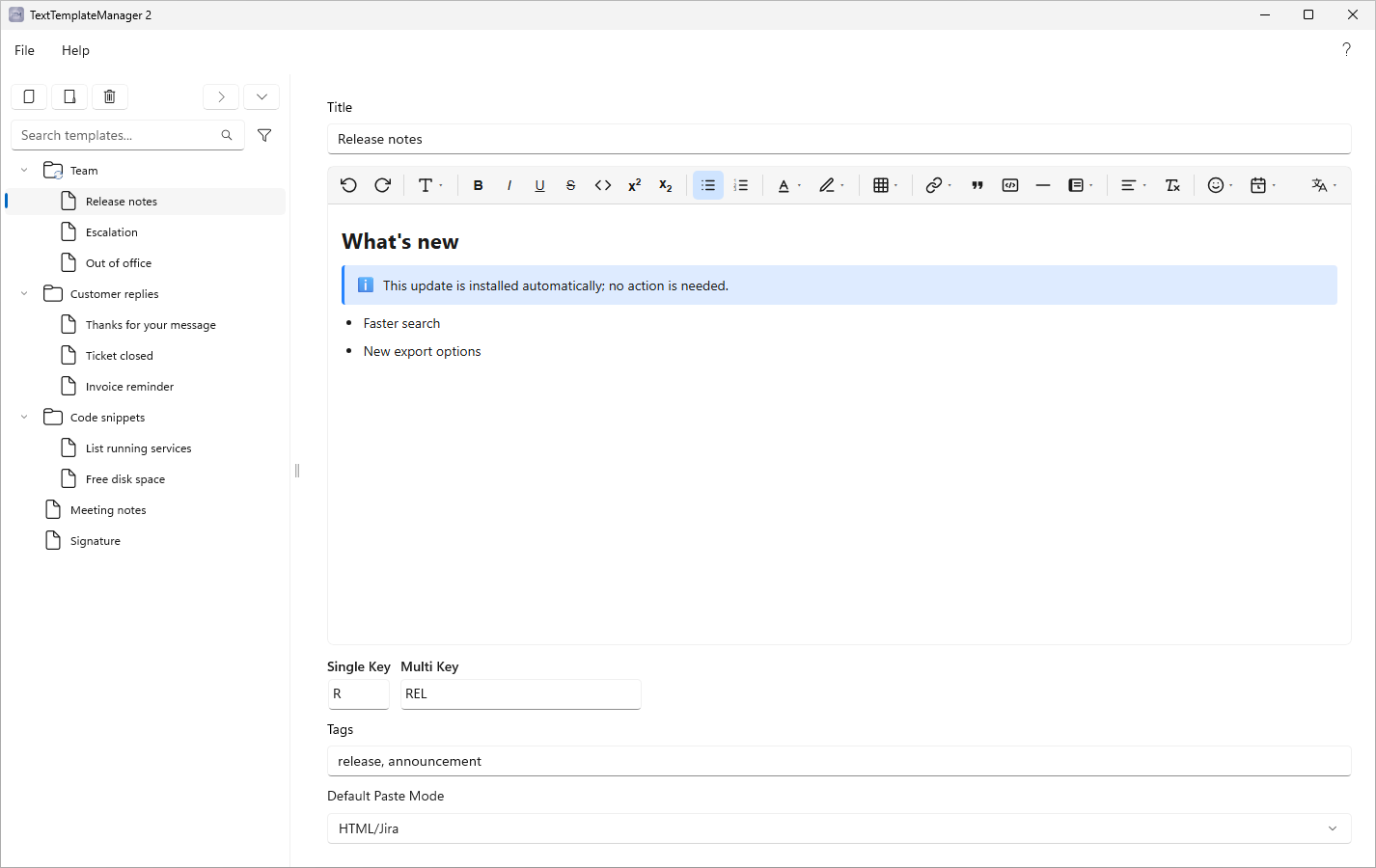
Back in July I introduced TextTemplateManager, my little Windows app for reusable text: templates in folders, a global hotkey, and the right text in the right format, wherever you’re typing. Version 1 came as a setup file from GitHub Releases, and it did its job.
Since then, a lot has happened. TextTemplateManager 2 is now available in the Microsoft Store, TTM Connect is in all three big browser stores, and the whole thing has a proper home: software.kmarflow.com. So grab a coffee, this one’s a release post.
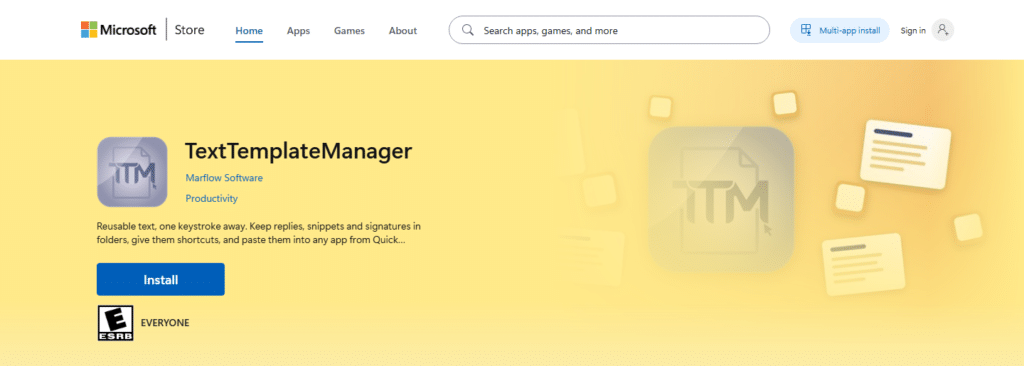
Why the Microsoft Store?
Short answer: because shipping software is more than writing it.
With version 1, I was the installer, the updater and the distribution channel, all at once. The app checked GitHub Releases for new versions, downloaded them and installed them itself. That works, but it’s a lot of machinery that has nothing to do with templates. And for a setup file from the internet to be trusted properly, it needs a code signing certificate, which costs real money every single year.
The Store takes all of that off the table:
- Every package is certified and signed by Microsoft before it’s published. No mystery
.exefrom some guy’s GitHub. - No administrator rights needed. Install it like any other Store app.
- Updates just happen. New versions download in the background. When one is ready, TTM shows a Restart to update notice: it saves your work, installs the update and opens again, in a few seconds. Or just quit the app, and it installs then. If you like, it can also update on its own while you’re not using it.
- Companies can deploy it with winget or Intune, and administrators can turn off or limit updates with policy keys. All of that is in the Administrator guide.
As someone who does IT for a living, that last point matters to me. A tool that’s annoying to roll out doesn’t get rolled out.
Coming from version 1?
Good news: your templates come along.
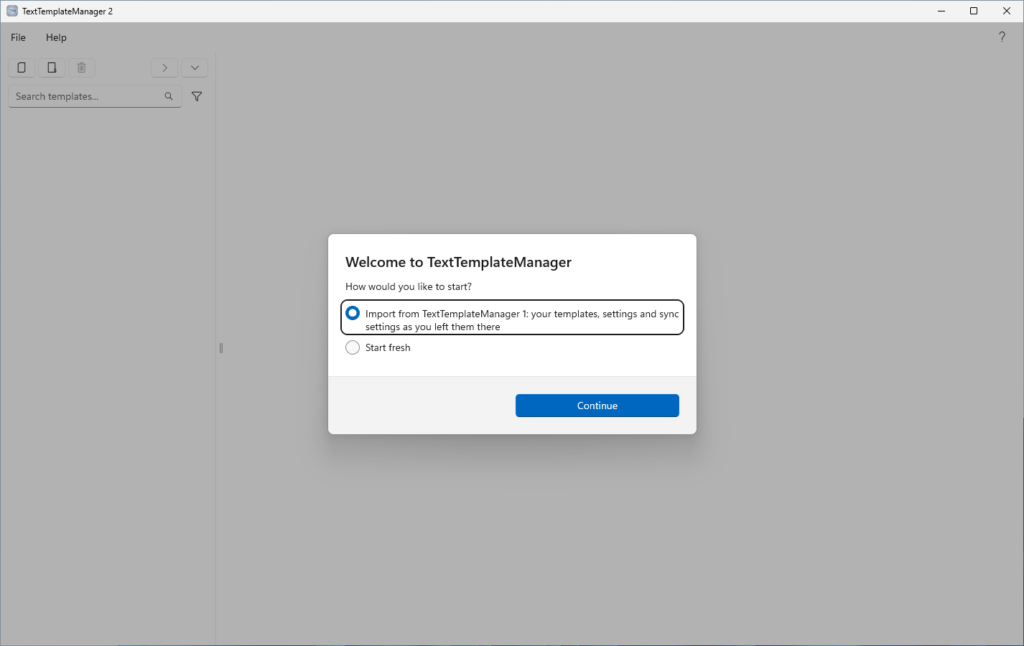
When TTM 2 starts for the first time, it backs up your version 1 data and then offers to import your templates, settings and sync settings in one step. Shared sync files are linked, never overwritten, so your team’s files stay exactly as they are. If a sync file is missing, you can recreate it, relink it, or leave it for later. Your version 1 data folder isn’t touched.
TTM 2 also closes a running version 1, so the two don’t fight over the Quick Paste hotkey, and it offers to remove version 1 for you. If you’d rather start fresh, you can still import or restore later under Settings ▸ Backups.
Version 1 itself has reached end of life. It only gets important bug fixes from here on. Its last release points you to the Store and removes itself once version 2 is installed.
What I’m most happy about in TTM 2
The Store is the headline, but it’s not the only thing that changed. A few favorites:
Automatic backups
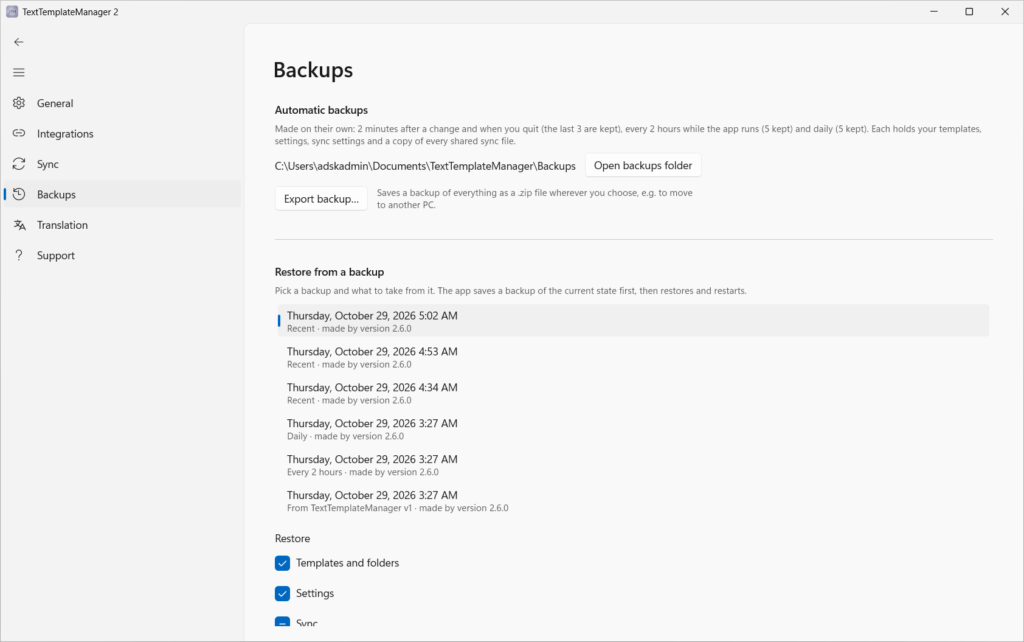
Templates are work, and losing work is the worst. TTM 2 now backs up everything automatically to Documents\TextTemplateManager\Backups: shortly after a change, every two hours, and once a day. Each backup is a .zip with your templates, settings, sync settings and copies of your shared sync files, plus checksums.
Restoring is selective (just the templates, just the settings, …), TTM backs up the current state first, and a restore can be undone. And because the backups live in your Documents folder and not in the app folder, they survive a reset or even an uninstall.
Search that finds things
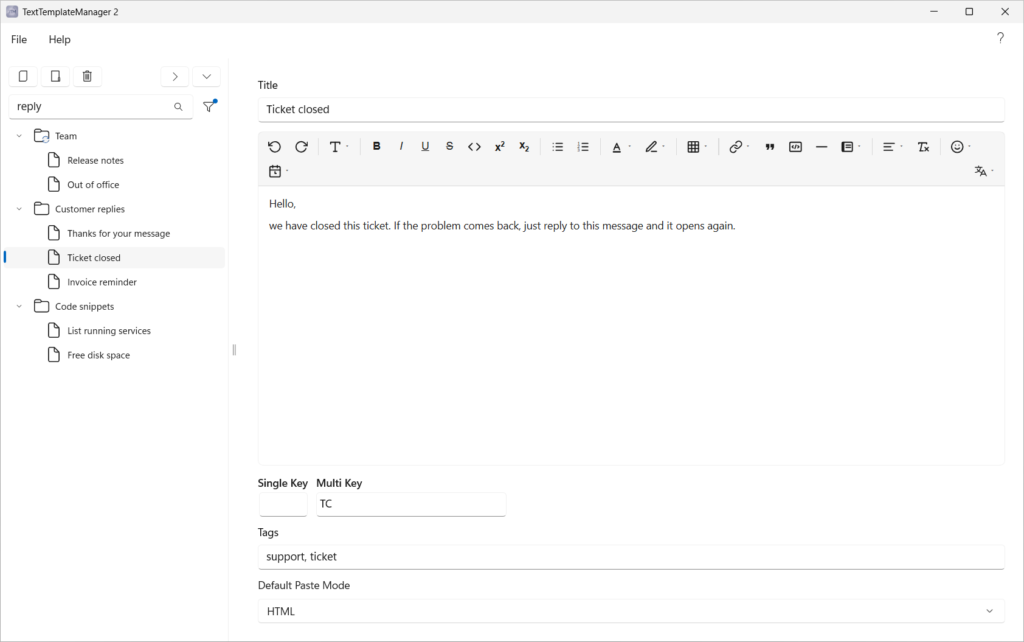
Templates can now have tags, and search uses them. By default, search is fuzzy: type a few words in any order, and TTM finds templates whose title or tags match. Need more? Switch on Search template text to search inside the templates, or Strict search for exact phrases, with * and . as wildcards. Both work in the main window and in Quick Paste.
Drag, drop and multi-select
Reorder templates and move them between folders with drag and drop. Ctrl- and Shift-click work just like in File Explorer, so you can move, delete or export a whole bunch of templates at once.
Code blocks and callout panels
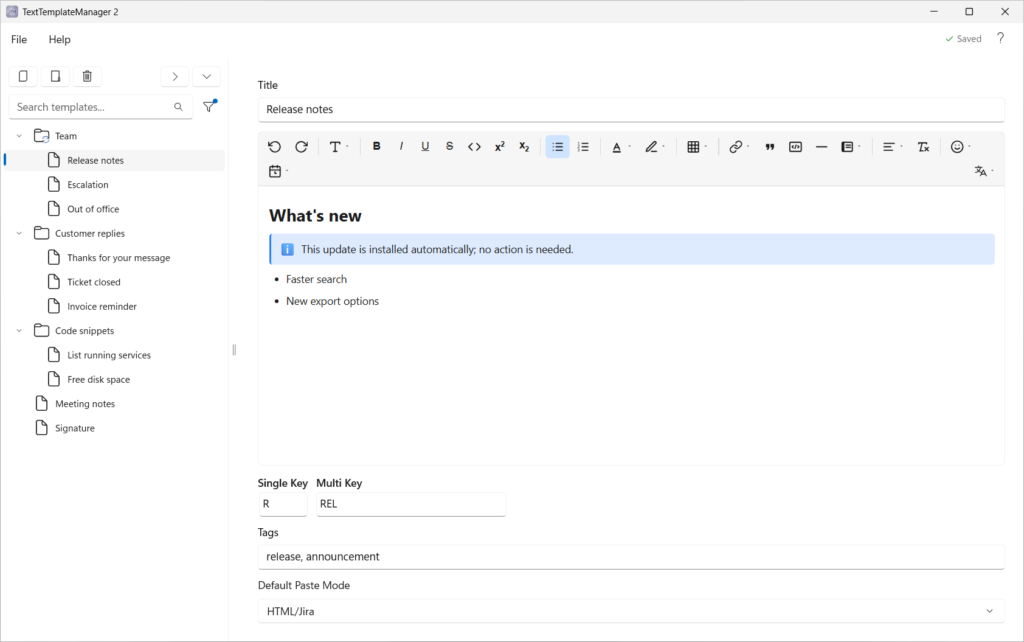
For everyone who pastes commands into tickets all day (hi): code blocks now have syntax highlighting and a language selector, and they keep your indentation. Callout panels come in five styles and adapt to the paste mode, so a warning box still looks like a warning box in Jira, Outlook or plain Markdown.
Six languages, and an experimental translator
The app speaks English, German, Hungarian, Italian, French and Spanish. Full honesty: the Hungarian, Italian, French and Spanish versions were translated with AI and haven’t been proofread yet. If something sounds off, there’s a button to report it.
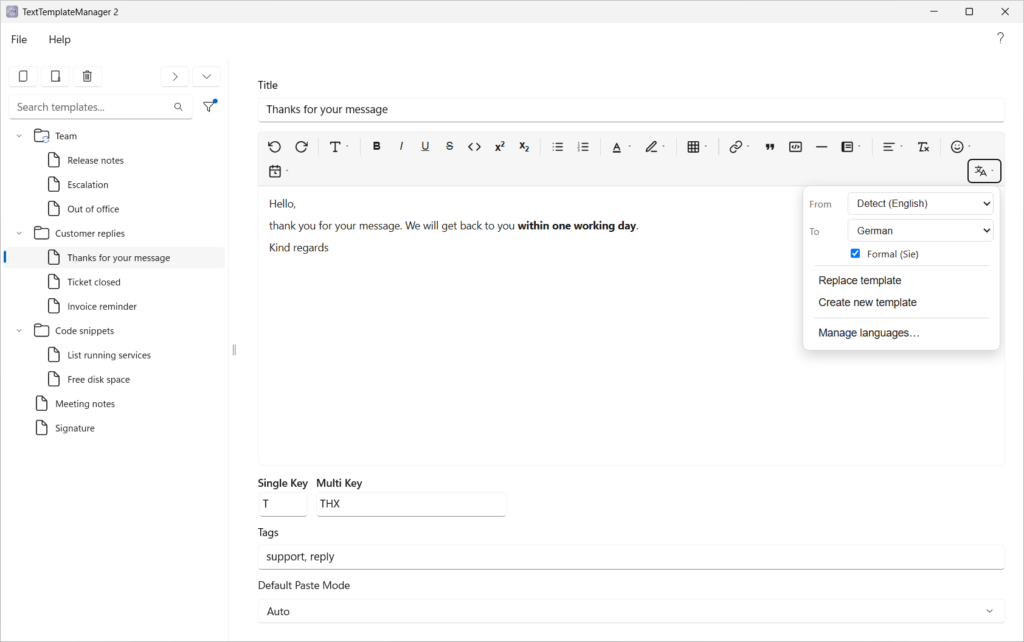
There’s also an experimental translation feature for templates. It runs entirely on your PC, using downloadable Firefox Translations models, so your text doesn’t leave the machine. Experimental means experimental, though: always read the result before you send it.
Small things
- A guided tour (Help ▸ Start tutorial) shows you around with sample templates, so your own data stays untouched.
- After an update, a What’s new screen tells you what changed, once.
- Changes now wait for an explicit Save (or Ctrl+S) by default, with a prompt before you lose anything. Prefer the old way? Turn on Autosave under Settings ▸ General.
- Type ttm or ttm2 in the Start menu, in Run (Win+R) or in a command prompt, and the app starts.
TTM Connect: now in every browser I promised
In July, TTM Connect was available for Chrome, with Firefox listed and Edge “coming soon”. Coming soon has arrived: TTM Connect is now in the Chrome Web Store, Edge Add-ons and Firefox Add-ons.
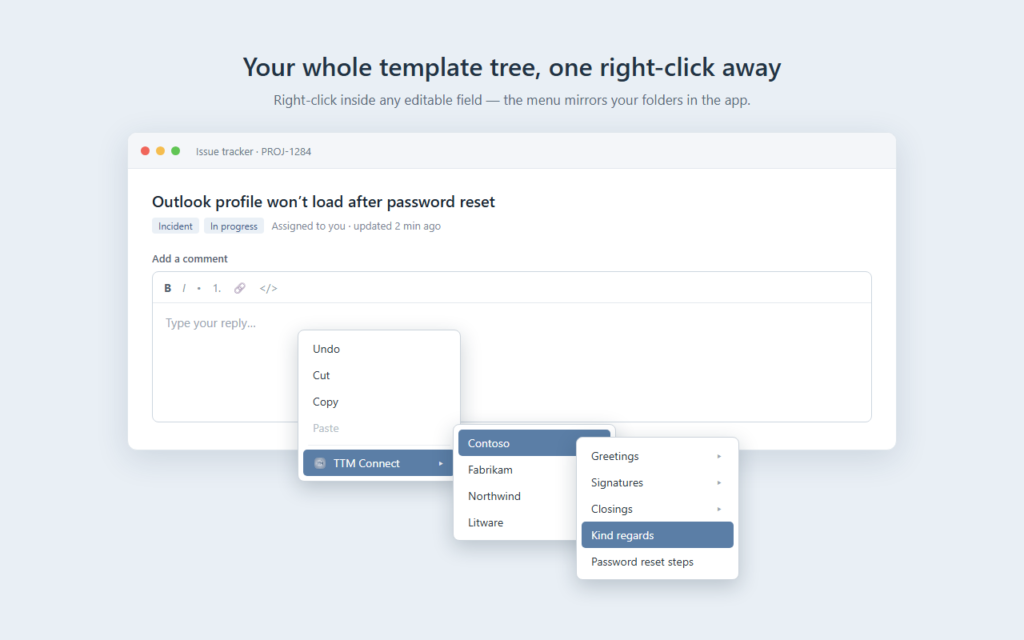
Right-click any editable field, and your template tree is right there in the context menu, with formatting intact (lists, links, headings, Jira panels) and the paste mode of your choice. And it works the other way around too: select text on a web page and use Create template from selection to save it straight into TTM. Scripts, images and unsafe links are stripped along the way, and code blocks are kept as text.
Setup is the same as before. In TTM, enable Settings ▸ General ▸ Browser extensions (beta), then enter the port and token in the extension. The connector is off by default, and it only ever talks to your own machine on 127.0.0.1.
software.kmarflow.com: a home for Marflow Software
Until now, everything about TTM lived in a single blog post and a GitHub README. That doesn’t scale, and it definitely doesn’t work as a manual.
So Marflow Software now has its own site: software.kmarflow.com. It’s the home of TextTemplateManager, TTM Connect and my PowerShell-Tools. Every project has an Overview and a User manual, and TextTemplateManager also has an Administrator guide, a Help & troubleshooting page and a Privacy page. The manuals are also available as PDFs with every release, and inside the app under Help ▸ Open Manual.
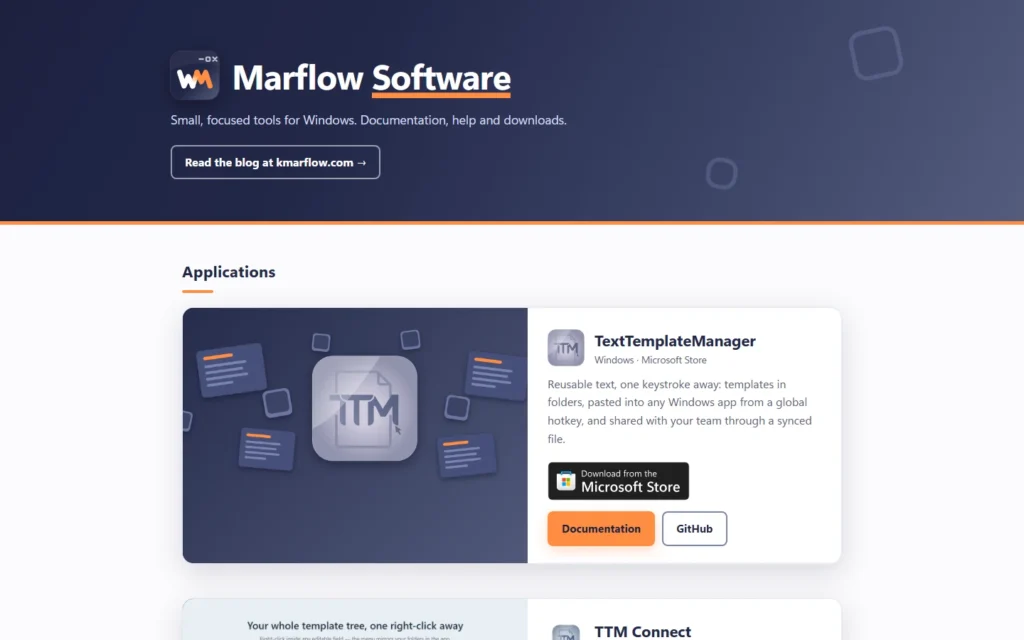
The split is simple: this blog is the knowledge side, where I explain how things work and how to fix them. The software site is the tool side, where you get the things I build and learn how to use them. (If you want the story behind the new logo that ties both together, that’s its own post.)
Still yours, still private
Some things didn’t change, on purpose:
- No accounts, no servers, no telemetry, no tracking. Your templates live on your PC and in the shared files you choose.
- Free, and the source is on GitHub. The license is source-available: use it, modify it, run it inside your company. Just don’t sell it or turn it into a service.
One tip from the Remote Desktop corner: the Quick Paste hotkey always opens on your local machine. If you run TTM on both ends of an RDP session, give each one a different hotkey, or just run one of them.
Get it
- TextTemplateManager: Microsoft Store · Overview · User manual
- TTM Connect: Chrome · Edge · Firefox · Overview
- Admins: deploy it through Intune as a Microsoft Store app (new), or with winget (run as the user who will use the app). Details in the Administrator guide.
winget install --id 9NMBSZLLLN6V --source msstore --accept-package-agreements --accept-source-agreements
What’s next
TTM 2 is out, but it’s far from done. The translations want proofreading, the translator wants to grow out of “experimental”, and many more features are waiting to be implemented. If you find a bug or miss a feature, Help ▸ Support in the app has links for both, and the comments below work too.
And yes, the regular Windows and PowerShell posts are coming back as well. This blog didn’t forget what it’s about.
Until next time, keep those servers humming and your templates one keystroke away.
Cheers, Wolfram
Leave a Reply