

If you’ve noticed it’s been a while since the last post here — this is why. Between the day job and what turned out to be a much bigger project than I expected, something had to give, and unfortunately it was the blog. But the project is shipped, so let’s talk about it.
Why I Built This
I work in IT, and like a lot of people in this field, I type the same things constantly. Response templates, standard ticket replies, boilerplate instructions, escalation texts — the same chunks of formatted text, over and over. I’ve tried every text-expander and snippet tool I could find over the years, and every single one fell short in at least one meaningful way: either the formatting support was rudimentary, the UI felt like it was designed in 2008, or — the biggest deal-breaker for me — there was no proper sync. No way to share a template library across machines, or let a team share a common set of templates while each person also maintains their own.
So I built my own. Marflow Software – TextTemplateManager (TTM for short) is the result. It’s my first C#/WinUI 3/.NET project, about a year in the making, and it was thrown away and restarted from scratch more than once along the way.
What Does It Do?
At its core, TTM is a global hotkey-driven snippet manager. You organize your text templates into folders, assign shortcuts to them, and then from anywhere on your system — any app, any window — you hit your Quick Paste hotkey and a small overlay appears. From there, single-key shortcuts paste instantly, or you hold ALT and type a multi-key combination for longer shortcut names.
Templates aren’t just plain text. TTM uses a full rich-text editor (TipTap/ProseMirror, embedded in a WebView2 panel) that supports bold, italic, colors, headings, lists, tables, links, and callout panels — and saves automatically as you type.
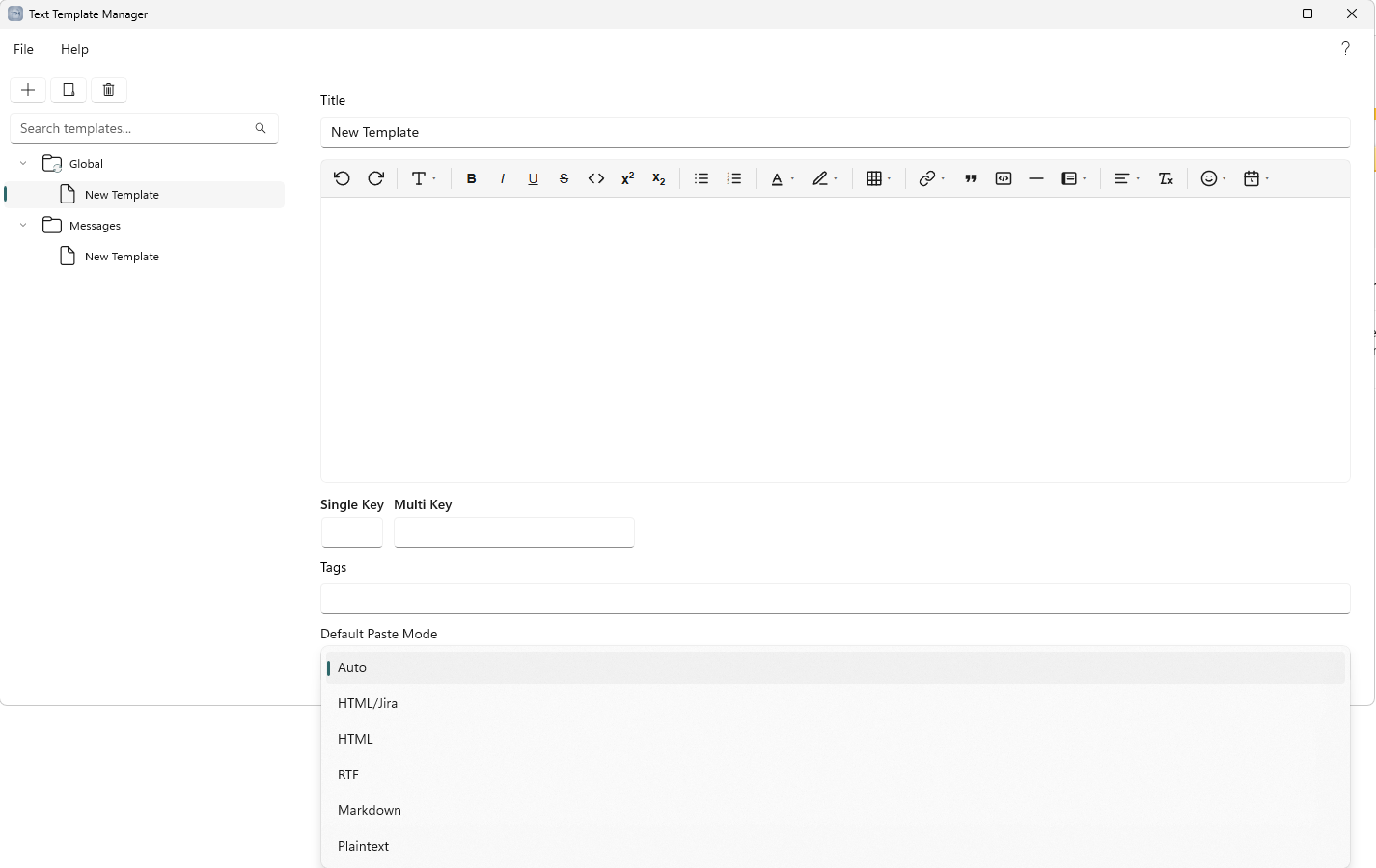
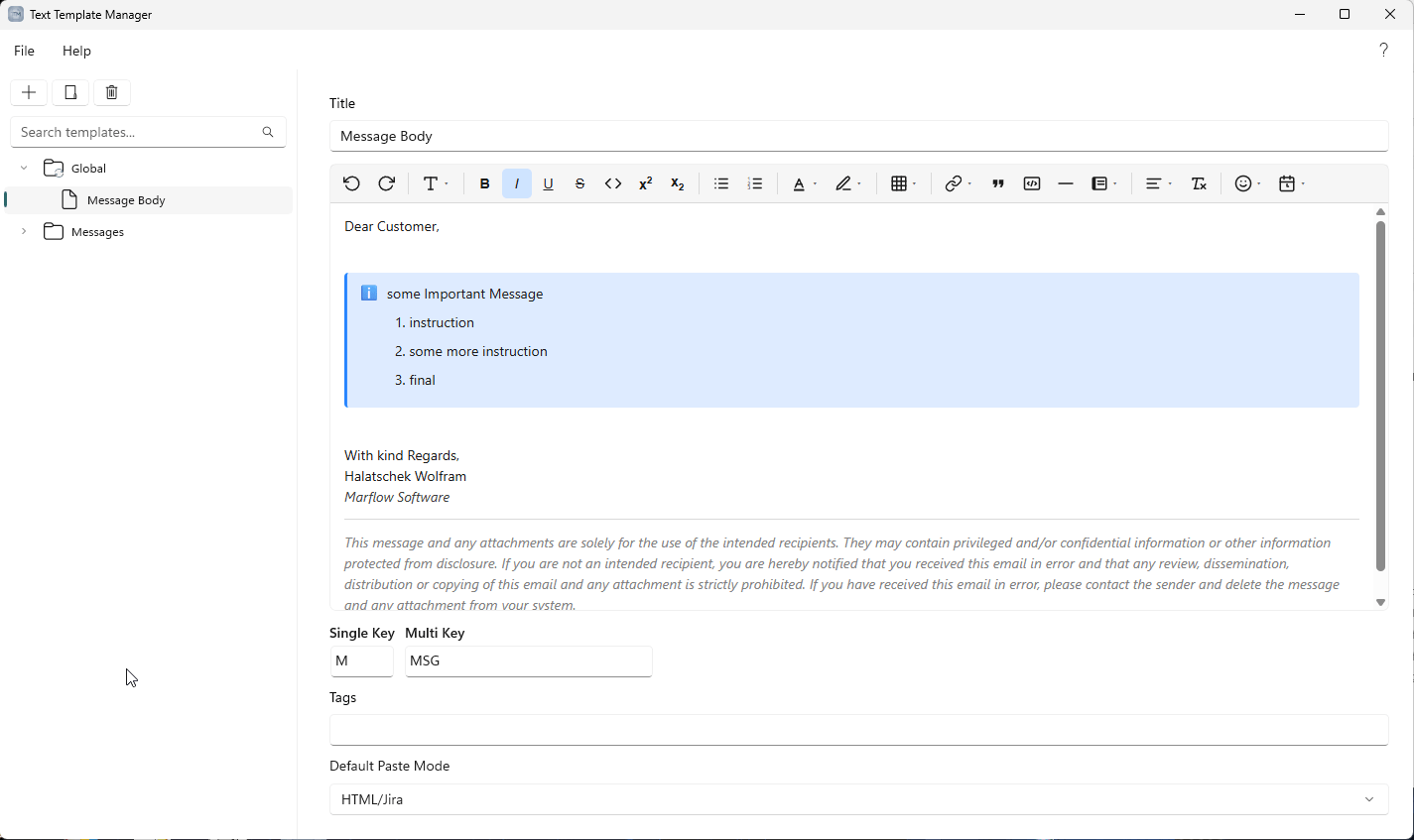
Quick Paste
Hit your configured global hotkey from anywhere and a compact Quick Paste window appears over whatever you were doing. A single key pastes its assigned template immediately. Holding ALT and typing narrows the list by multi-key shortcut — release ALT and the top match inserts. You can also search by name or browse by arrow keys.
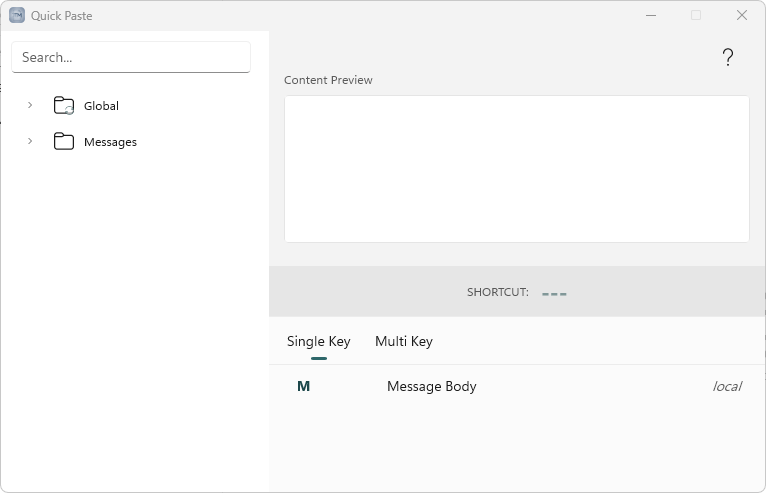
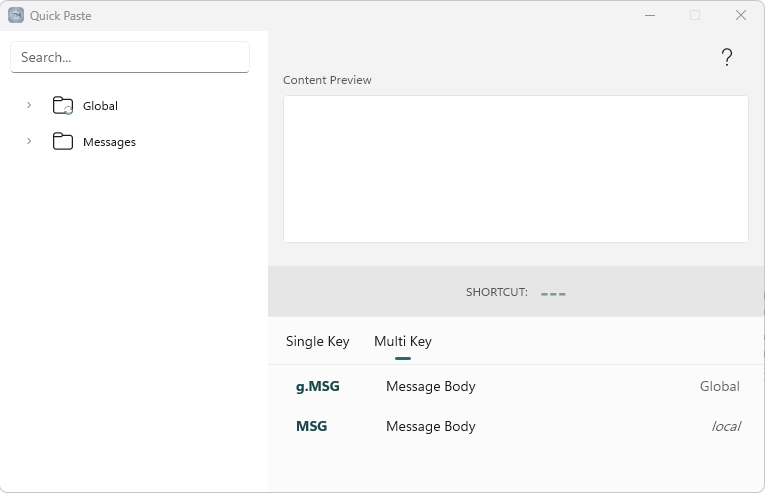
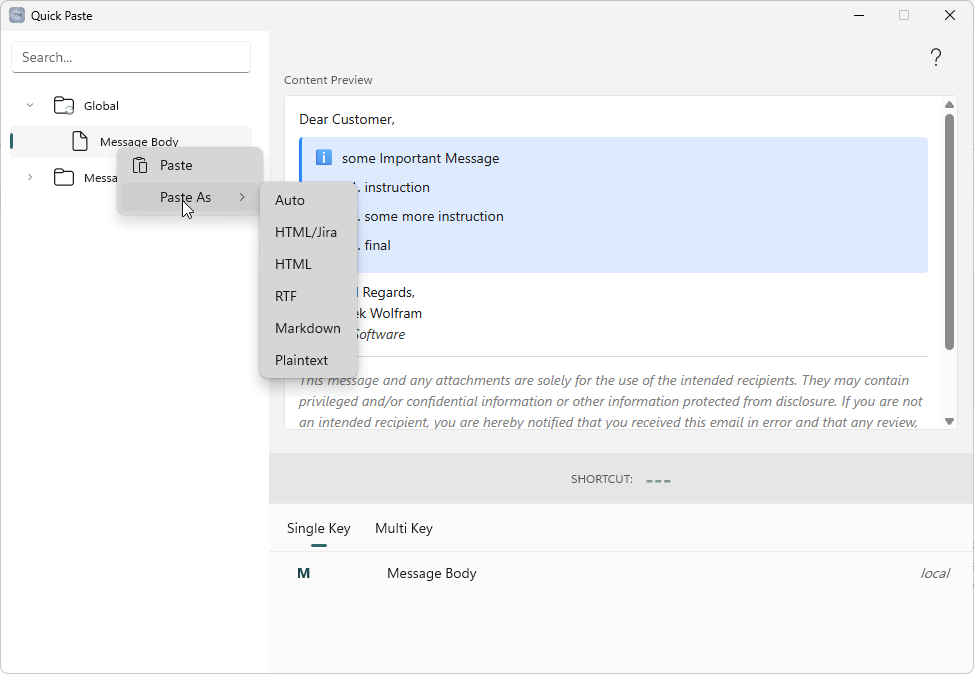
Right-click any template in the Quick Paste window for the full Paste As menu if you want a one-off format override.
Paste Modes
When you paste, you control the output format: Auto, HTML/Jira, HTML, RTF, Markdown, or Plaintext. This matters more than it sounds. Paste as HTML/Jira into a Jira comment and callout panels rebuild as native Jira panels with correct colors. Paste as Markdown into a GitHub issue and you get proper fencing. Paste as Plaintext when you just need the text stripped of all formatting. Each template has a default mode, and you can override it per-paste.
The Sync Story
This is the feature I was most stubborn about getting right. TTM reads .ttmdata files — you keep your local library, and you can additionally mount shared files from a cloud folder (OneDrive, Dropbox, whatever you’re already using) or a network drive. Each sync source shows up as a pinned folder at the top of your tree.
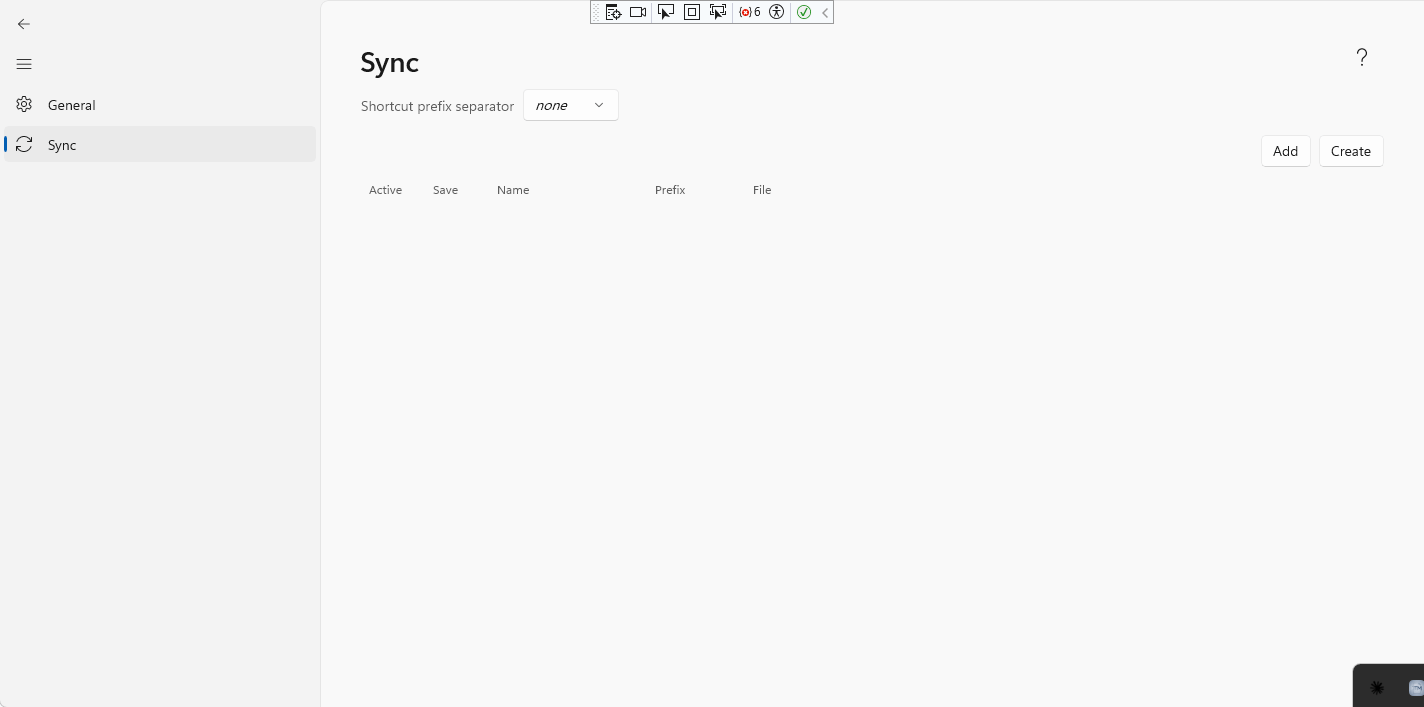
You can mark a source as read-only so you can’t accidentally overwrite shared templates, assign it a shortcut prefix to prevent key collisions, and let the app resolve conflicts by priority (local first, then sync folders in order). The same single-key shortcut can exist in multiple folders; TTM picks the right one based on priority. Multi-key shortcuts are namespaced by their folder prefix, so there’s no collision even without prioritization.
Double-clicking a .ttmdata file in Explorer adds it as a source. No server, no account, no configuration beyond pointing at a shared folder or drive.
TTM Connect – Templates in the Browser
The desktop app handles native Windows applications well. The browser is a different story — and that’s where TTM Connect comes in. It’s a companion browser extension that connects to TTM via a small local API (loopback only, token-authenticated) and mirrors your entire template tree in the browser’s right-click context menu.
Right-click inside any editable field — a Jira comment, a web form, a ticketing system, an email reply in the browser — and your folder structure is right there. Click a template and it’s inserted at the cursor with formatting intact. The menu picks up new and renamed templates automatically as you work.
The extension currently carries a “beta” label, but a stable release is already in the pipeline. It’s available now on Chrome, with Edge and Firefox listings in progress.
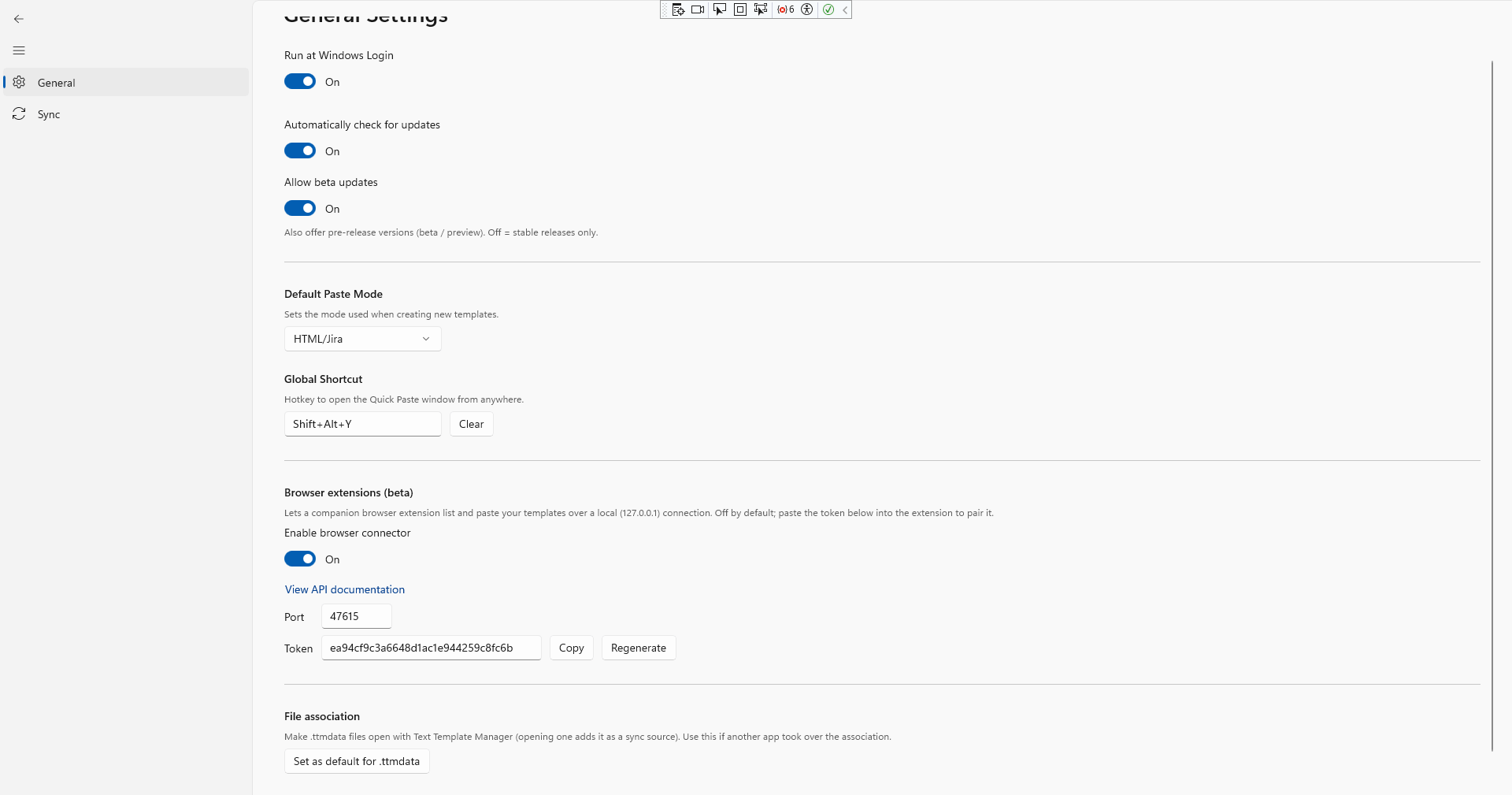
Setup is three steps: enable the connector under Settings ▸ General ▸ Browser extensions, copy the port and token shown there into the extension’s options page, hit Test connection, Save — done.
Privacy
Neither TextTemplateManager nor TTM Connect collect, transmit, or share any data. Your templates stay in a local file on your machine — or wherever you put the shared .ttmdata file. The browser connector runs on loopback only (127.0.0.1) and never exposes anything outside your own computer. The extension stores its settings locally in the browser’s own storage. There are no accounts, no telemetry, no analytics, and no servers involved at any point.
A Few Other Things Worth Knowing
TTM installs per-user with no administrator rights required and is fully self-contained — the .NET 8 runtime ships inside the installer, nothing to pre-install. It checks for updates against GitHub Releases and can update itself silently in the background (opt-out in settings, or lock it down via a registry policy for managed environments). There’s a built-in PDF manual under Help, an export/backup function for your template tree, and a configurable startup-with-Windows option.
RDP note: global hotkeys always fire on the local machine, not the remote session. If you run TTM on both ends, give each a different Quick Paste hotkey in Settings ▸ General.
Where to Get It
- TextTemplateManager (Windows desktop app): GitHub Releases — download
TextTemplateManager-Setup-<version>.exeand run it. - TTM Connect (browser extension):
- Chrome Web Store
- Microsoft Edge Store – Coming soon, listings are in progress
- Mozilla Firefox Add-ons
- Source for both is on my GitHub.
Both are free to use. The license is source-available — personal use, modification, and internal company use are all fine; selling or wrapping them in a service is not.
But, as I am a fan of options and hate to search, here are some Articles about other Template/Text-Expansion tools you might take a look at, in case my Application is not to your liking:
- 3 exceptional text expansion tools for Windows – Computerworld
- 7 Best Free Text Expanders for Windows Automation in 2026
- Best Text Expanders for Windows 2026 – Lightning Assist
Now that this is out the door, regular posts will resume. The Part 2 of the Windows system repair series has been sitting in draft for months, and there are a few PowerShell topics I’ve been wanting to cover. More soon.
Leave a Reply